

Connection Diagnostics
Troubleshoot network connection issues.
- Can’t connect to the server? Start here
- Luwal tests the connection and tells you what’s wrong
- Many problems have a one-click fix
Run Diagnostics
Section titled “Run Diagnostics”On the login screen, click the Luwal Server button at the bottom left.
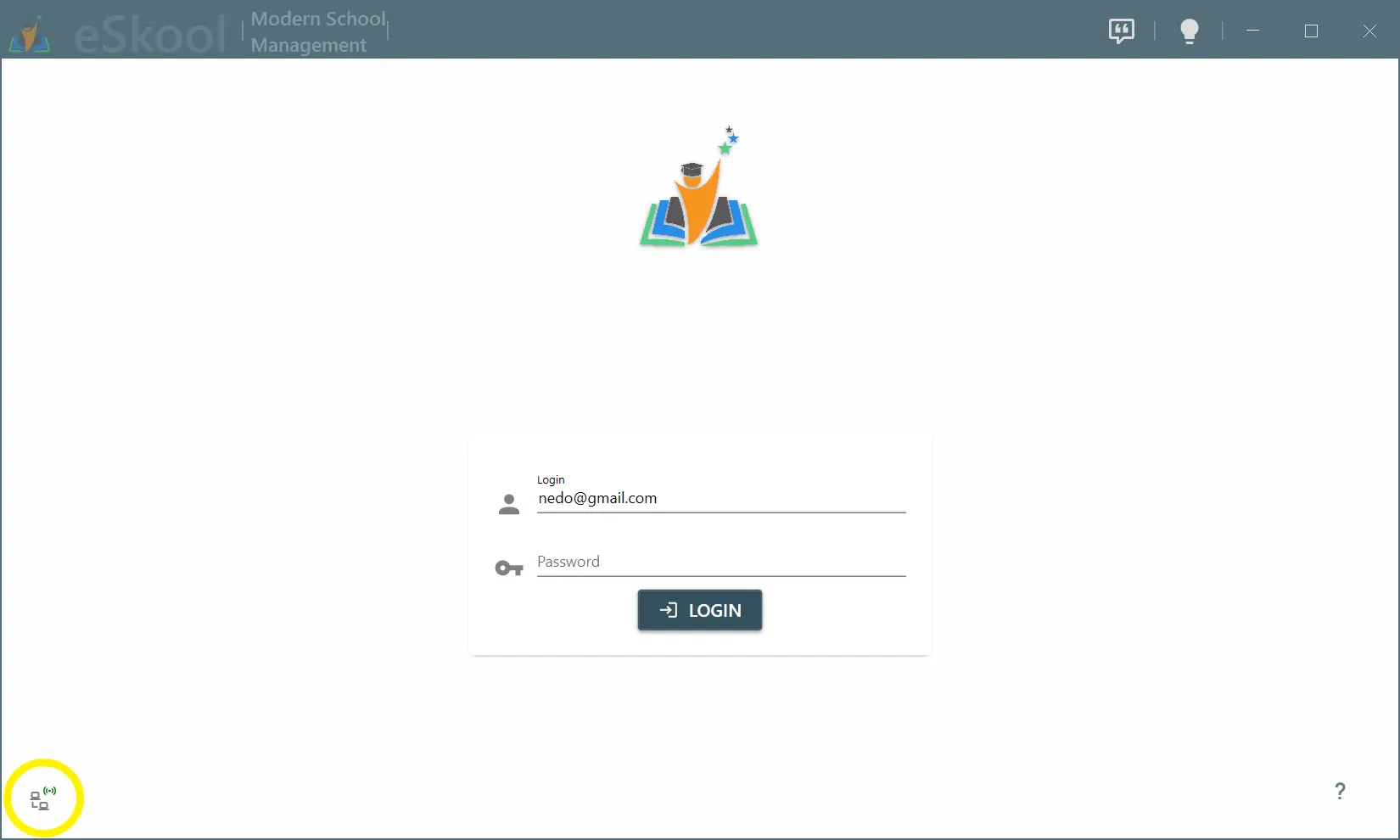
The Network Connectivity Diagnostics window opens and runs its checks on the server selected in Servers. Each check turns green when it passes and red when it fails.
- On the server (This Machine selected), it checks Disk Space, Firewall Rule, Server Binding, Namespace Reservation, and Port Mapping.
- On a workstation (another server selected), it checks Disk Space, Server Connectivity, DNS Resolution, Network Location, Proxy Settings, and Outbound Firewall.
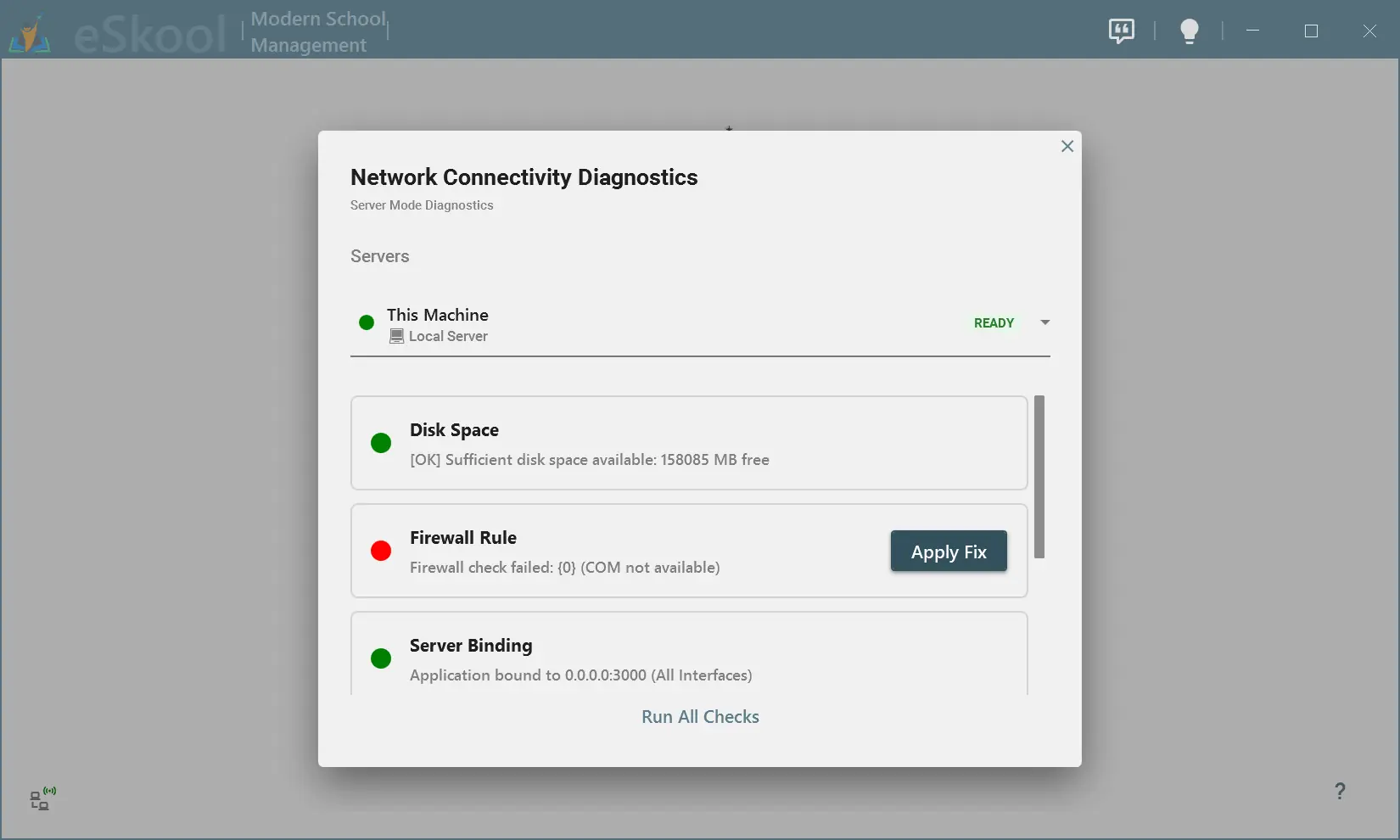
To fix a failed check, click Apply Fix next to it and accept the Windows administrator prompt. Click Run All Checks to test again.
Network Requirements
Section titled “Network Requirements”For the server and workstations to connect:
- All computers must be on the same local network
- Workstations must reach the server’s HTTP port: 80 if Luwal was installed with Setup.exe, 3000 if it came from the Microsoft Store
- The server’s firewall and your router must not block that port
- Workstations find the server through UDP multicast (group 239.255.42.99, port 42000), so the network must allow multicast traffic
Common Issues
Section titled “Common Issues”Server Not Found
Section titled “Server Not Found”- Check both computers are on the same network.
- Make sure Luwal is running on the server.
- On the server, run the diagnostics and apply the fix for any failed Firewall Rule check.
Connection Timeout
Section titled “Connection Timeout”- Check your network cable or Wi-Fi.
- Run the diagnostics on the workstation and check Server Connectivity.
- Check your router settings for port blocking.