

Class Discussion
One conversation per class, for questions that are worth everyone hearing the answer to.
- Students ask without waiting for the next lesson
- Teachers post a notice once instead of telling thirty people
- Everyone in the class sees it, and messages arrive live
How to Use It
Section titled “How to Use It”- Click Learning in the menu, then click your class.
- Open the Discussion tab.
- Type in the Add a comment… box at the bottom.
- Press Enter, or click the send button. Press Shift+Enter to start a new line instead.
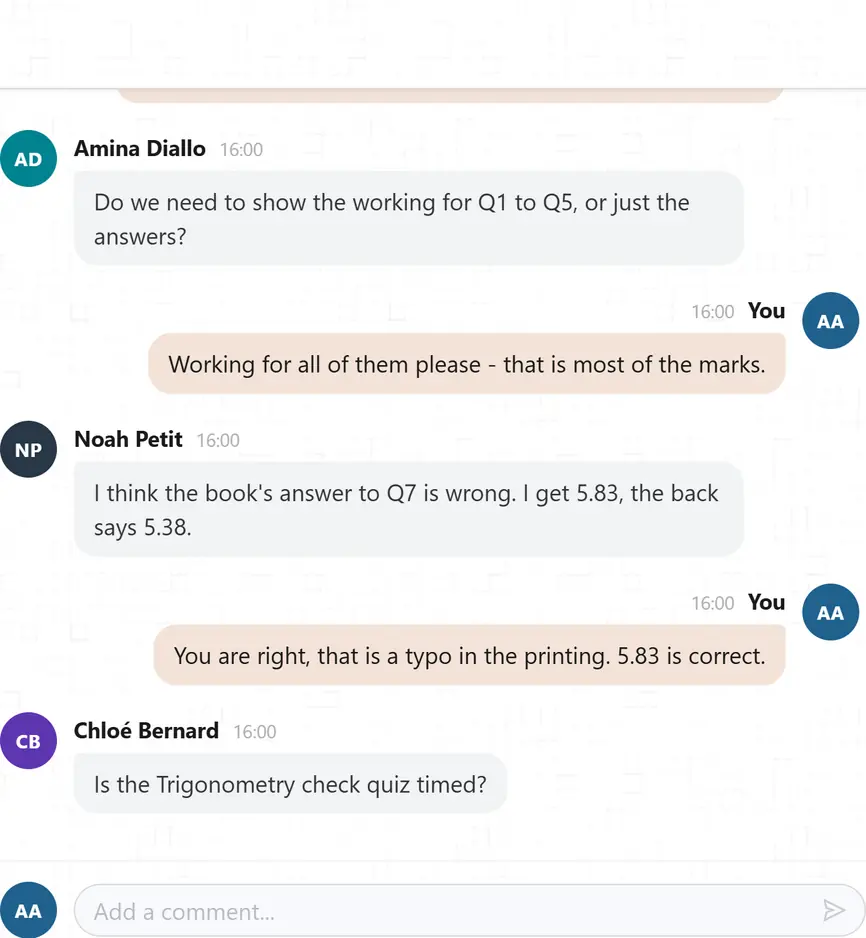
Your own messages sit on the right, everyone else’s on the left. New messages appear without refreshing the page. Scroll up to read older ones — they load as you go.
Who Can See It
Section titled “Who Can See It”Everyone in the class: the students enrolled in it this year, and the staff on its timetable. It is one conversation for the whole class, not one per subject — the same people take every course of the class.
What to Do If…
Section titled “What to Do If…”The thread is empty
Nobody has posted yet. The first message opens the conversation.
You joined the class recently and cannot post
Open the tab again — your place is checked against the current class list each time it loads.
A message shows “Not sent”
It did not go through. Click Not sent · Tap to retry in the message to send it again.
You want to reach one student privately
The class discussion is not the place. Use the Feedback for the student box when you grade their work, or your school’s usual channel.
💡 Answer a question here rather than by email — the next student with the same question finds the answer already written.
💡 Notices about deadlines belong here; the assignment’s own Instructions are for what to do.