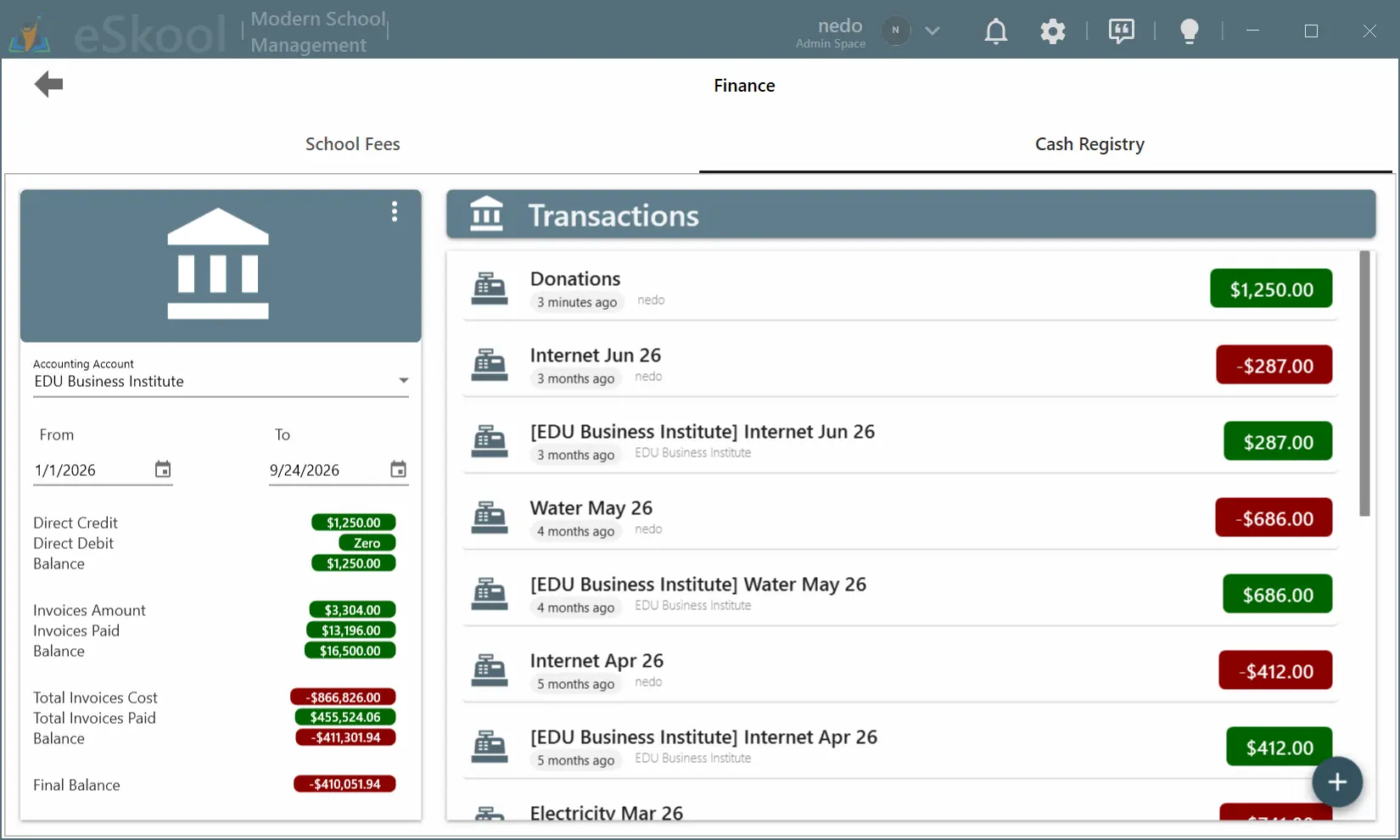
Account Transfers
Luwal keeps a separate ledger account for each person who collects money, so every amount can be traced.
Transfer money from staff accounts to the school’s main account.
- Each staff member who collects money has their own account
- Transfers keep a clear audit trail of who collected what
- The receiving account must approve each transfer
How Account Transfers Work
Section titled “How Account Transfers Work”Staff Accounts: Each cashier or bursar has a personal account where daily collections are logged.
Main School Account: The official school account used for financial reports.
Approval Process: A transfer is completed only once the destination account approves it. If you manage both accounts, it completes immediately. Until then, the payments it includes can’t be deleted.
Transfer Money Between Accounts
Section titled “Transfer Money Between Accounts”1. Open Accounting
Section titled “1. Open Accounting”From the main dashboard, click Accounting.
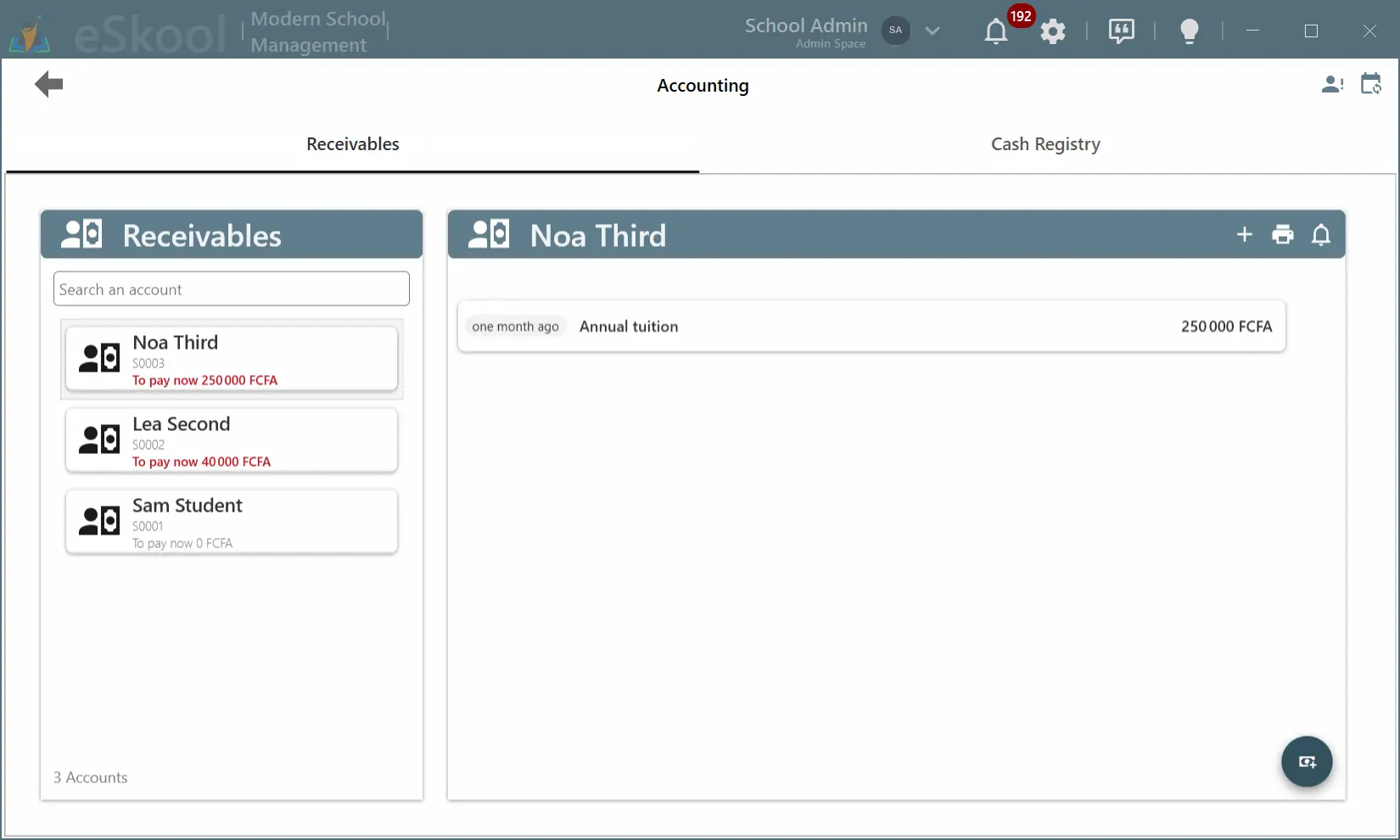
2. Start a Transfer
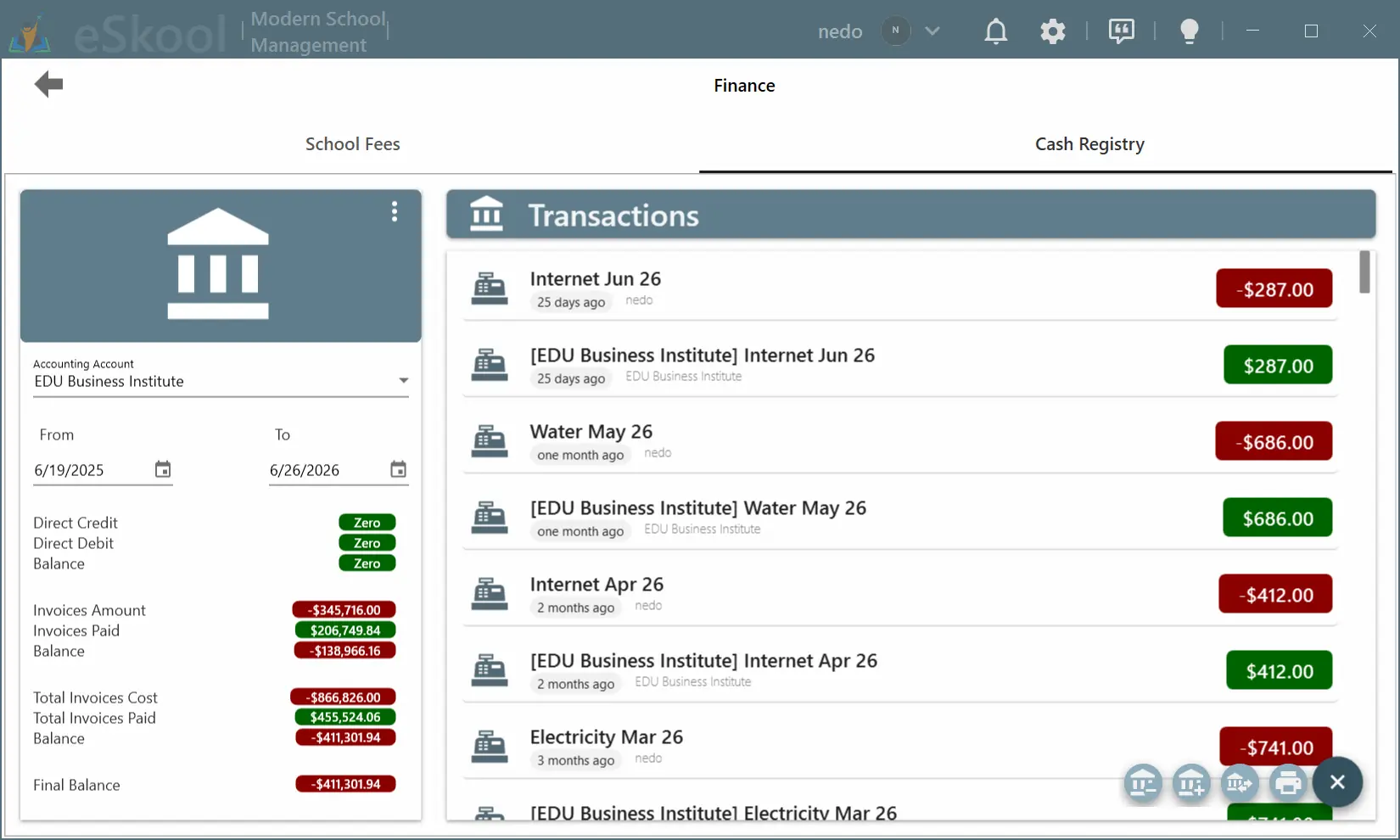
Section titled “2. Start a Transfer”Click the Cash Desk tab. Click the plus icon (+) at the bottom right and select Account Transfer.
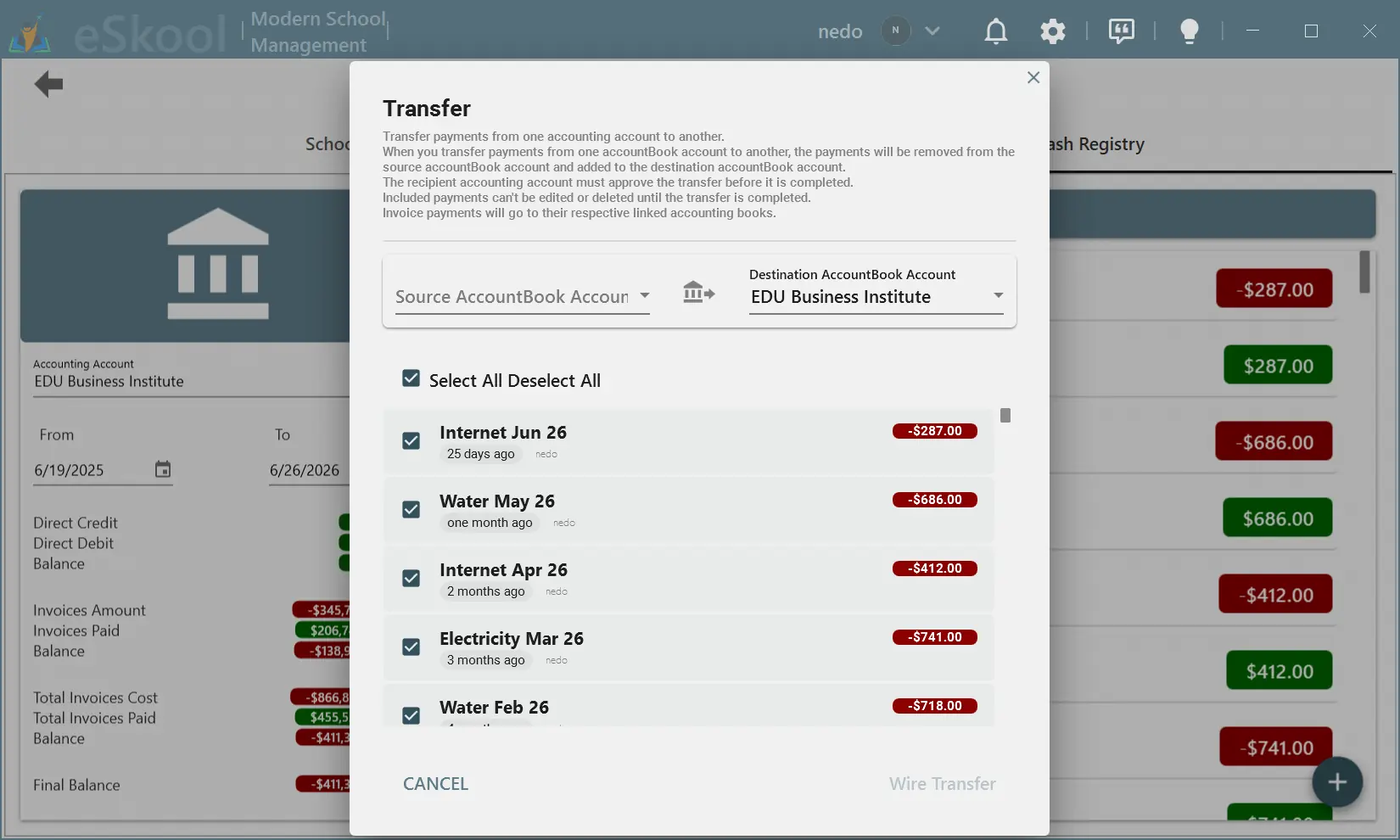
3. Choose Accounts and Transactions
Section titled “3. Choose Accounts and Transactions”- Select the Source Ledger Account (the staff member’s account).
- Select the Destination Ledger Account (the main school account).
- Tick the transactions to include, or use Select All Deselect All. All of them start ticked: payments and income add to the total, expenses take from it. The total is the amount transferred, and must be above zero.
- Click Transfer and confirm.
4. Approve the Transfer
Section titled “4. Approve the Transfer”The transfer is submitted to the destination account for approval.
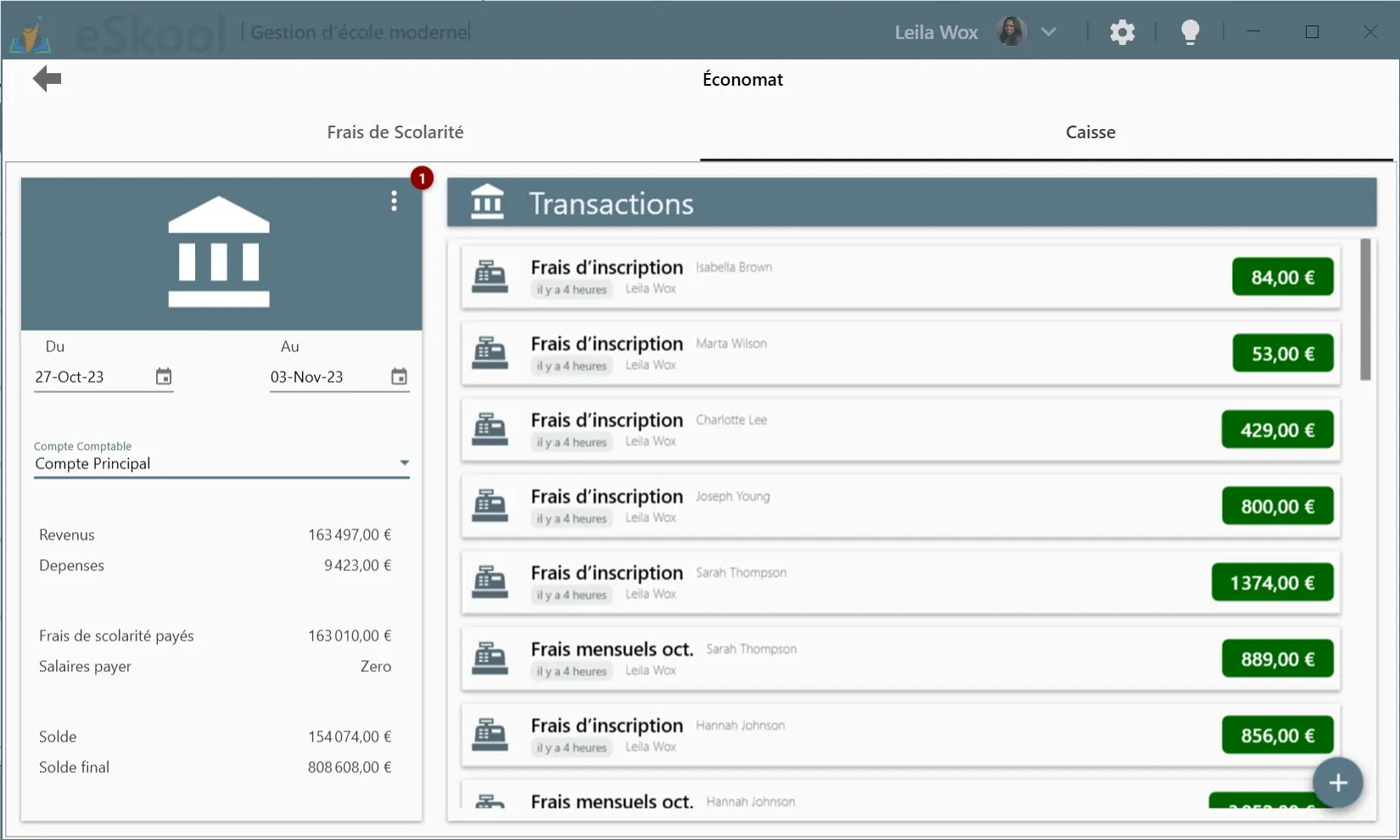
A user who manages the destination account opens Accounting > Cash Desk, clicks the menu icon (⋮) on the account card and selects Transfers History. They review the transfer and click Accept to complete it, or Cancel to reject it.
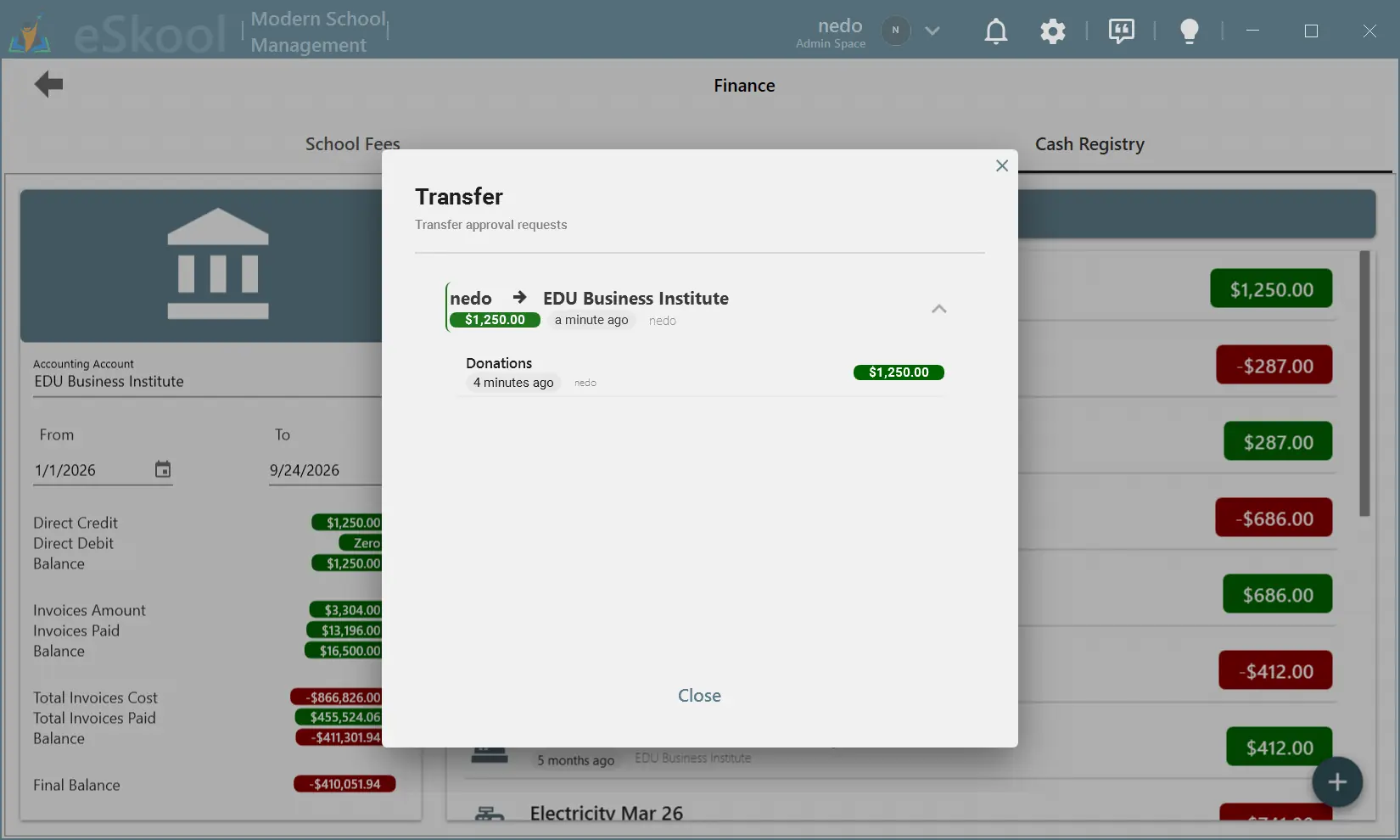
Once accepted, the transactions appear in the main account and are included in financial reports.