

Backup & Restore
Save your data and restore from a backup if needed.
- Regular backups protect against data loss
- Restore a backup to recover from mistakes or problems
- Download a backup file to keep a copy on another drive
Create a Backup
Section titled “Create a Backup”- Click Settings and open the Backups tab.
- Click the Create a new backup button (at the top right of the list) and confirm.
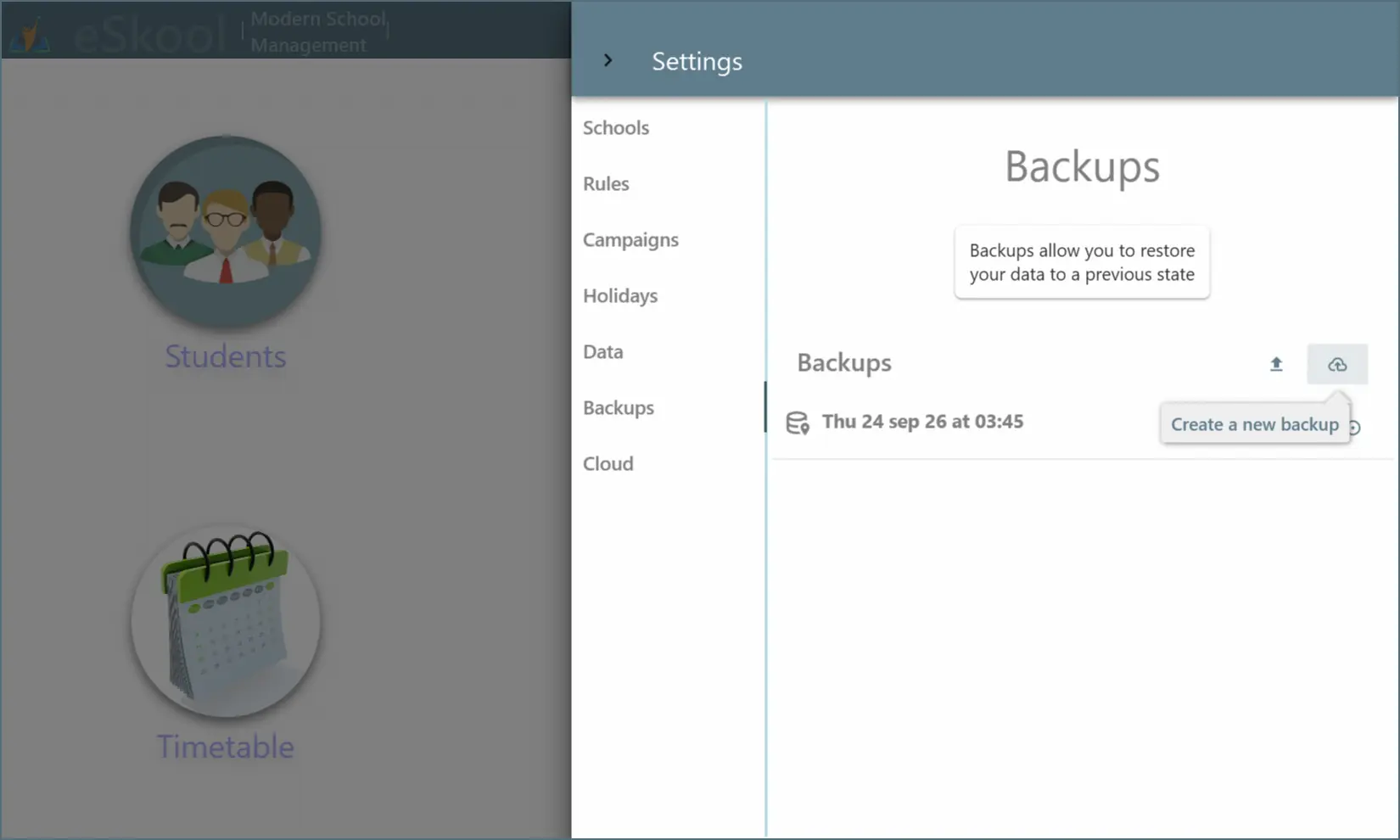
The backup is added to your backup list.
Restore a Backup
Section titled “Restore a Backup”Warning: Restoring deletes all your current data and replaces it with the backup. This cannot be undone.
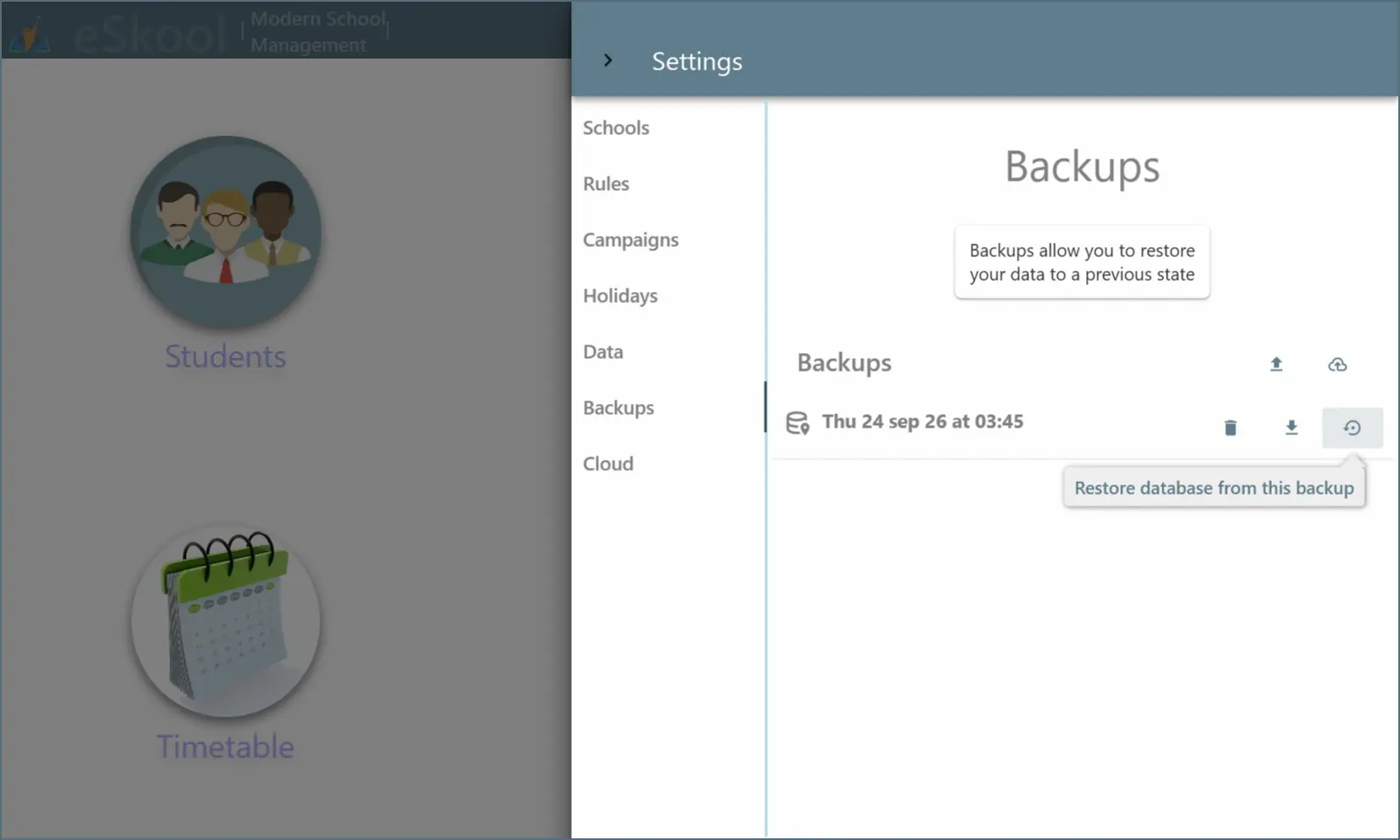
- Click Settings and open the Backups tab.
- Find the backup you want to restore.
- On its row, click Restore database from this backup and confirm.
Delete a Backup
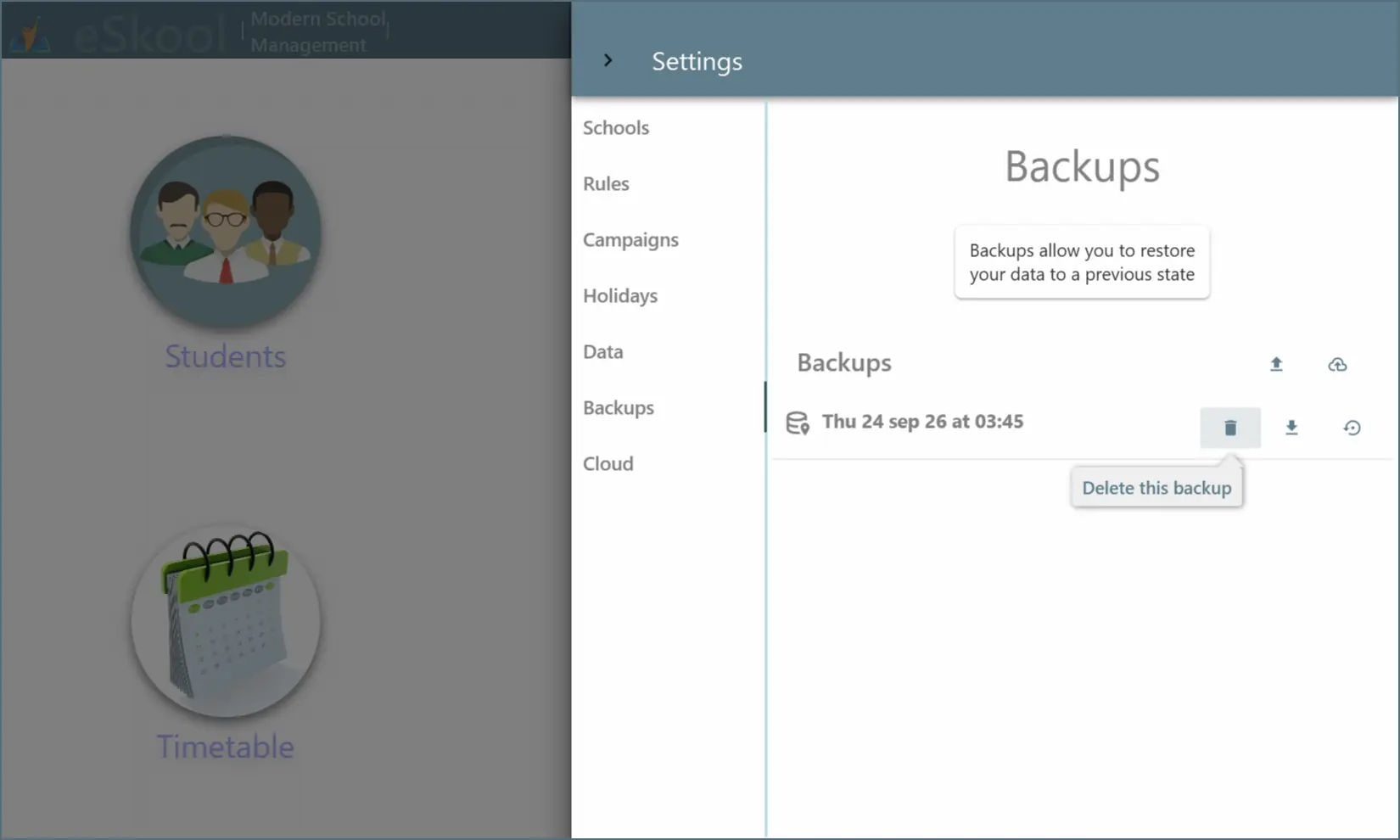
Section titled “Delete a Backup”- Click Settings and open the Backups tab.
- Find the backup to delete.
- On its row, click Delete this backup and confirm.
Download a Backup File
Section titled “Download a Backup File”Keep a copy outside Luwal, for example on a USB drive.
- Click Settings and open the Backups tab.
- On the backup’s row, click Download.
- Choose a folder. Luwal saves the file there and opens the folder.
Restore From a Backup File
Section titled “Restore From a Backup File”Warning: This also deletes all your current data and replaces it with the backup.
- Click Settings and open the Backups tab.
- Click Select a backup file (at the top right of the list).
- Choose a Luwal backup file and confirm.
Tip: Buttons show only icons. Hover over a button to see its name. The Backups tab is not shown when you are connected to Luwal Cloud.