

Auto-Generate Timetable
Let Luwal build a complete, conflict-free schedule in minutes.
- What used to take days now takes minutes
- No manual coordination — Luwal handles availability automatically
- Classes are distributed evenly so no teacher or room is overloaded
Before You Start
Section titled “Before You Start”Make sure the following are configured:
- Subjects
- Teachers assigned to their subjects
- Classrooms
- Holidays for the school year
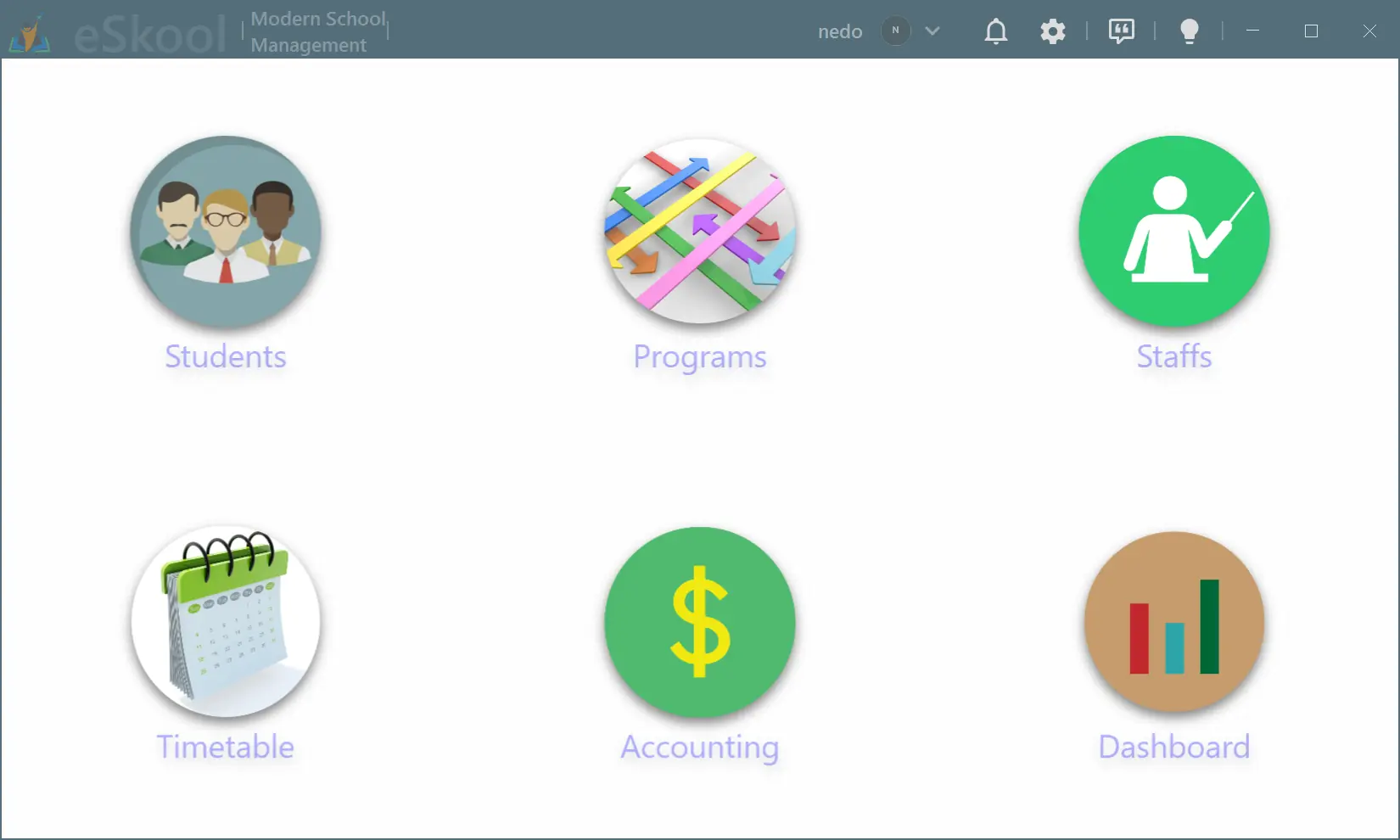
1. Open Timetable
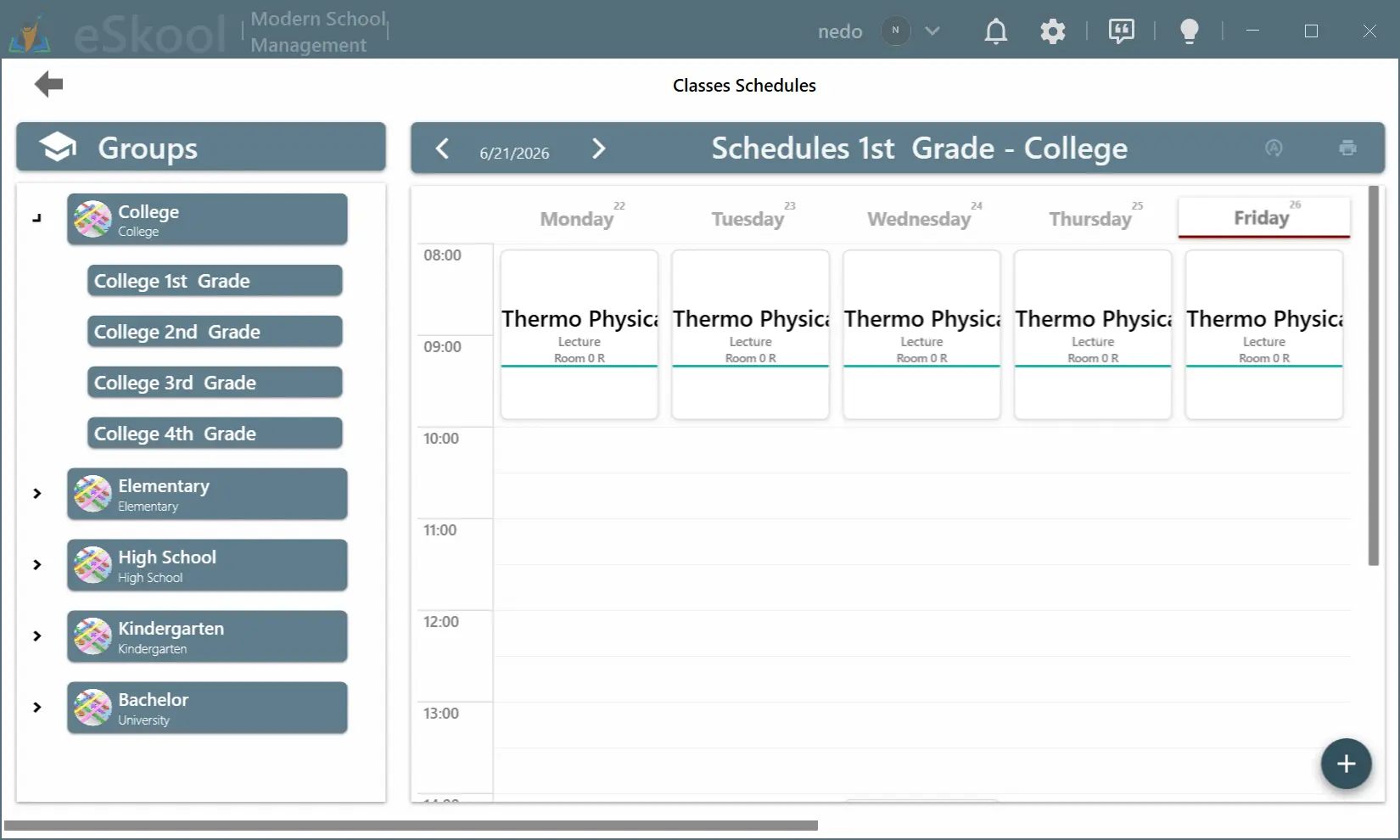
Section titled “1. Open Timetable”From the main dashboard, click Timetable. In Groups, select the class. At the top of its timetable, click the auto-generate icon (Auto generate schedule planning). The Schedule Generation window opens.
2. Set Class Loads
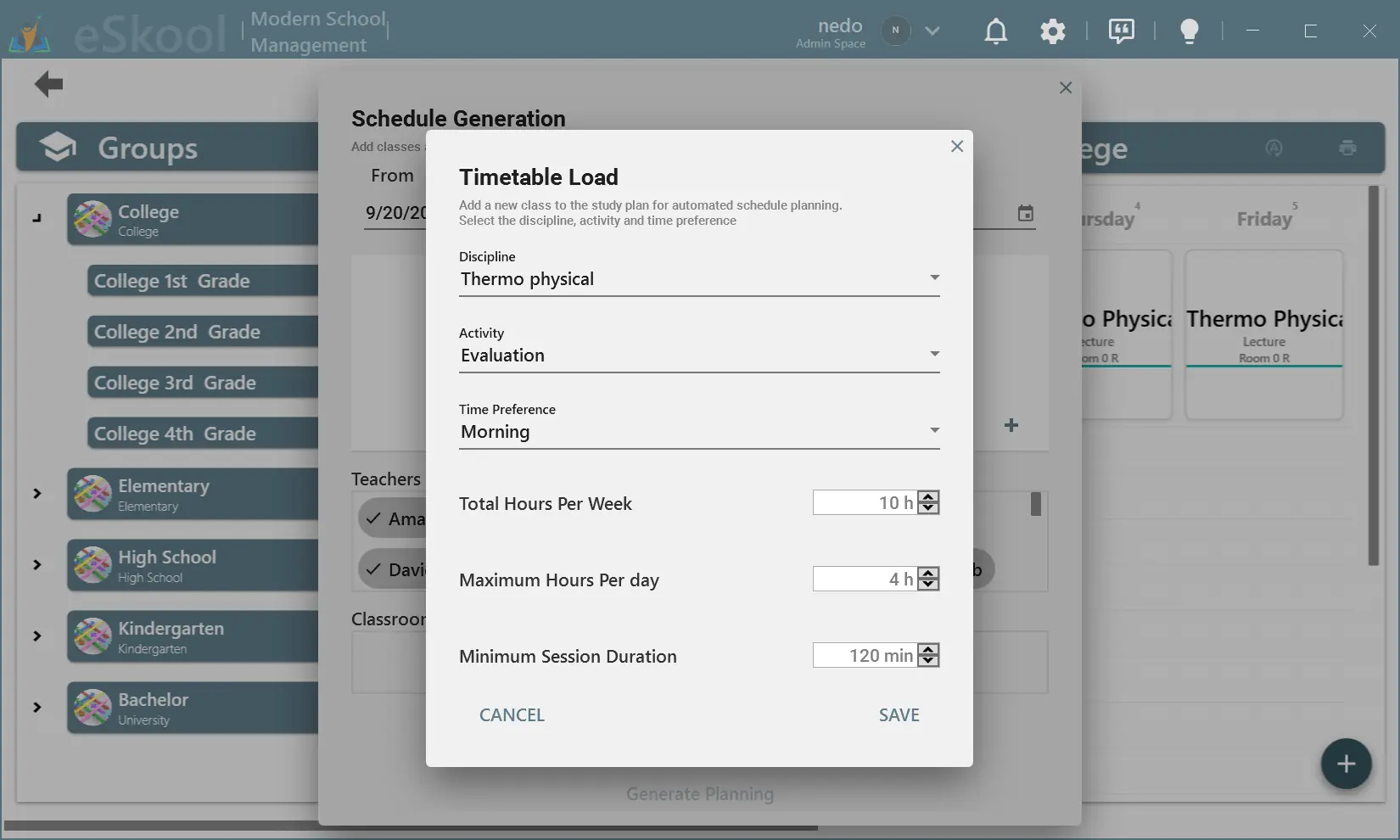
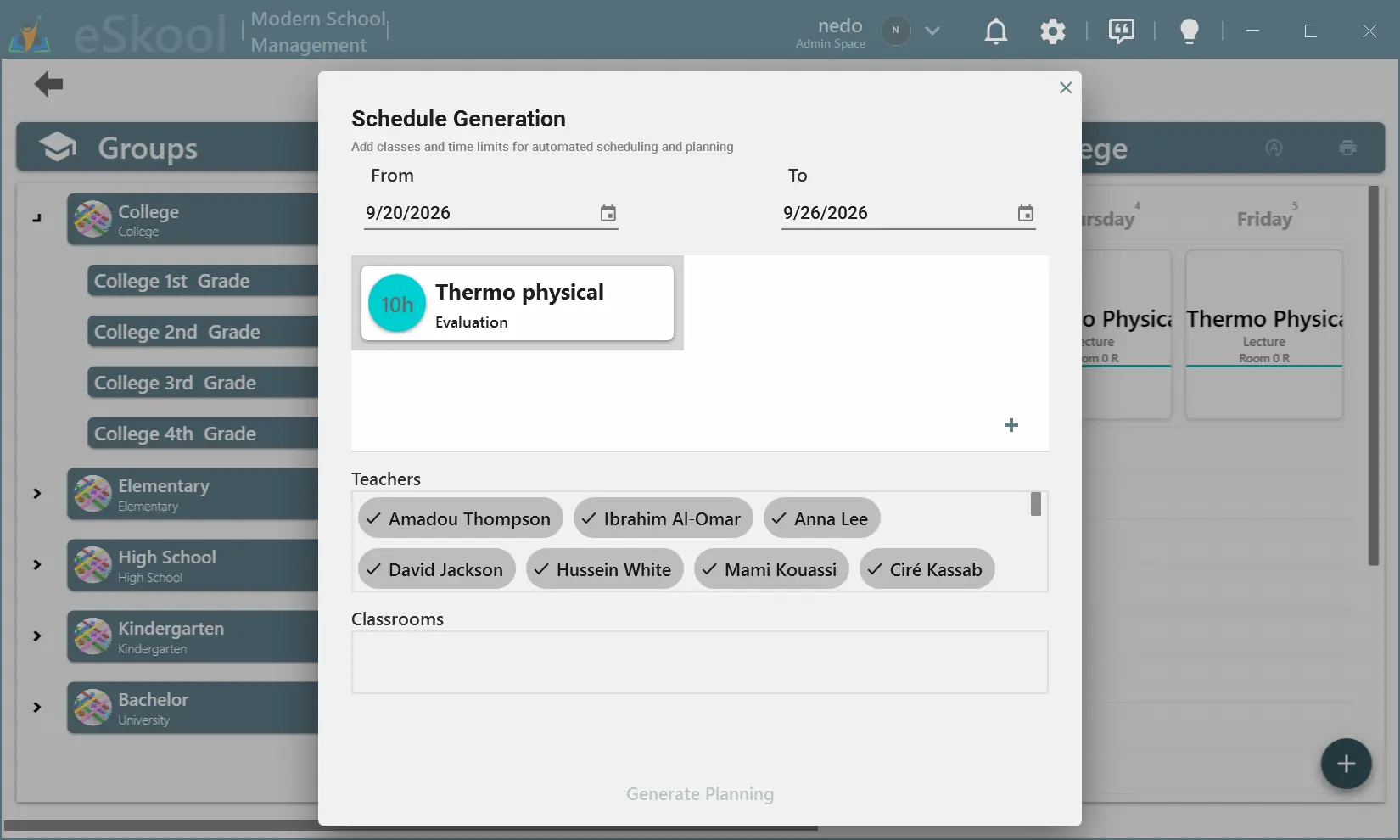
Section titled “2. Set Class Loads”Set the period with From and To. Then click the plus icon (+) to open Timetable Load, and fill in:
- Discipline and Activity
- Time Preference – When the sessions should take place (e.g. morning)
- Total Hours Per Week, Maximum Hours Per day and Minimum Session Duration
Click Save. Repeat for each subject. Double-click a load to change it.
3. Configure the Generator
Section titled “3. Configure the Generator”Under Teachers and Classrooms, select the teachers and rooms to include in the schedule.
4. Generate the Schedule
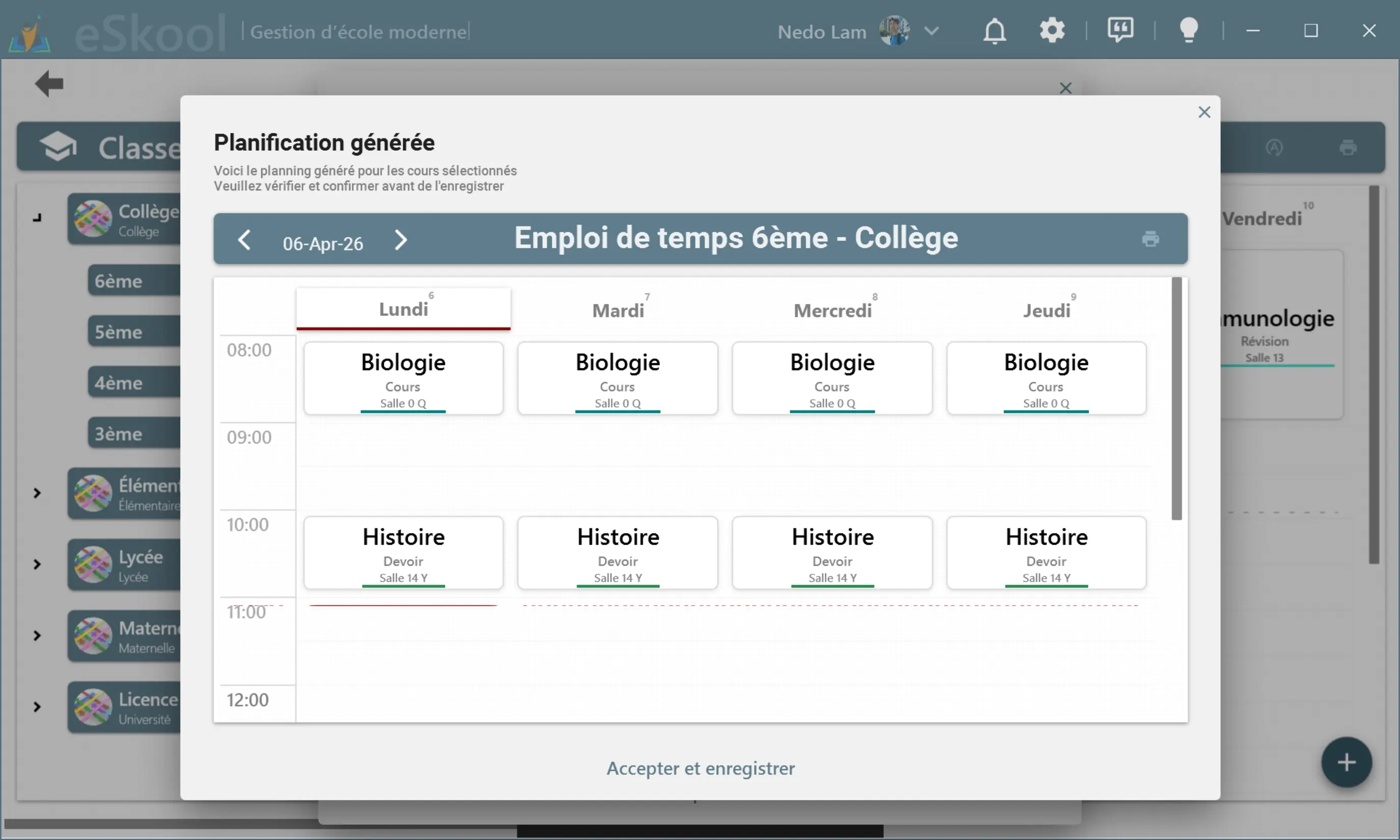
Section titled “4. Generate the Schedule”Click Generate Planning. Luwal shows the result in Generated Schedule.
5. Review and Save
Section titled “5. Review and Save”Review the generated timetable, then click Accept & Save. The sessions are added to the class timetable.
Video tutorial
Section titled “Video tutorial”Watch a short walkthrough on YouTube: Auto-Generate a Timetable