

Rooms
Add classrooms and spaces to use in the timetable.
- Tell Luwal what rooms you have so it can schedule them
- Prevents double-booking the same room
- Include labs, gyms, computer rooms—anything you use
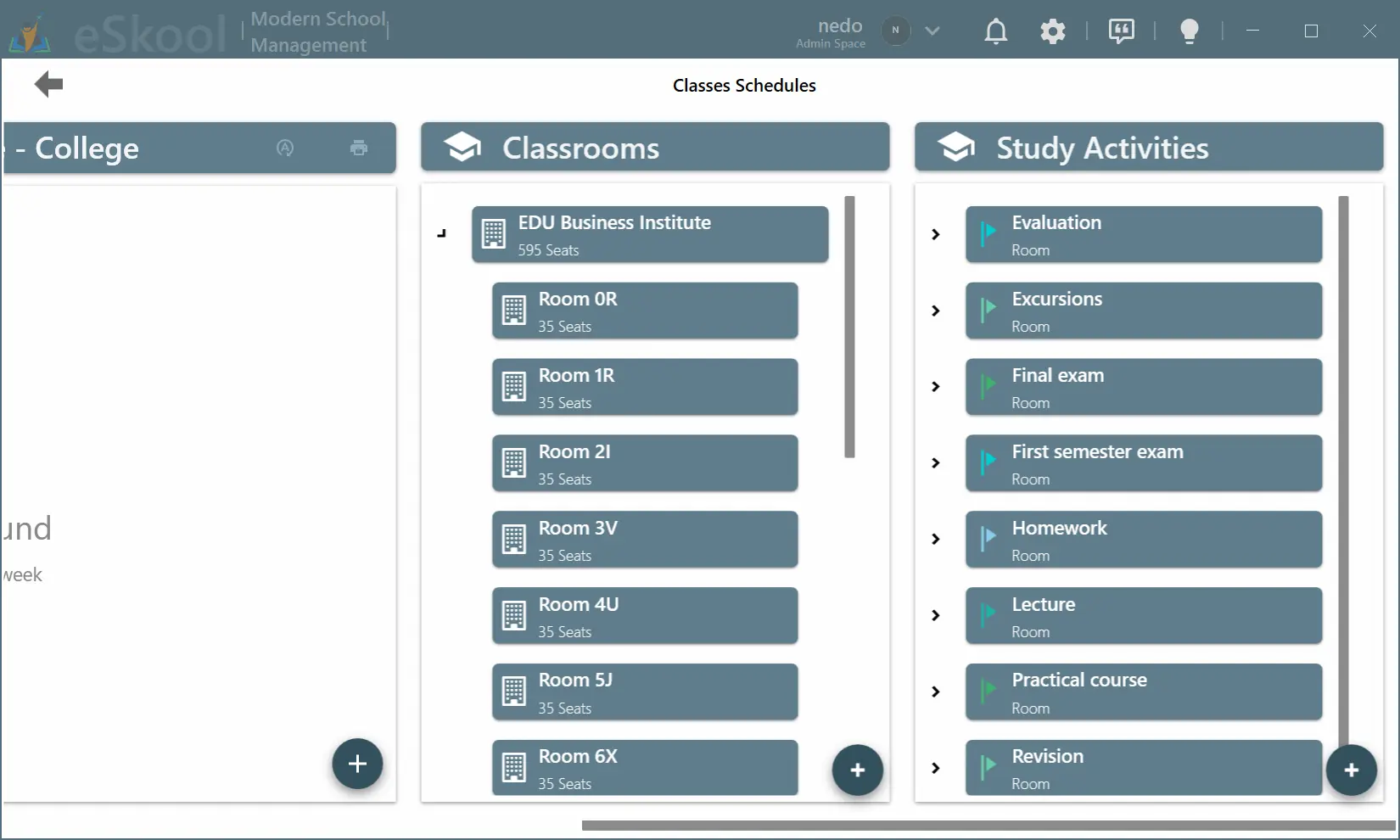
1. Open Classrooms
Section titled “1. Open Classrooms”From the home screen, click Plan and Activities. Rooms are listed by building in the Classrooms panel.
2. Add a Room
Section titled “2. Add a Room”Click the + button at the bottom right of the Classrooms panel.
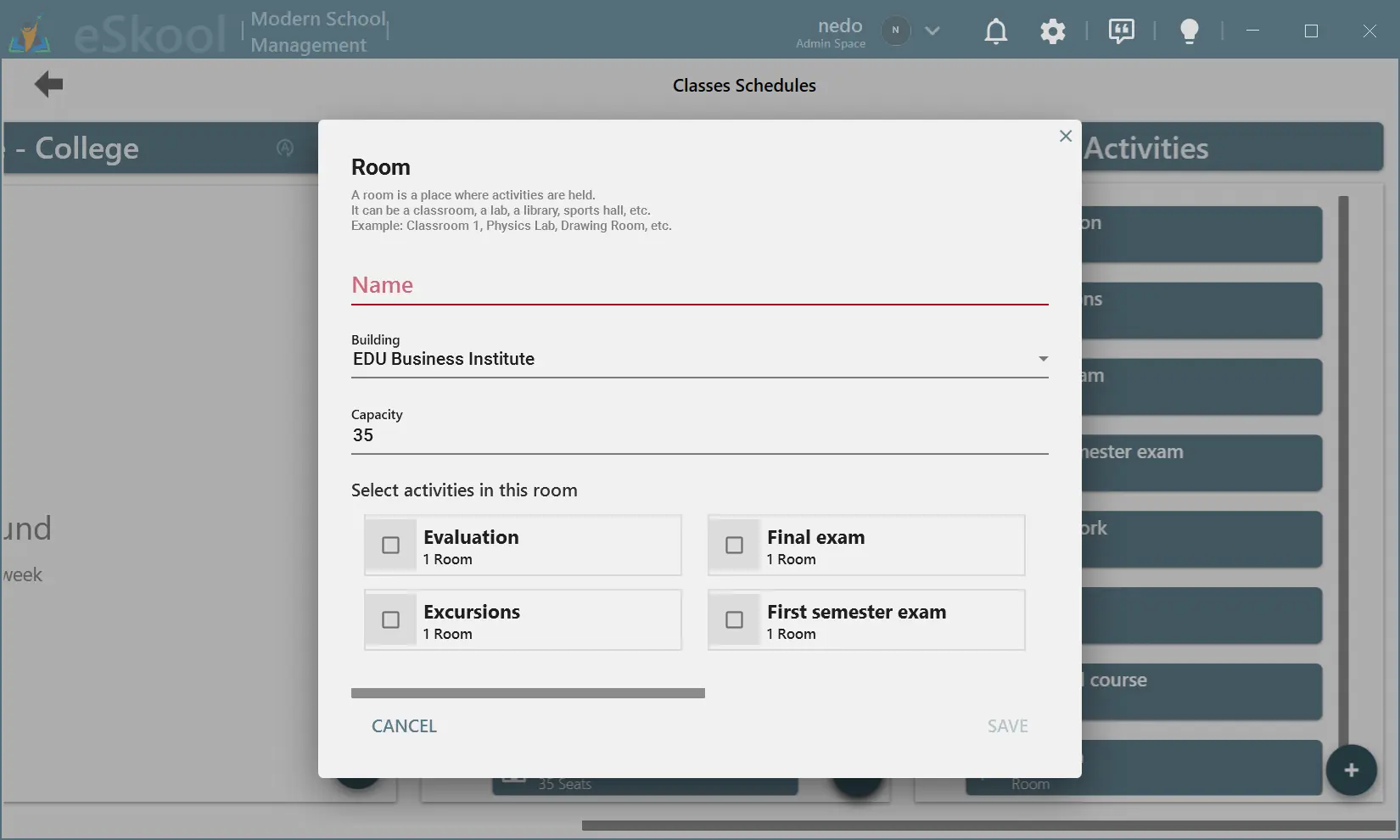
3. Enter Details
Section titled “3. Enter Details”Enter the room Name (at least 2 characters), its Building and its Capacity. Under Select activities in this room, tick the activities the room can host; leave them all unticked to allow any activity. Click Save.
The room is now available when scheduling classes. To change or remove it, right-click it and select Edit or Delete.