

Create a Class
Add a class (e.g., “Grade 10A” or “Year 5”) to a branch.
- You need classes before you can enroll students
- Once created, you can schedule lessons and add students
- This is where your academic structure takes shape
1. Open Branches
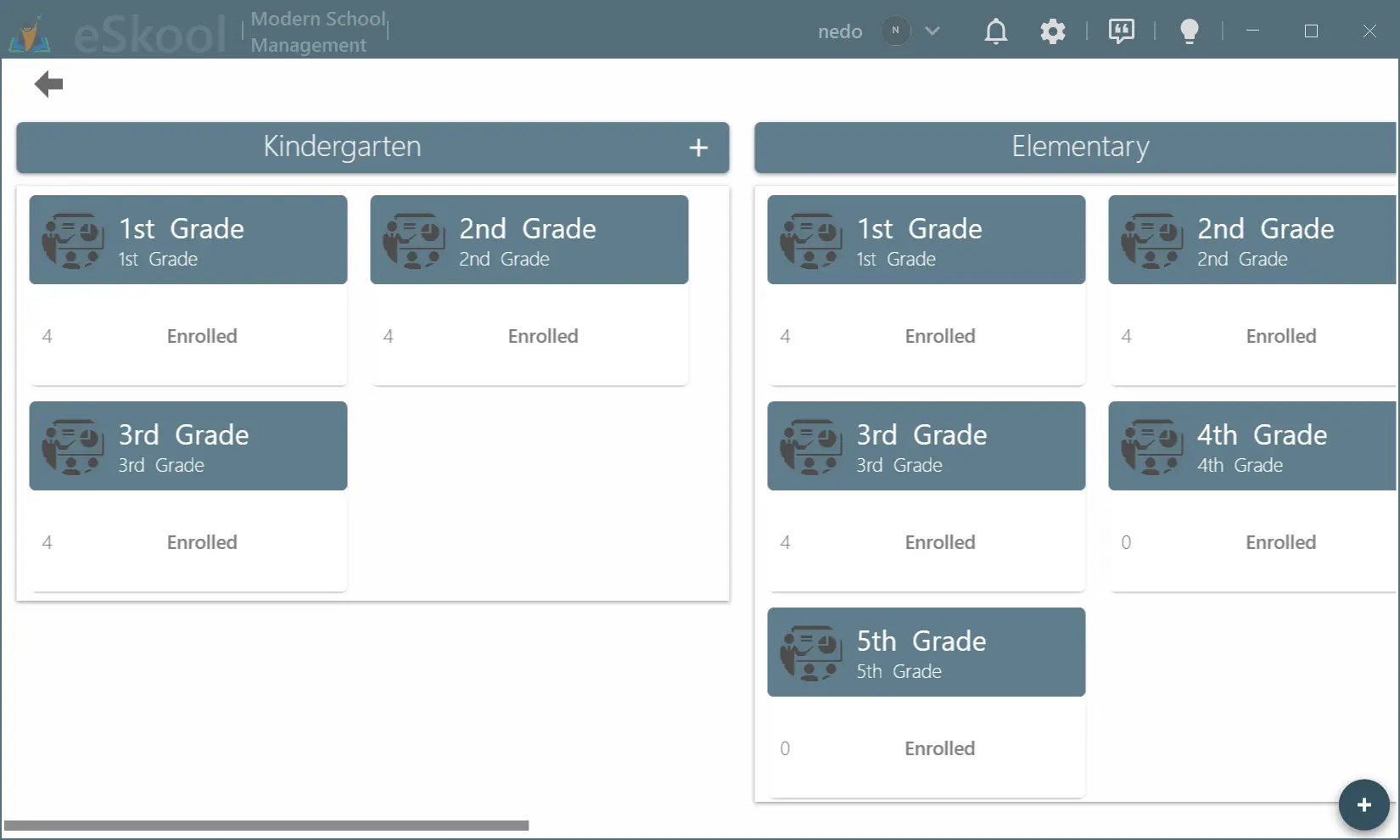
Section titled “1. Open Branches”From the home screen, click Programs. The BRANCHES page shows each branch with its classes.
2. Add the Class
Section titled “2. Add the Class”Click the + button in the header of the branch that will hold the class. No branch yet? Create one first.
3. Enter Details
Section titled “3. Enter Details”Enter the class name (at least 2 characters), then fill in Code, Level, Section and Capacity as needed. Click Save.
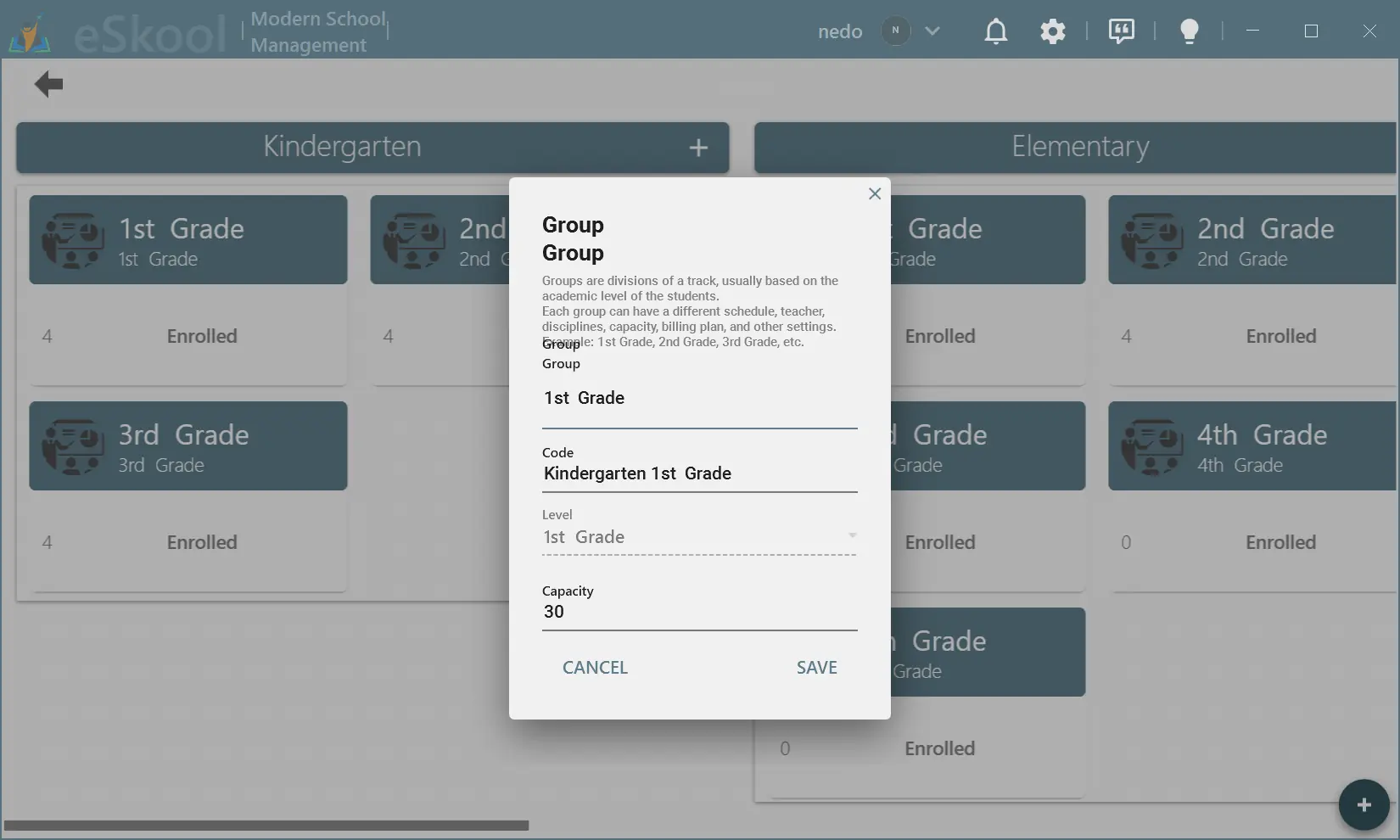
The class now appears under its branch. Double-click it to enroll students, add subjects and set up billing.
Tip: If the branch uses the LMD study system, the form asks for a Module instead, with Requirement, Previous Module and Credit.