

Reset Password
Recover from a forgotten administrator password.
- Forgot your password and can’t sign in? This is your last resort
- ⚠️ Warning: You have to delete everything and start fresh
- Read the whole page before you start
⚠️ Warning: This permanently deletes all your Luwal data, including the backups stored on this computer.
How to Reset
Section titled “How to Reset”-
Close Luwal completely.
-
Find the data folder: Open File Explorer and paste this into the address bar:
%LOCALAPPDATA%\Packages\eSkoolEducationTech.eSkoolEU_75fjjy8fce41g\LocalCache\Local\.data(if Luwal was installed outside the Microsoft Store, use%LOCALAPPDATA%\.datainstead). You may need to show hidden files.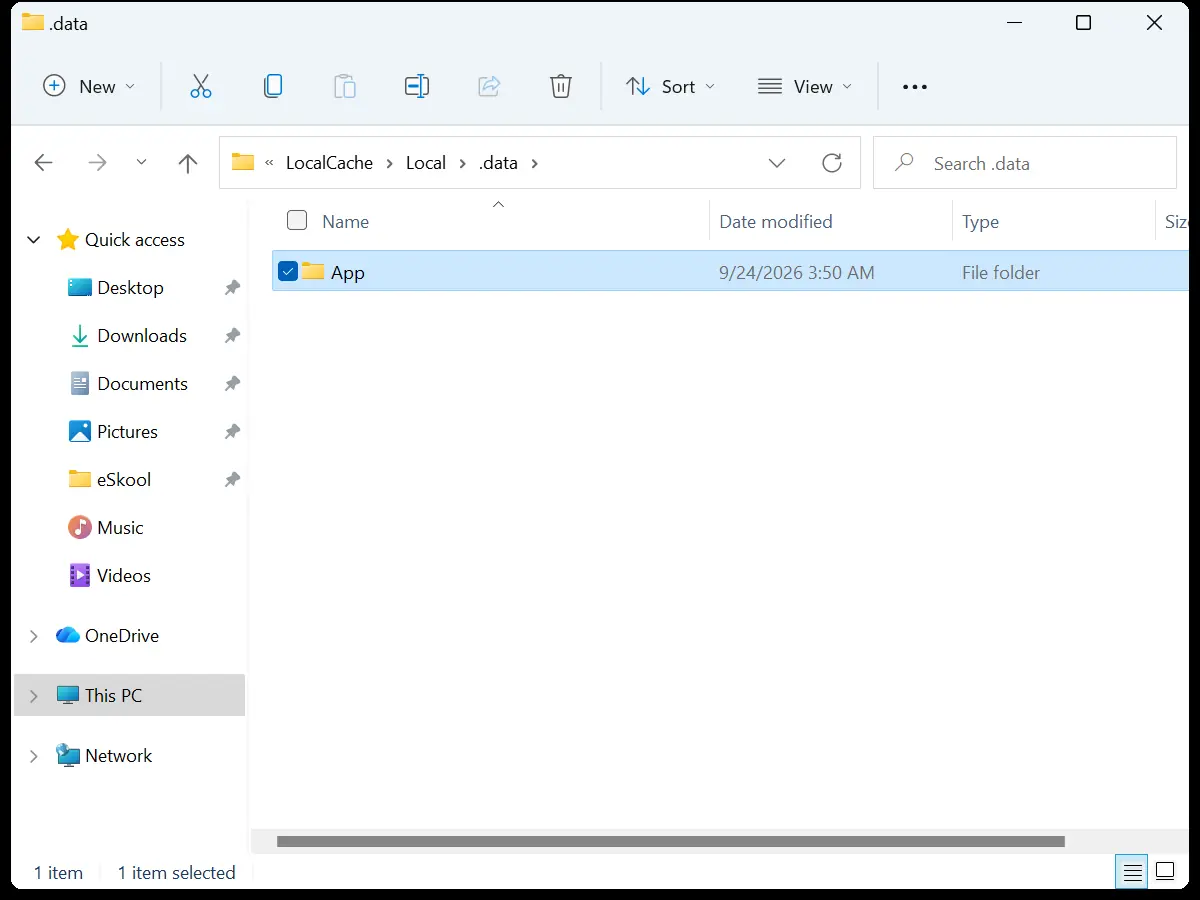
-
Delete the
Appfolder. This permanently removes your database, its backups, and all your data. -
Restart Luwal. It starts like a new install. Create a new administrator account.
Restoring a backup file later? A backup brings back all the accounts it contains, with the passwords they had when the backup was made. See Backup & Restore.