

Invite a Student
Register a student in your school’s online portal so they can log in to their personal space and follow their progress — grades, attendance, timetable, and more.
- Each student uses their own login — never share one account
- Students can access their space as soon as they set their password
How to Invite a Student (For Administrators)
Section titled “How to Invite a Student (For Administrators)”-
Open Students Log in to the online portal at luwal.fr and, in the menu, click Academic, then Students.
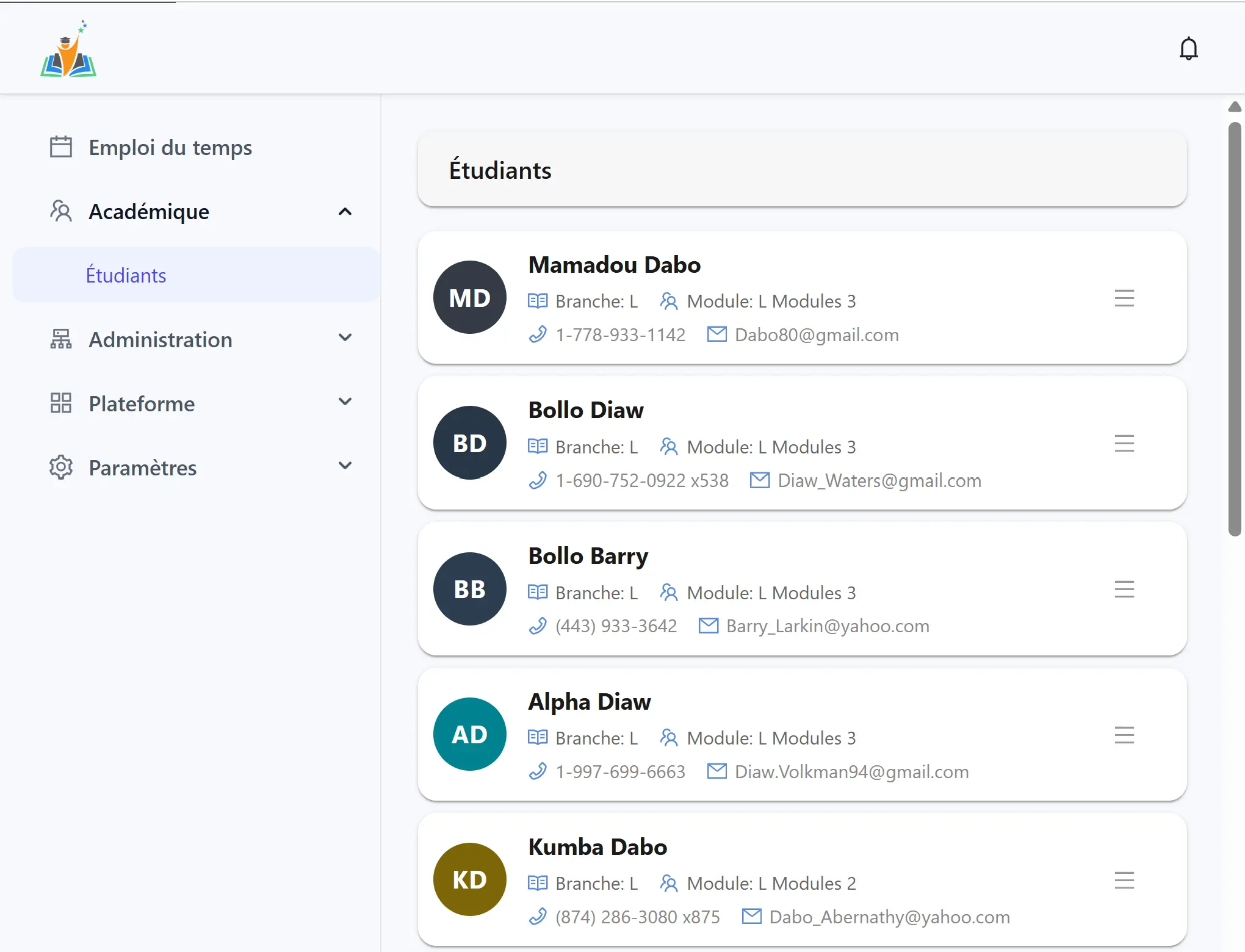
-
Add a Student Click the Add Student button (the + button in the bottom-right corner) to open the Register a new student form.
-
Fill In Their Details Enter their First Name, Last Name, Gender, and Date of Birth. All four are required.
-
Enter Their Email Enter the Email they will use to log in. The invitation is sent to this address, so make sure it is correct — this is what makes the invitation work.
-
Save Click Save. If email is set up for your school, Luwal sends them an invitation by email.
What the Invited Student Does
Section titled “What the Invited Student Does”What they receive depends on whether they already have a Luwal account:
- New to Luwal – The email invites them to join your school and asks them to set a password. They click the button, choose a password, and their account is created.
- Already has a Luwal account – The email asks them to accept the invitation. They click the button, see your school’s name with the message “You have been invited to join this organization,” and choose Accept or Decline.
Once they set their password or accept, they can log in and access their student space. If they Decline, they are not added.
Good to Know
Section titled “Good to Know”- Links expire after 7 days. If a student’s invitation link has expired, they’ll see a message asking them to contact the administrator.
- Removing access. To stop a student from accessing their space, delete their student record from the Students list.