

Set an Assignment
Post work for the class with instructions and a deadline. Students hand it in online, and you mark it in the same place.
- The whole class sees it the moment it opens
- Students attach files, so nothing arrives by email
- The grade goes into the gradebook when you publish it
What You’ll Need
Section titled “What You’ll Need”- A class you teach
- The activity it counts as (Homework, Evaluation, and so on) — these come from your school’s activity list
How to Set One
Section titled “How to Set One”- Click Learning in the menu, then click your class.
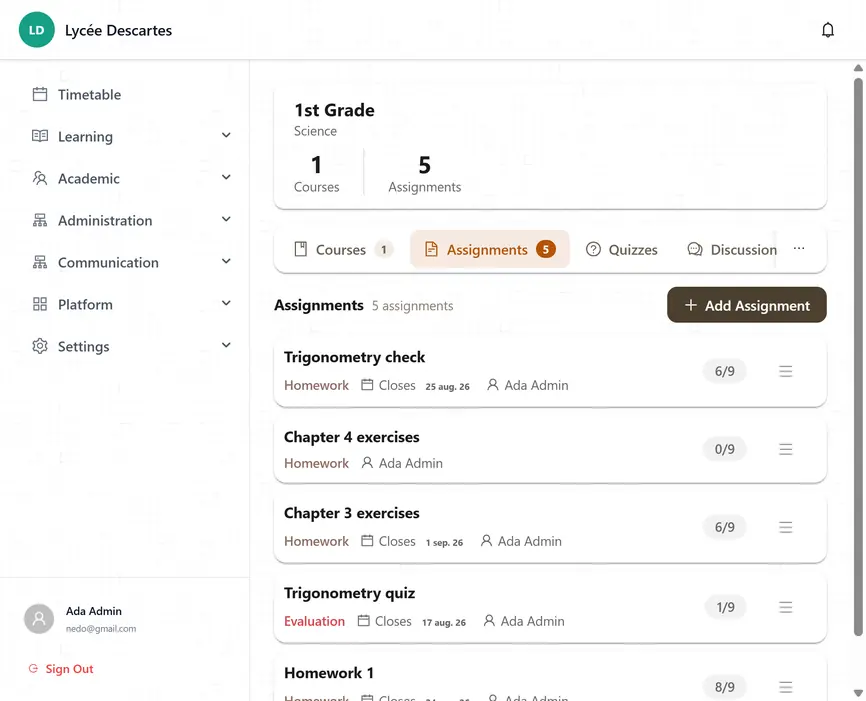
- Open the Assignments tab.
- Click Add Assignment.
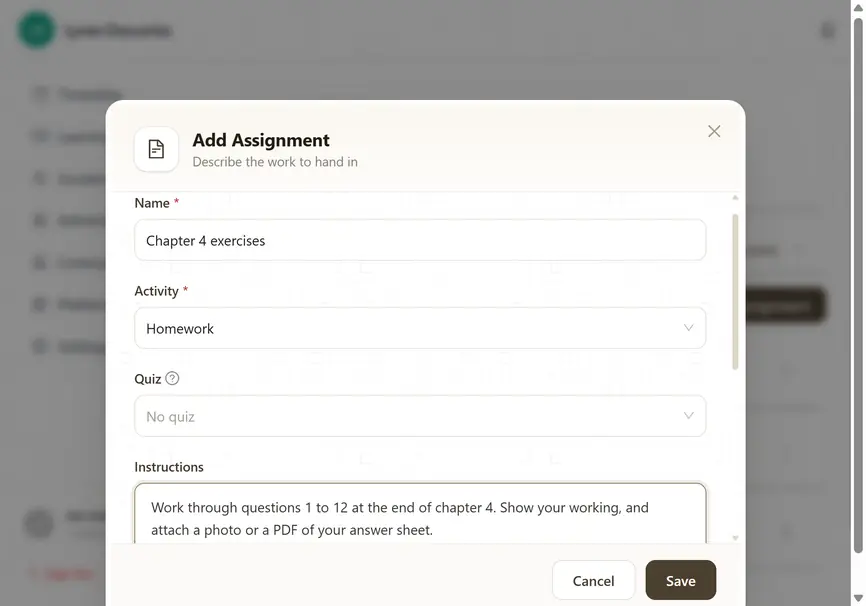
- Enter a Name — this is what students see in their list.
- Choose the Activity. It decides how the mark is weighted in the gradebook.
- Choose the Course: the subject the grade is filed under.
- Optionally, choose a Topic of that course. The list fills in once a course is chosen.
- Leave Quiz empty for ordinary work. To have students answer online instead, pick a quiz — see Build a Quiz. The field only appears once the class has a quiz.
- Write the Instructions: what to do, and what to hand in.
- Under Schedule and marking, set the two dates.
- Click Save.
Name, Activity and Course are required.
The Two Dates
Section titled “The Two Dates”| Field | What it does |
|---|---|
| Available from | When students can first see it. It starts filled in with the current time, so saving it as is opens the assignment at once. Clear it to keep the assignment as a draft that only you can see. |
| Closes | The deadline. Work is refused after this moment, so there is no “late” — set it to when you really stop accepting work. Leave it empty for no deadline. |
Students are notified once the assignment opens, not when you create it. Students who have not handed in yet get a reminder when less than 24 hours remain before Closes.
Your assignments are listed on the tab, newest first, each with its deadline and how many students have handed in.
How to Attach a Handout
Section titled “How to Attach a Handout”Open the assignment and click Add files under Files in the instructions card. Students can read and download these, but not change them.
How to Edit or Delete
Section titled “How to Edit or Delete”On the Assignments tab, click the ⋮ button on the row, then Edit or Delete.
- You can change the name, instructions and dates at any time.
- The activity, course, topic and quiz are fixed once the assignment is saved. To change them, delete the assignment and set it again.
- An assignment cannot be deleted once a student has handed in work for it.
What to Do If…
Section titled “What to Do If…”The assignment does not appear for students
Check Available from. If it is empty, or set to a time in the future, the assignment is still a draft.
A student says they cannot hand in
The deadline has passed. Open the ⋮ menu on the assignment’s row, click Edit, and push Closes back if you want to accept the work.
You cannot pick the activity you want
Only graded activities appear here. Ask your administrator to check the activity in the school setup.
Delete is refused
Students have already handed in work for this assignment. Submitted work is kept for grading, so the assignment stays.
💡 Clear Available from while you draft, then set it when you are ready — that is what opens it to the class.
💡 Set Closes to a time, not just a date. “24 Aug 23:59” is clearer to a student than a date alone.