

Grades & Evaluations
View a student’s grades.
- See all grades in one place
- Track progress across subjects
- Useful for parent conferences and academic reviews
1. Open Students
Section titled “1. Open Students”From the main dashboard, click Students.
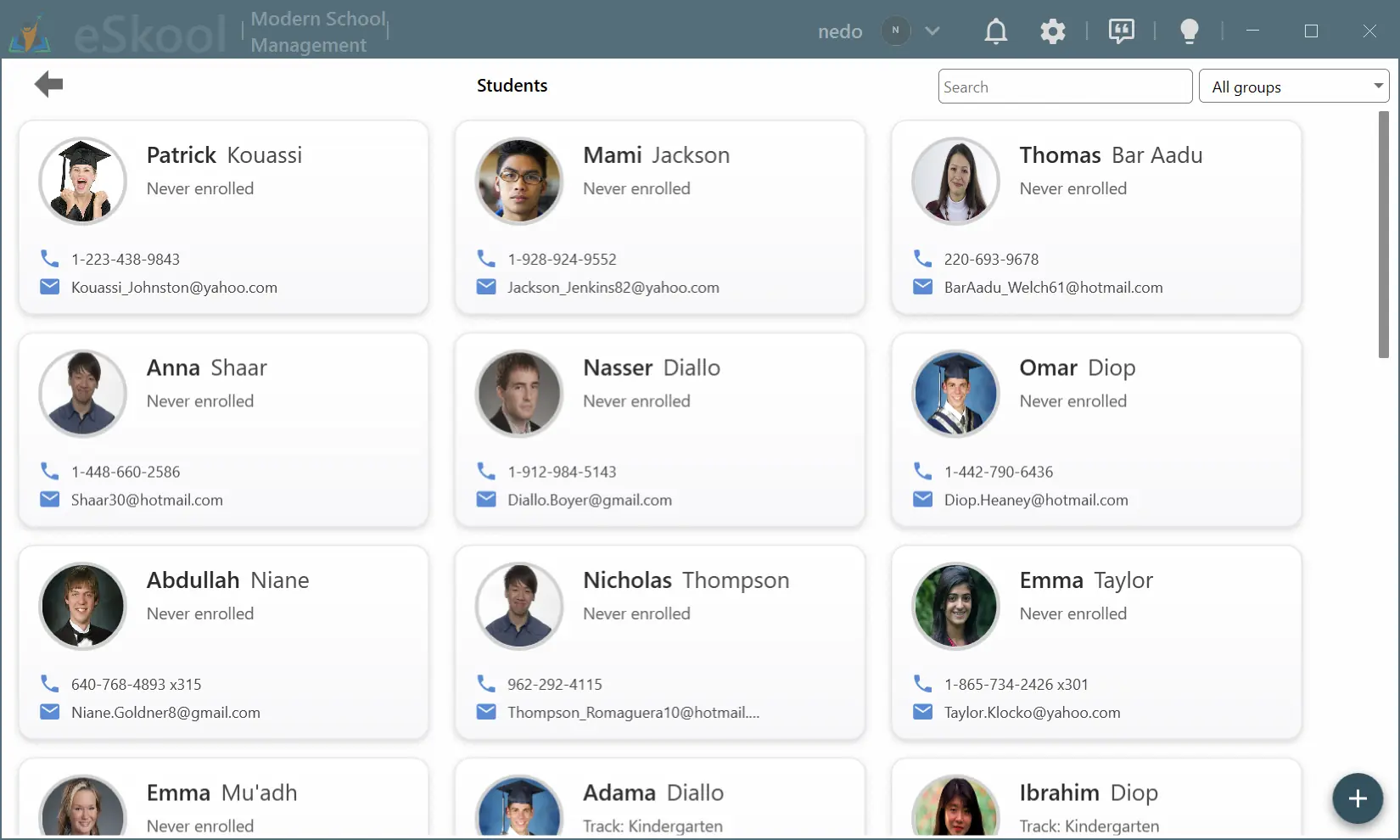
2. Select a Student
Section titled “2. Select a Student”Double-click the student to open their profile.
3. View Grades
Section titled “3. View Grades”Click the Evaluations tab.
- Assessment Grades shows each grade with its subject and coefficient.
- The left card shows the student’s average and rank in the class for the selected term. Choose another term, or set the From and To dates.
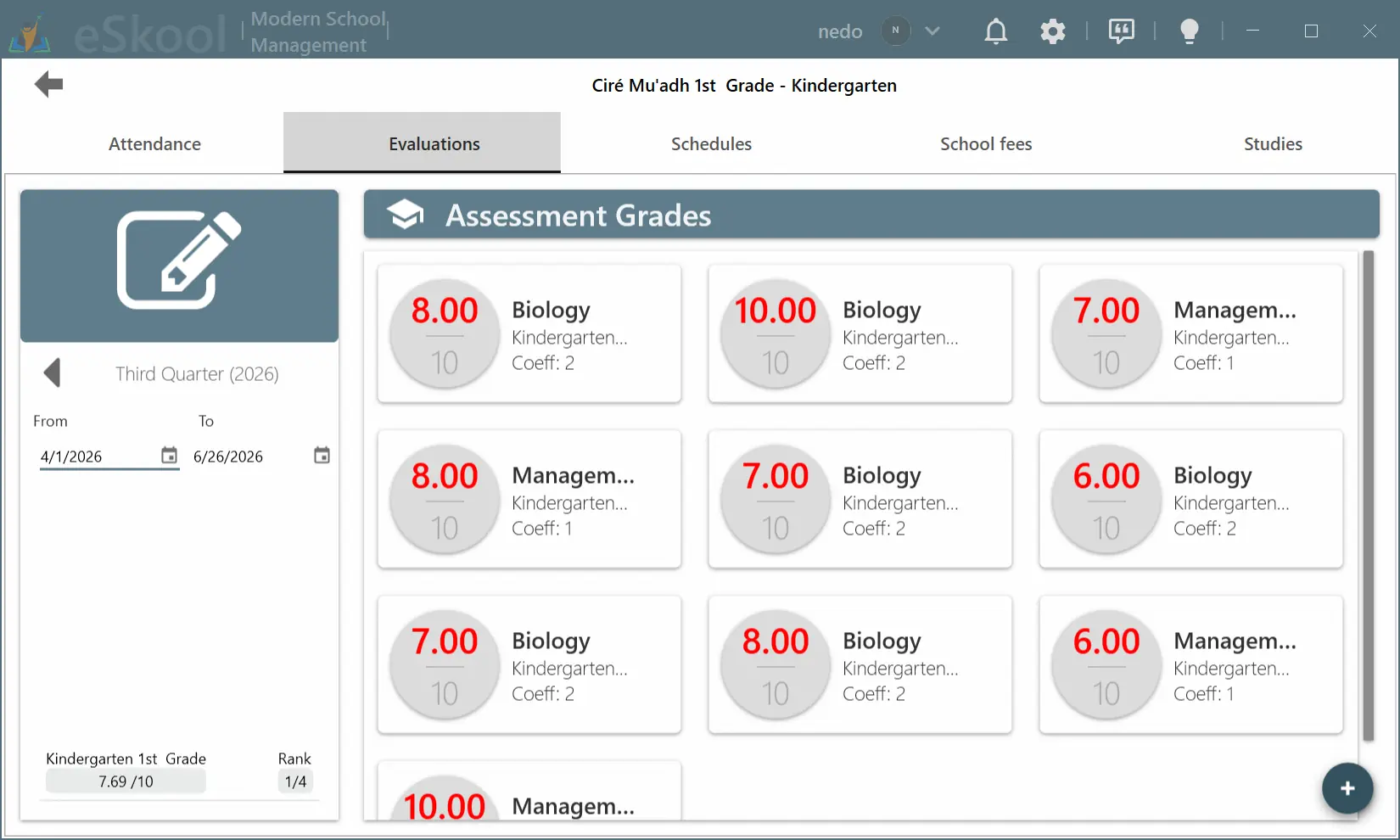
- Grades are usually entered from the timetable. See Enter Grades.
- To add a grade from here, click the plus icon (+) (Add a new grade).
- To remove a grade, right-click it and select Delete.