

User Accounts
Create login credentials and set access permissions for staff.
- Give people their own login and password
- Decide what each person can see and do
- Change permissions anytime as roles change
1. Open the Staff Profile
Section titled “1. Open the Staff Profile”From the home screen, click Staffs, then double-click the staff member. Open the Account tab.
2. Activate the Account
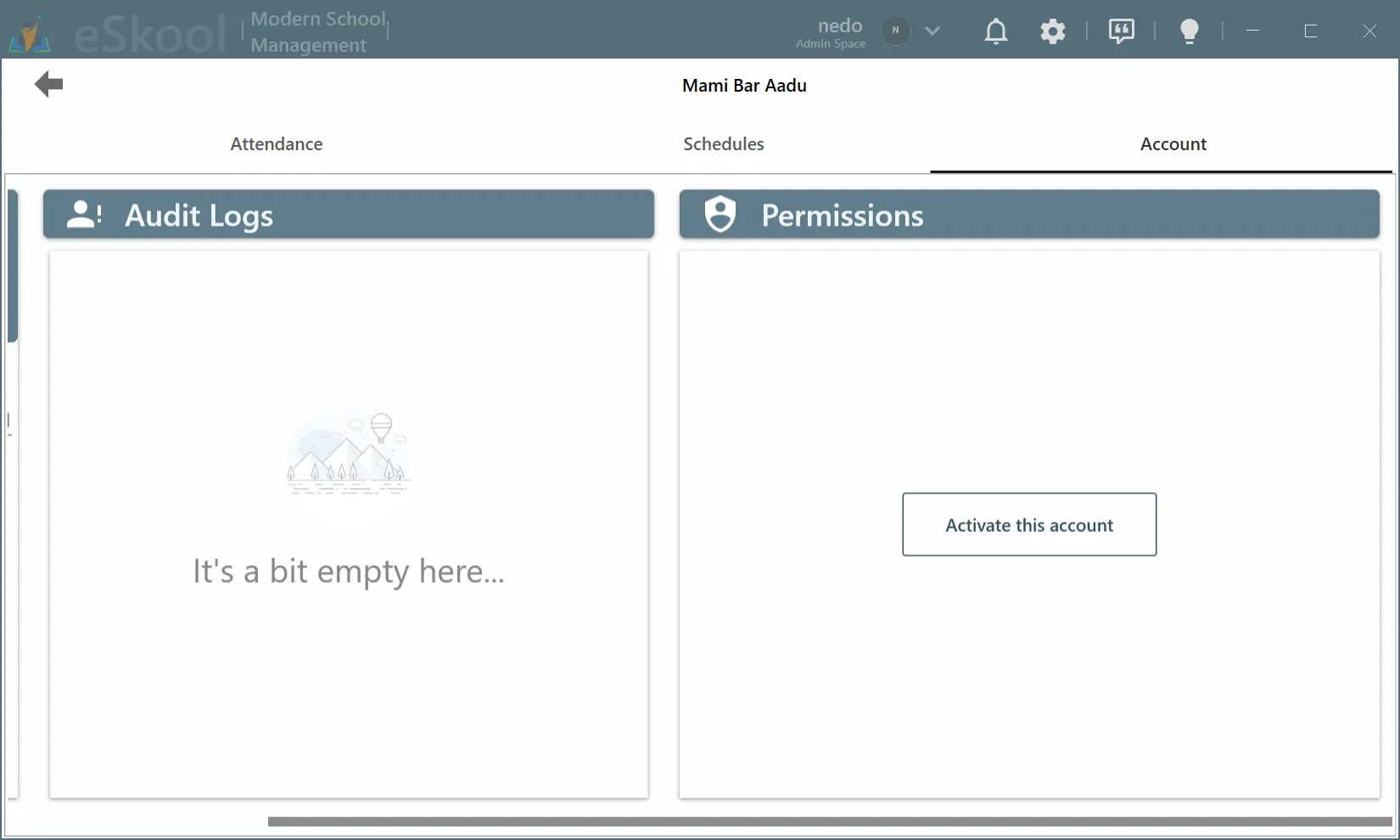
Section titled “2. Activate the Account”In the Permissions panel, click Activate this account.
3. Set Login Credentials
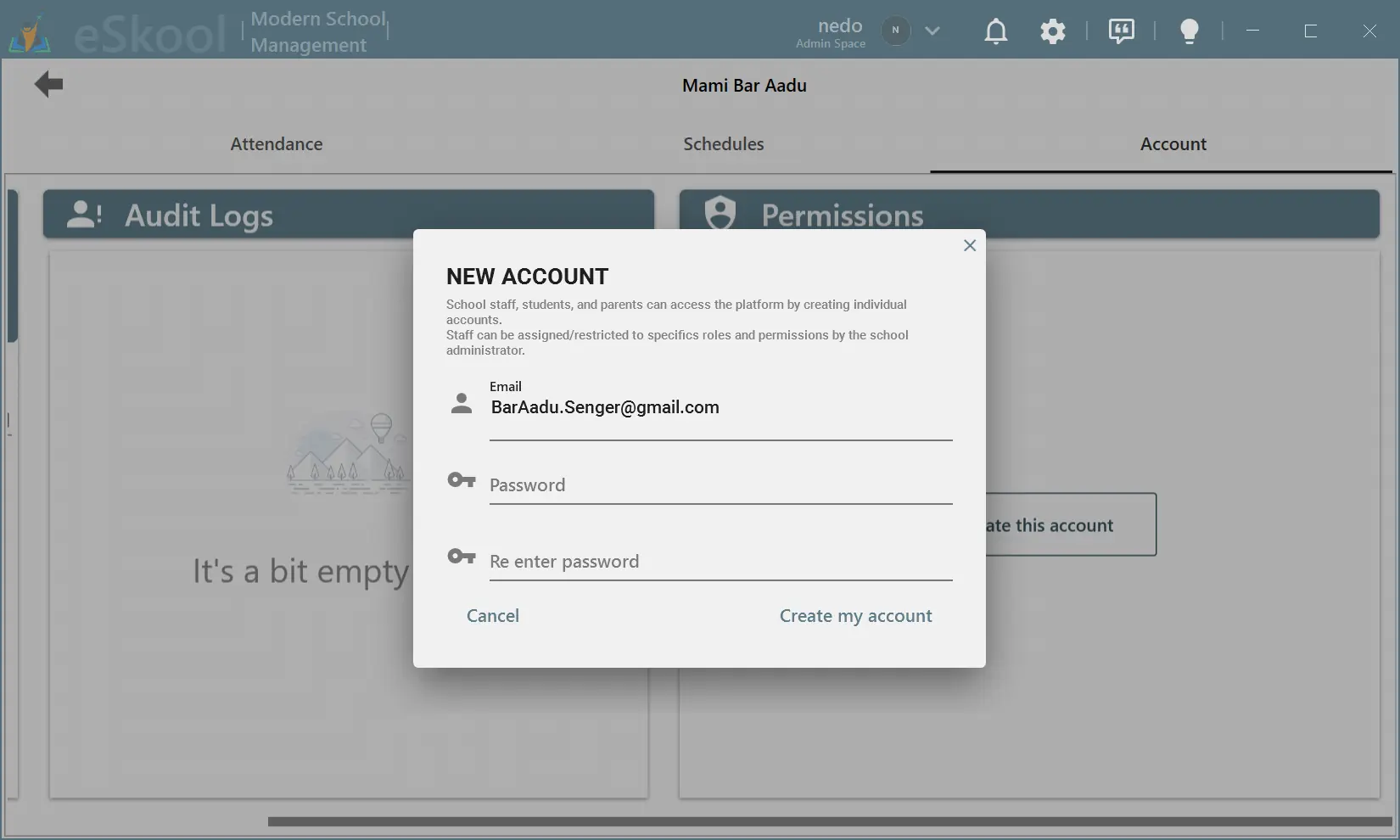
Section titled “3. Set Login Credentials”Enter the person’s Email and a Password, then retype it in Re enter password. Click Create my account.
4. Set Access Rights
Section titled “4. Set Access Rights”The Permissions panel now lists permissions grouped by area. For each one, click one of the three buttons: no access, read, or write. Each click is saved straight away.
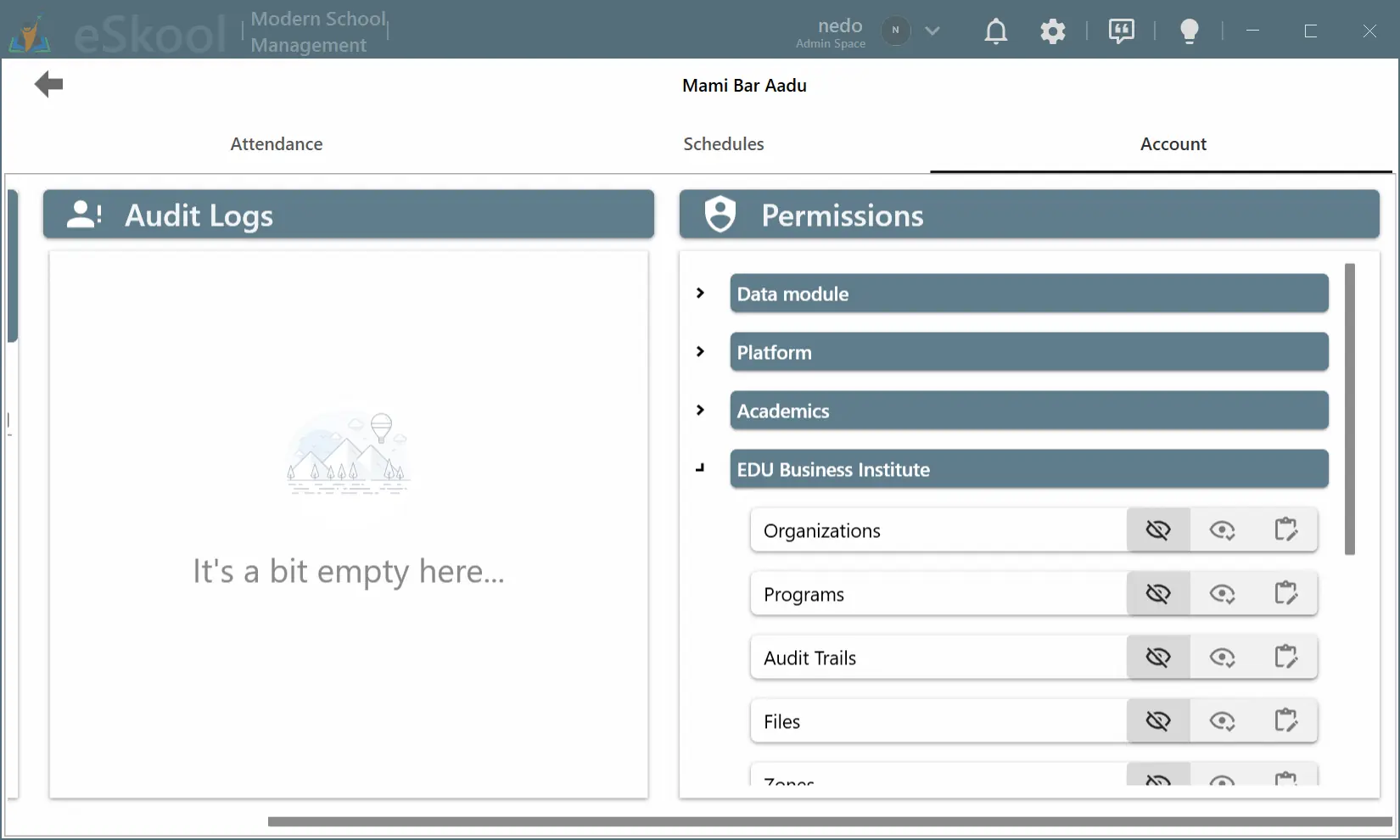
Access rights can be changed anytime to match the person’s current responsibilities.