

Schedule a Class
Add a class session to the timetable.
- Pick the teacher, room, and time—Luwal handles the rest
- If there’s a conflict, you’ll know before you save
- Shows up on everyone’s schedule automatically
Before You Start
Section titled “Before You Start”The class needs its subjects (Assign Subjects to Classes), and at least one activity must exist.
1. Open Timetable
Section titled “1. Open Timetable”From the main dashboard, click Timetable.
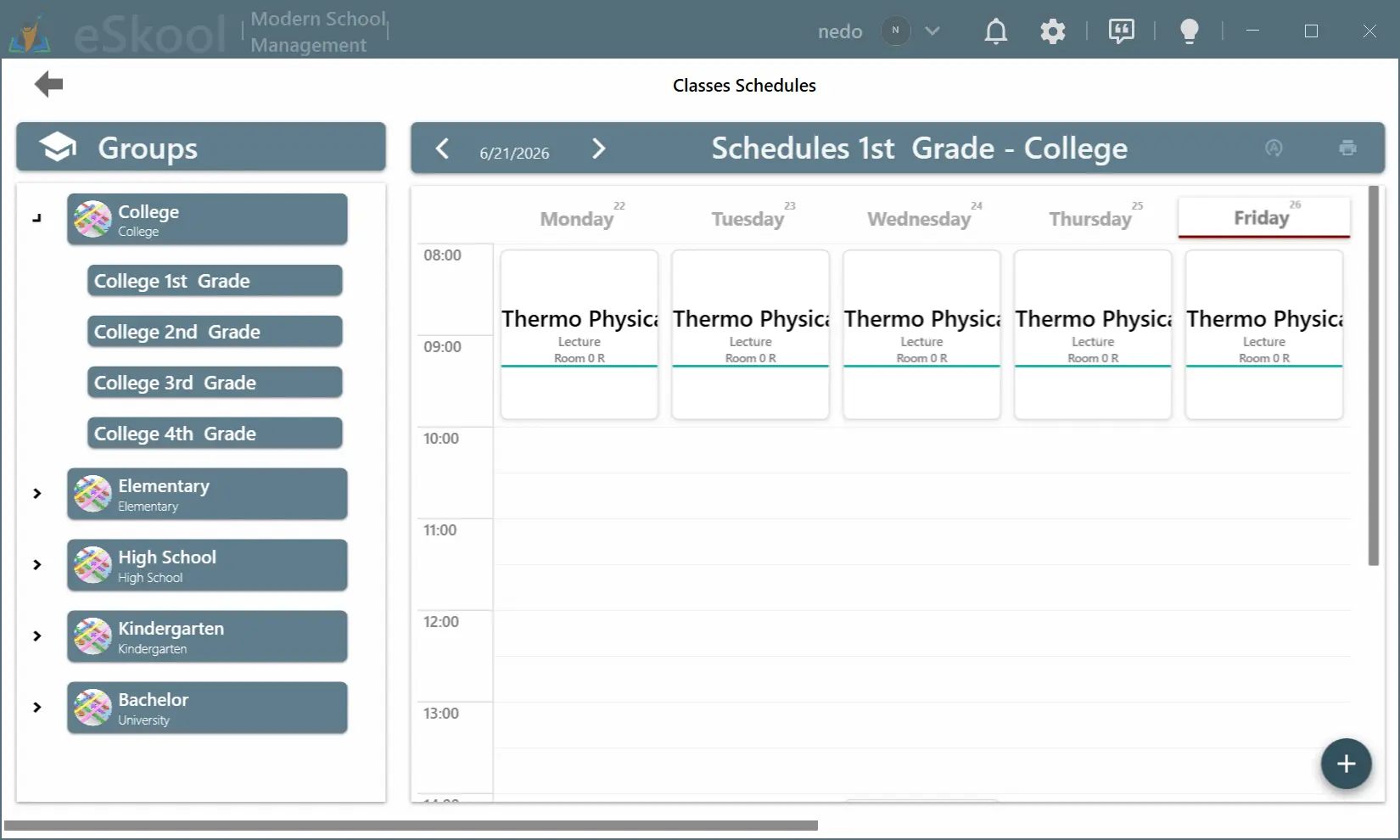
2. Select the Class
Section titled “2. Select the Class”In Groups, select the class you’re scheduling. Click the plus icon (+) at the bottom right and choose Class (the C button).
3. Enter Class Details
Section titled “3. Enter Class Details”In Plan a Schedule, fill in:
- Course – The subject being taught
- Teacher – Who teaches it
- Activity – Type of session (lecture, lab, etc.)
- Room – Where it takes place
- Start Time and End Time – When the session happens
- Start Date and End Date – The period the session repeats over
- Mon to Sun – Tick at least one day. The session repeats on those days between the two dates.
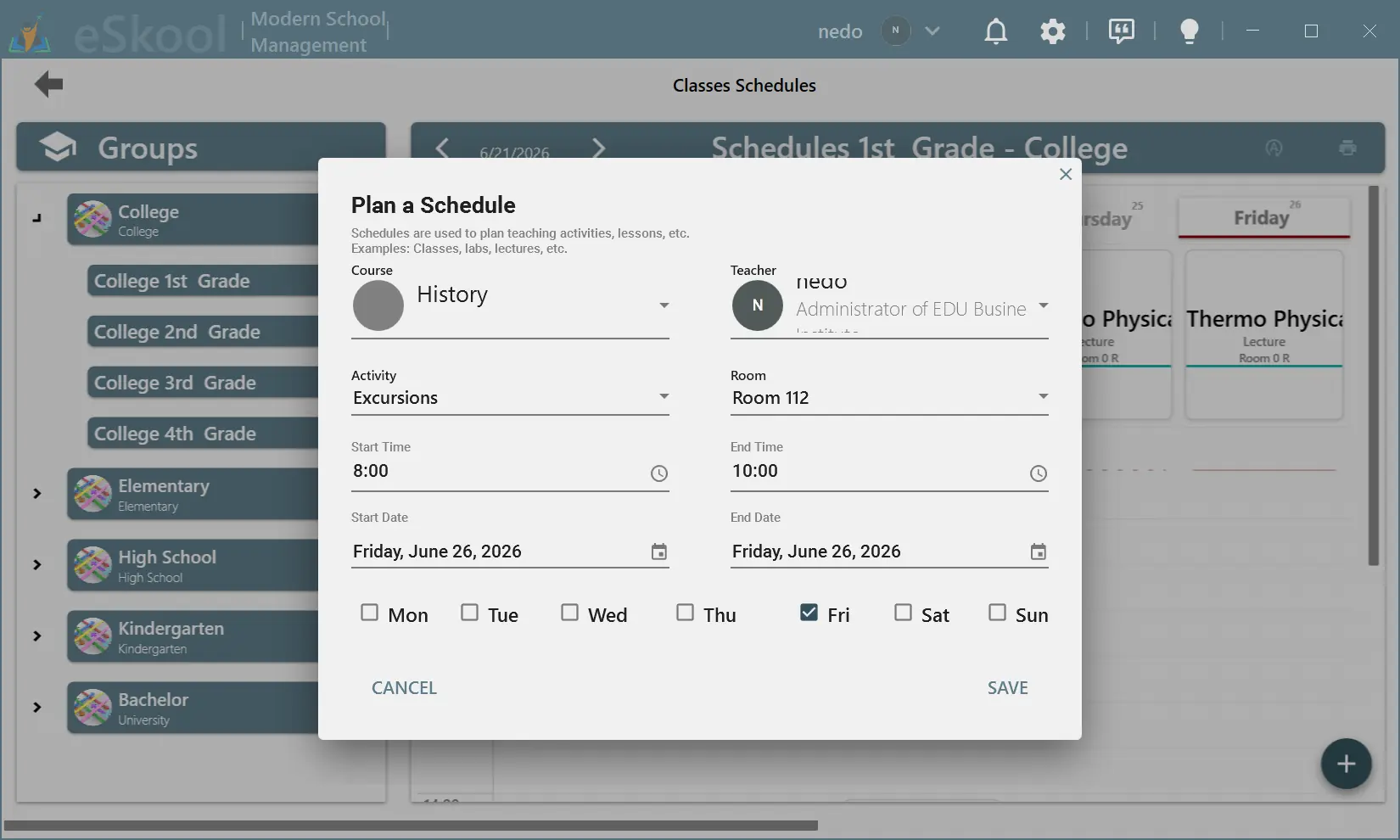
Click Save. Luwal checks for conflicts: if the class, the teacher or the room is already booked at that time, it shows the problem and won’t let you save until you fix it.