

Attendance & Tardiness
View and manage a student’s absences and late arrivals.
- Spot patterns before they become problems
- Have the facts ready when talking to parents
- Keep a clear record for future reference
1. Open Students
Section titled “1. Open Students”From the main dashboard, click Students.
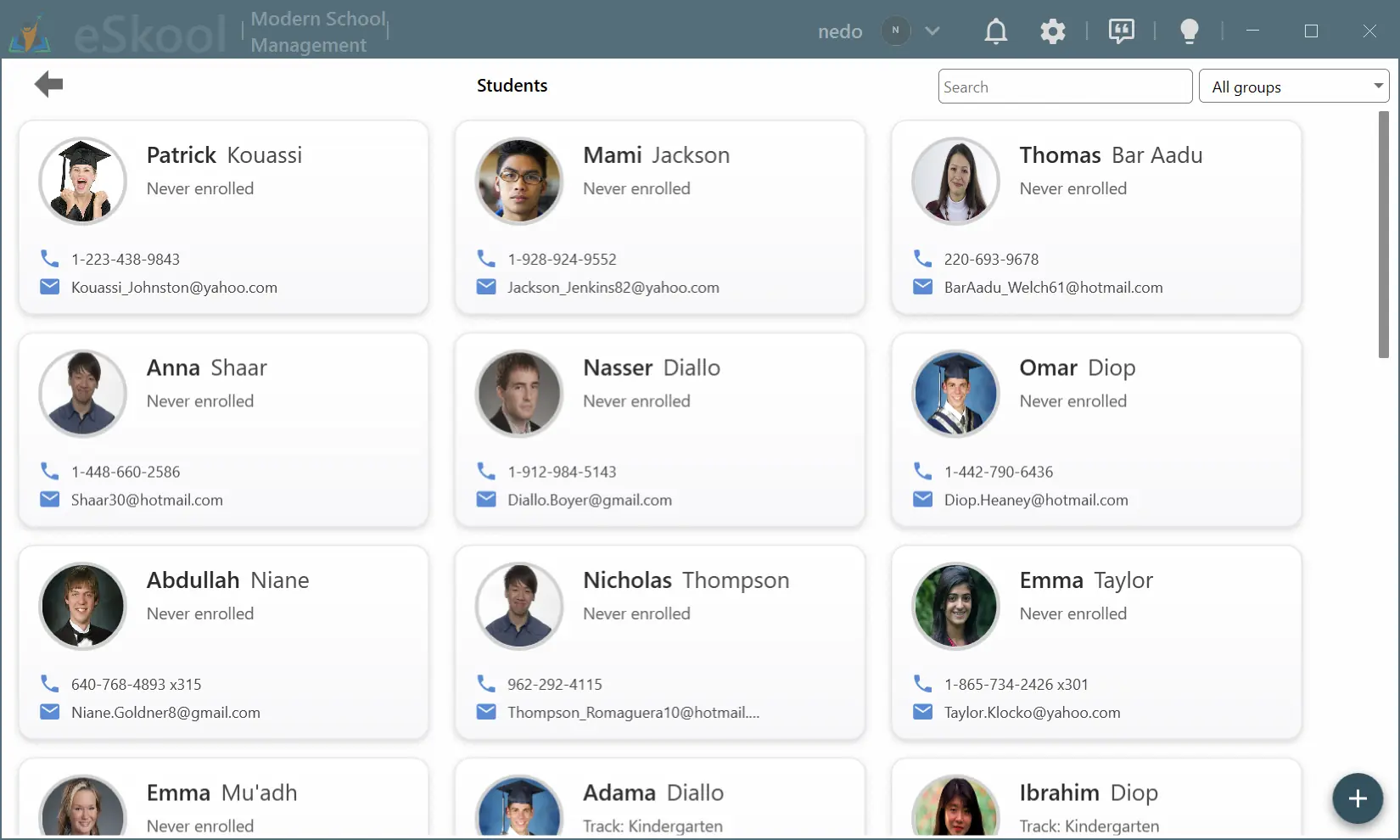
2. Select a Student
Section titled “2. Select a Student”Double-click the student to open their profile.
3. View Attendance Records
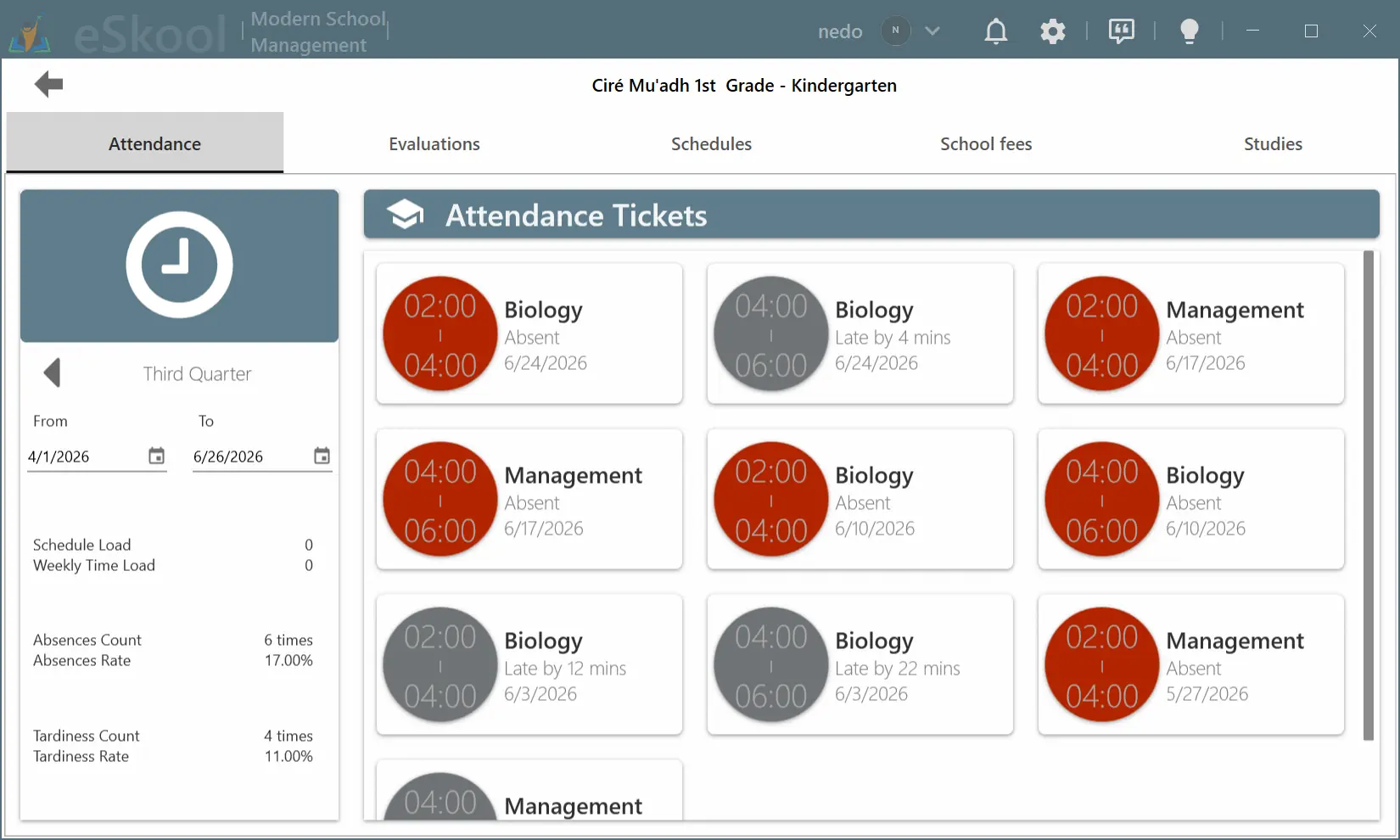
Section titled “3. View Attendance Records”Click the Attendance tab.
- The left card shows the Absences Count, Absences Rate, Tardiness Count and Tardiness Rate for the selected term. Choose another term, or set the From and To dates.
- Attendance Tickets lists each recorded absence and late arrival.
4. Excuse or Delete a Ticket
Section titled “4. Excuse or Delete a Ticket”Right-click a ticket:
- Excuse – mark the absence or late arrival as excused. Choose Restate to undo.
- Delete – remove the ticket.
Tickets are created when attendance is taken in class. See Take Attendance.