

Cash Desk
Record income and expenses not related to tuition fees.
- Bought new chalk? Collected library fines? Log it here
- Keeps all your money matters in one place
- Makes end-of-year audits much easier
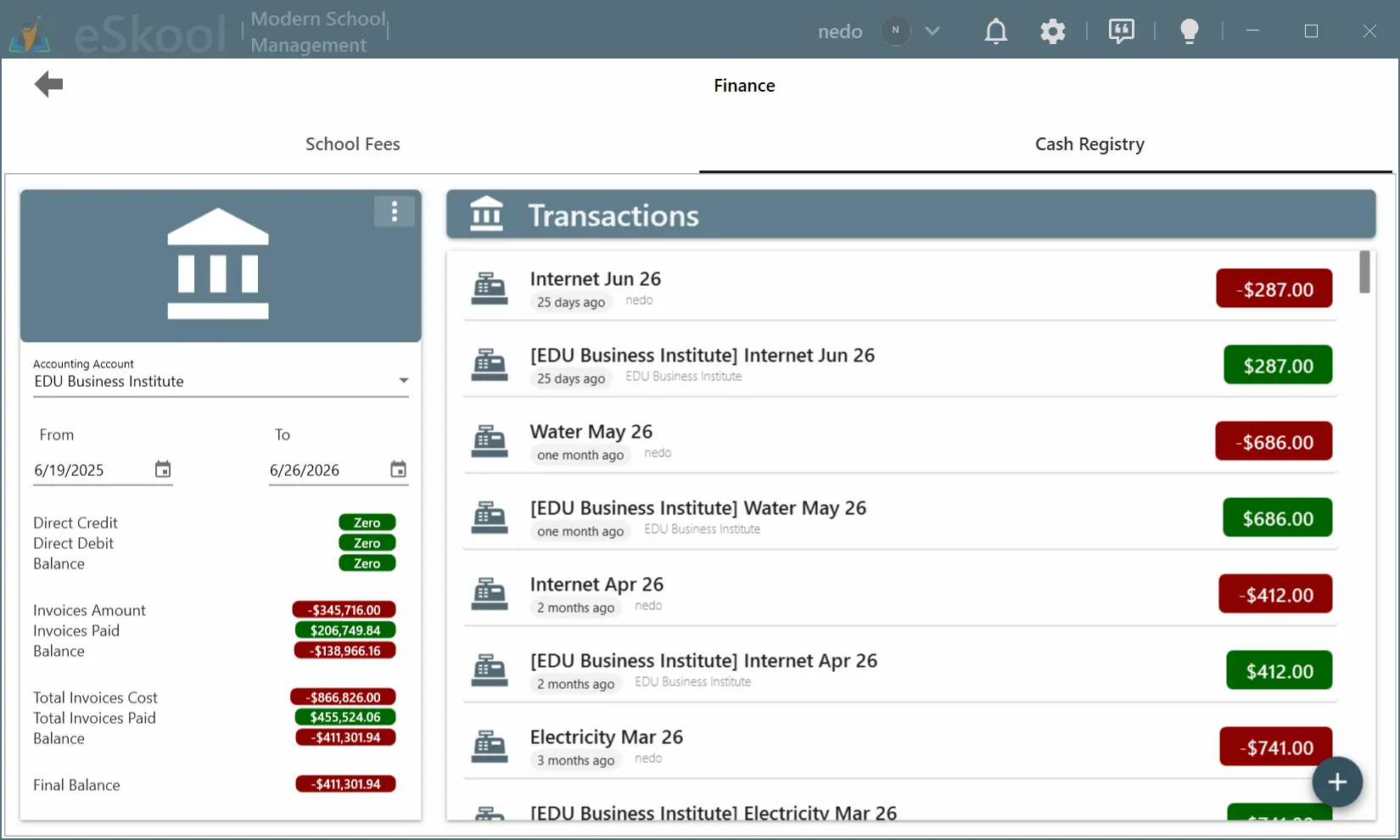
From the main dashboard, click Accounting, then open the Cash Desk tab. The left card shows the cash you hold: Debit (what came in), Credit (what went out) and the Closing balance, since your cash box opened. Transactions lists every entry. Your cash box opens with the first payment you take in cash, or with your first income.
Record an Expense
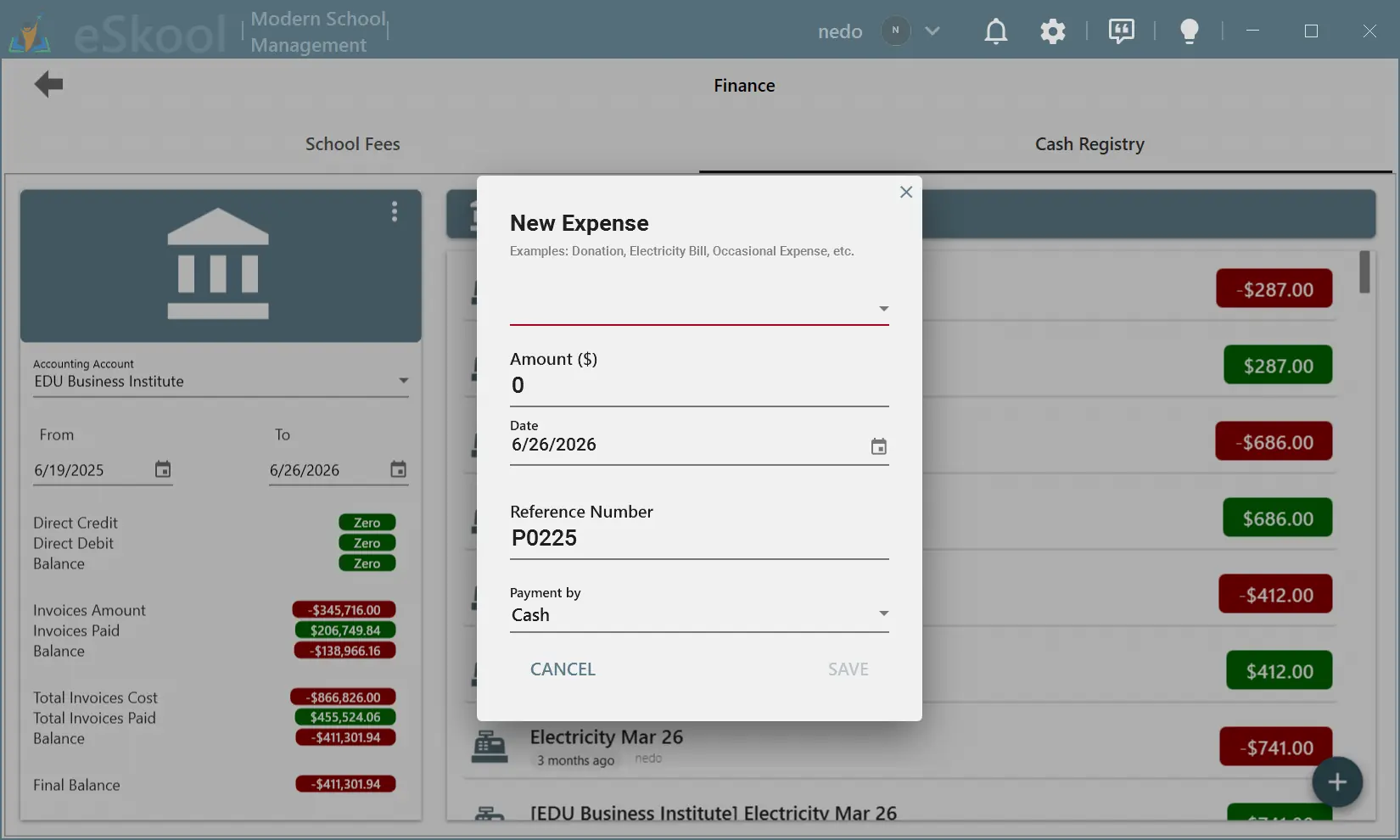
Section titled “Record an Expense”- Click the plus icon (+) at the bottom right.
- In Add a transaction, pick the Posting policy Record money spent in cash: the money leaves the cash you hold, so it cannot be more than you hold. Pick the Account of your chart of accounts the expense goes to, listed under its heading (Rent under Facilities). Enter the amount, the Reference Number (the invoice or receipt number: the same reference is never recorded twice) and the Date. Name is optional.
- Click Save. The expense shows in Transactions and in Credit.
Record Revenue
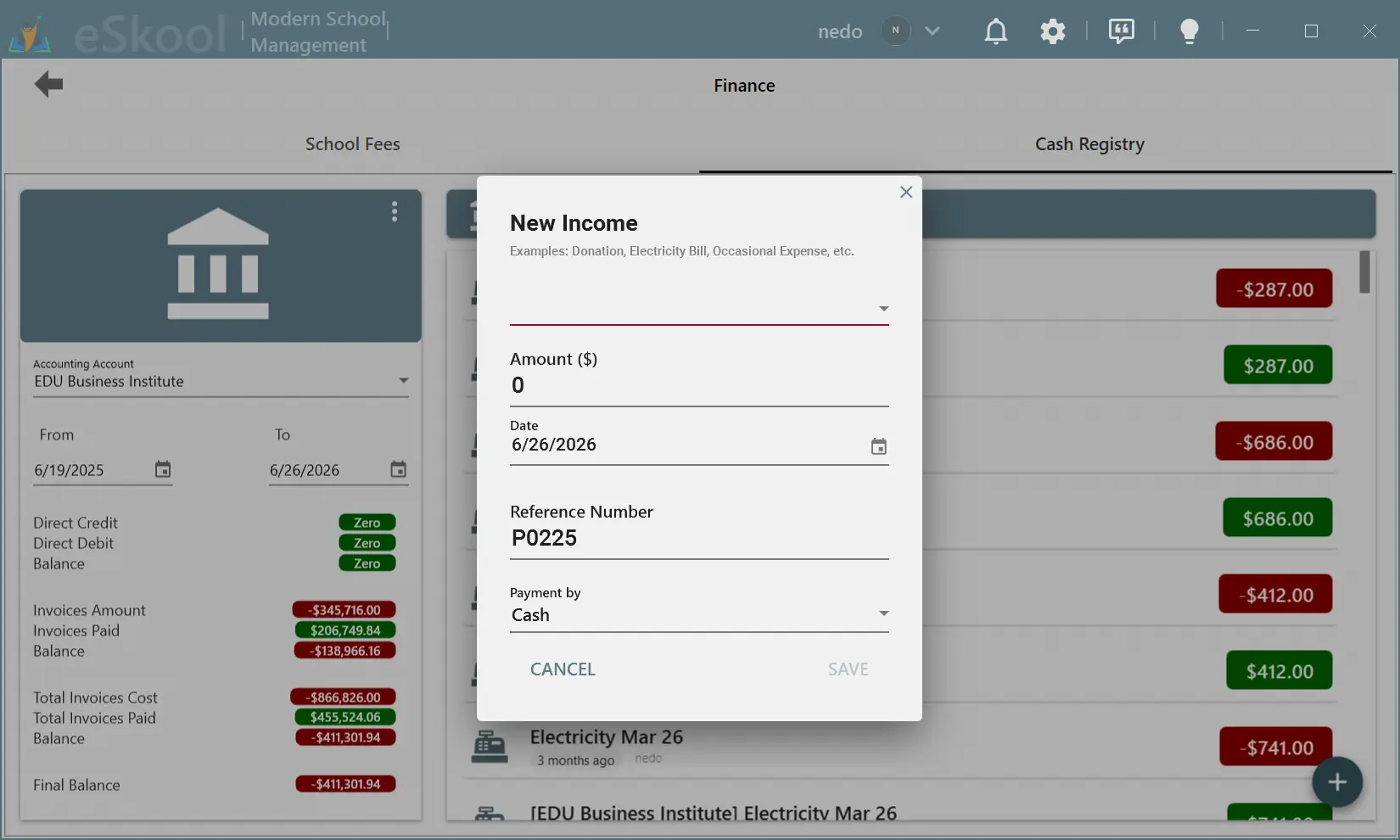
Section titled “Record Revenue”- Click the plus icon (+) at the bottom right.
- In Add a transaction, pick the Posting policy Record money received in cash: the money comes into the cash you hold. Pick the Account of your chart of accounts the income goes to, listed under its heading (Other revenue under Other income). Enter the amount, the Reference Number (the receipt number: the same reference is never recorded twice) and the Date. Name is optional.
- Click Save. The income shows in Transactions and in Debit.
Print a Financial Report
Section titled “Print a Financial Report”Click the printer icon at the top right of Transactions. Account ledger lists the entries of the cash you hold over the Time Period (From and To). Below it, each receivables account, such as Receivables / Student, prints three lists: Debtors, the accounts owing something now; Accounts owing nothing; and Account balances, every account with what it owes now and what comes due later. Print opens a report, Export saves it as an Excel file. Use these reports for audits and financial reviews.
To move collected money to another account, see Account Transfers.