

Create a Campaign
Start a new academic year (e.g., “2024-2025”).
- Each year gets its own space—students, grades, fees, everything
- Old years stay intact; you can always look back
- This is the first thing you do when a new year begins
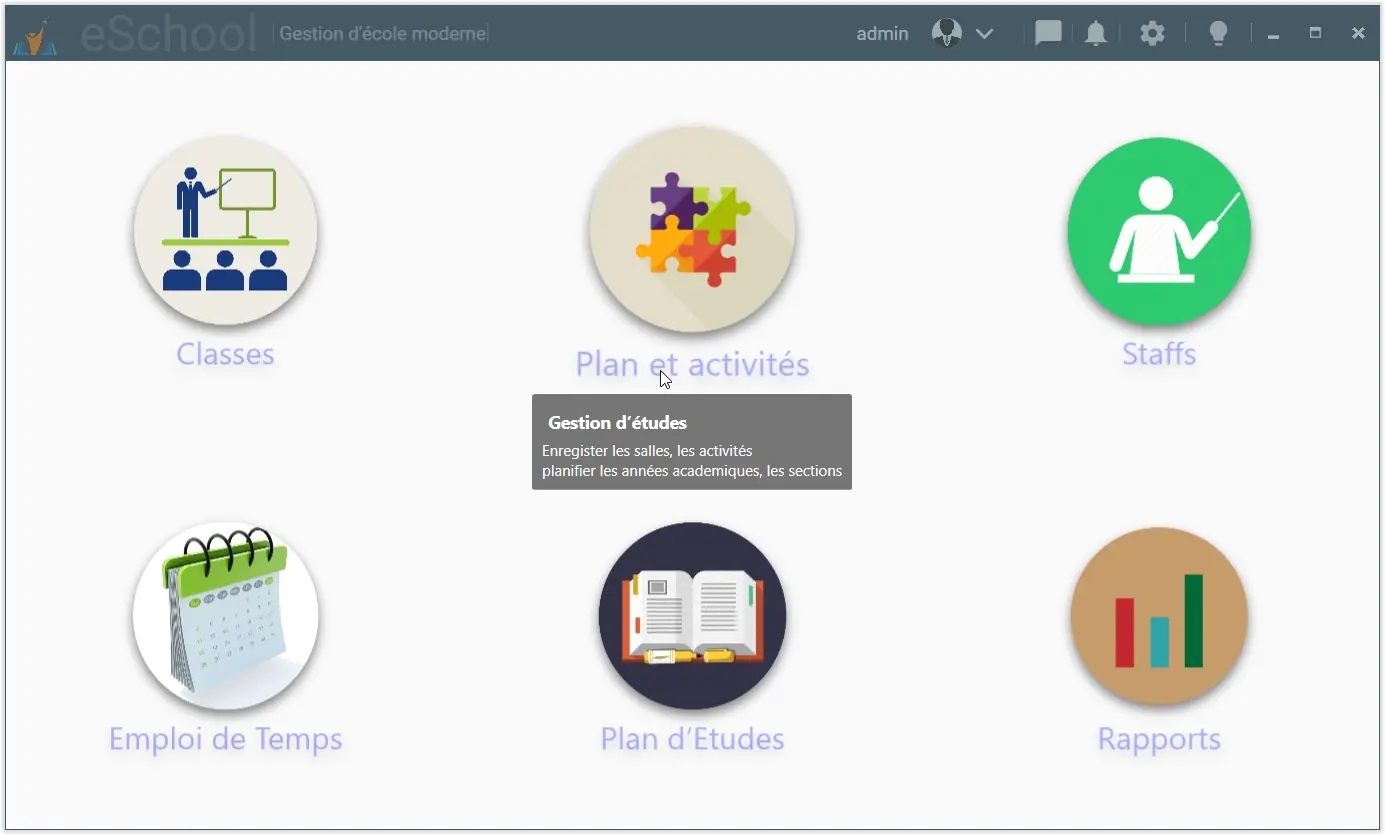
1. Open Plan and Activities
Section titled “1. Open Plan and Activities”From the home screen, click Plan and Activities. School years are listed in the first panel. You can also manage them from Settings > Campaigns.
2. Create a New School Year
Section titled “2. Create a New School Year”Point to the round button at the bottom right of the school-year panel and click New Campaign.
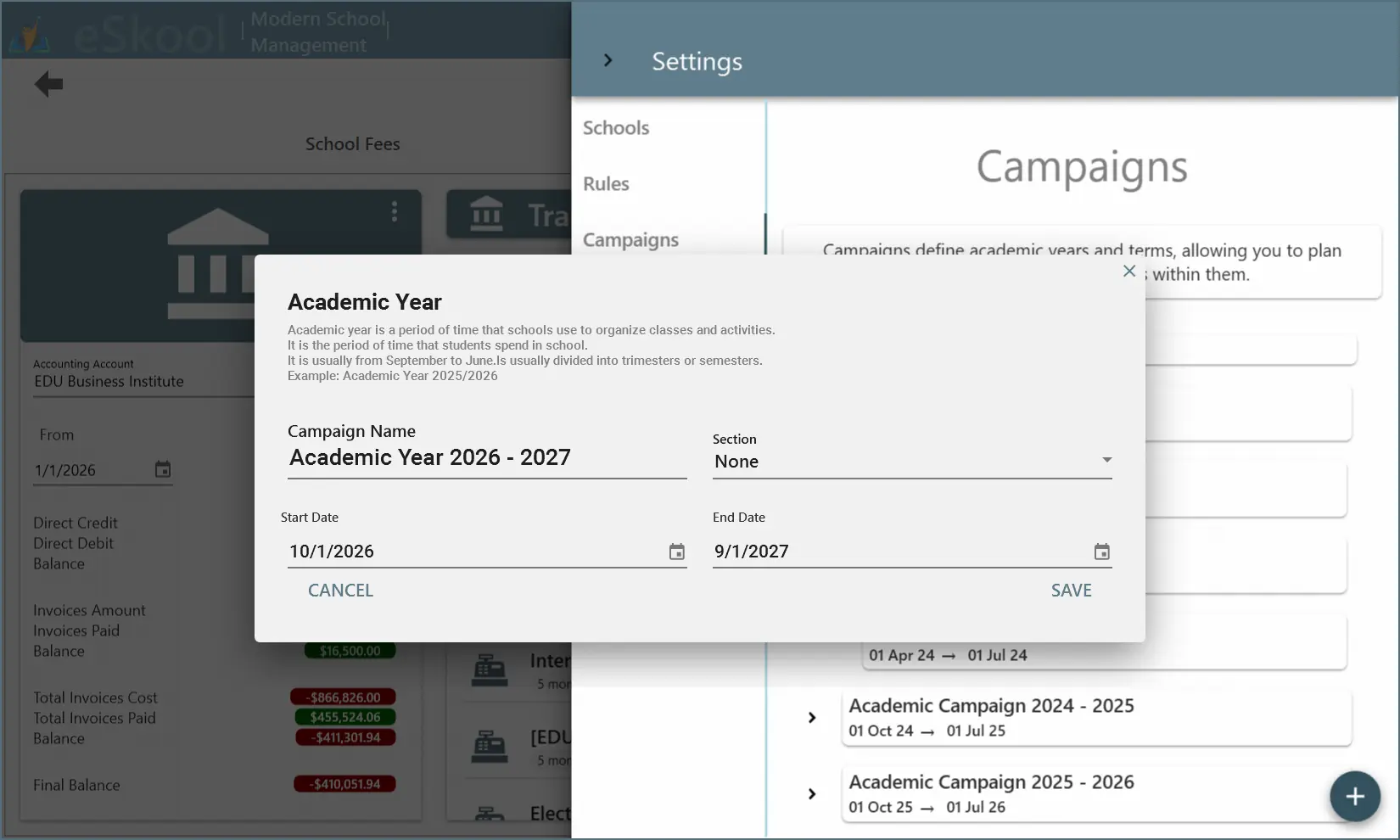
3. Enter Details
Section titled “3. Enter Details”Luwal suggests a name (e.g., “Academic Year 2026 - 2027”) and dates. Adjust the Campaign Name, Start Date and End Date, pick a Section if you use them, and click Save.
Two school years in the same section cannot overlap. Students can only be enrolled between the start and end dates, so set them to cover the whole year.
Next, divide the year into terms.
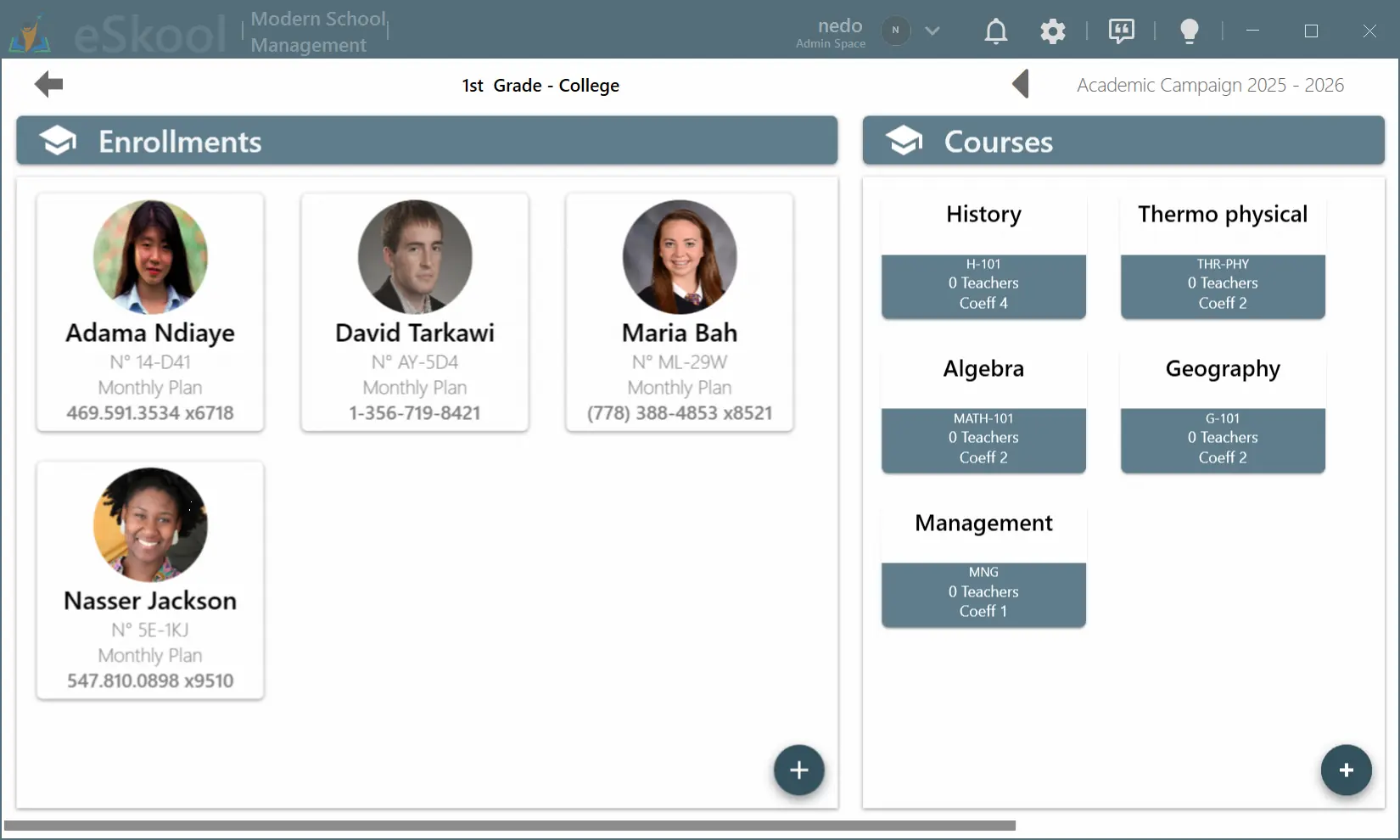
Switch Between Years
Section titled “Switch Between Years”Screens that depend on the school year, such as a class page, show a year selector at the top right. Use its arrows or dropdown to view another year.
Note: A school year can’t be deleted while it still has terms or enrollments. Delete its terms first.