

Post Course Material
Put your lessons online so the class can read them before and after the session — notes, links and files, grouped by topic.
- Students read it on any device, at any time
- Nothing is visible until you publish it, so you can prepare in advance
- Attachments live with the lesson they belong to
What You’ll Need
Section titled “What You’ll Need”- A class you teach, with at least one course
- Nothing else — you write the material here
How to Post a Topic
Section titled “How to Post a Topic”- Click Learning in the menu, then click your class.
- On the Courses tab, click the course you want to add to.
- Click Add Topic — at the top right, or in the middle of the page when the course has no topics yet.
- Enter a Name (required) — keep it short, it is what students scan down the page.
- Enter a Summary saying what the topic covers.
- Click Save.
Your new topic is marked Draft. Only you can see it.
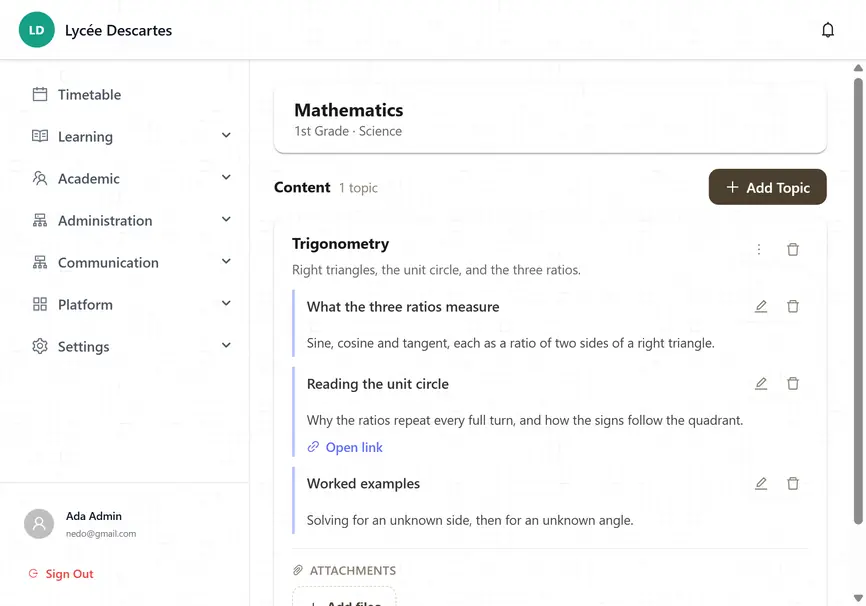
How to Add Sections
Section titled “How to Add Sections”A topic is made of sections — one block of material each.
- Click the ⋮ button on the topic, then Add Section.
- Enter a Name for the block (required).
- Write the material in Content. You can format text, add lists and paste images.
- Add a Link if the section points at a video or a page elsewhere.
- Click Save.
Sections appear in the order you add them. To attach a handout, click Add files under Attachments at the bottom of the topic.
How to Edit or Delete
Section titled “How to Edit or Delete”- A topic: click the ⋮ button, then Edit to change its name or summary. The bin button beside ⋮ deletes it.
- A section: use the pencil or bin button on the section itself.
How to Publish
Section titled “How to Publish”- Click the ⋮ button on the topic.
- Click Publish.
The Draft label disappears and the topic is now visible to every student taking that course. Click Unpublish on the same menu to hide it again.
How to Reorder Topics
Section titled “How to Reorder Topics”Click the ⋮ button on a topic and choose Move up or Move down. Students read them in the order you set here.
What to Do If…
Section titled “What to Do If…”Students say they cannot see the topic
It is probably still a draft. Open the course and look for the Draft label next to the topic name, then publish it.
You cannot find the Add Topic button
You are looking at a course you do not teach. Only staff on the class timetable, and school administrators, can author material.
💡 One topic per week or per chapter works well — students scan the list rather than reading it.
💡 Write the sections first, then publish the topic once. Nothing reaches students until you publish, so you can rework a draft as long as you like.