

Report Cards
Generate and print official report cards.
- Turn grades into a professional document for parents
- Print one student’s card or a whole class at once
- All grades pull in automatically—no manual copying
Before You Start
Section titled “Before You Start”Make sure:
- The student is registered. See Register a Student
- The student is enrolled in a class. See Enroll Students
- Exams are scheduled. See Schedule an Exam
- Grades are entered. See Enter Grades
Print a Report Card for One Student
Section titled “Print a Report Card for One Student”-
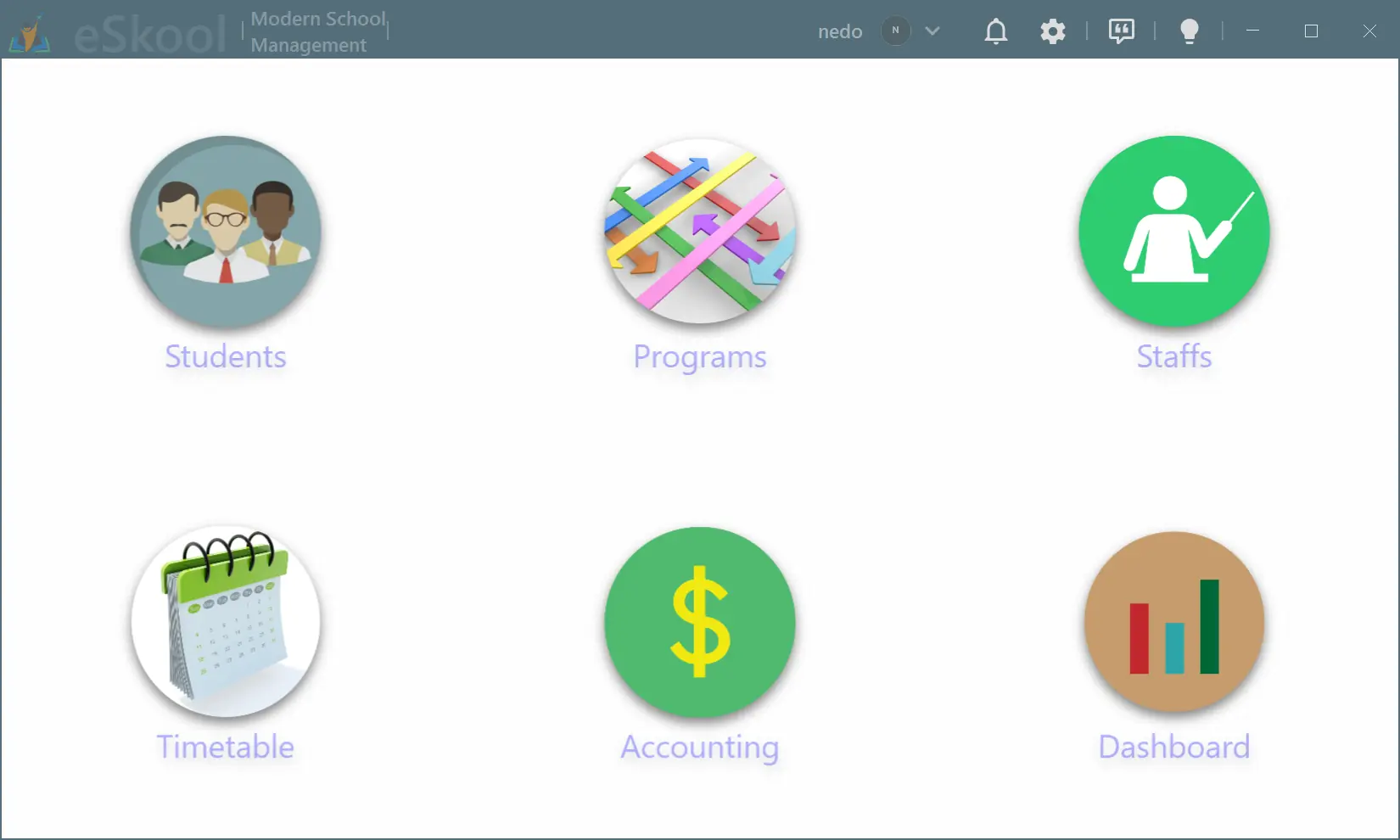
Open Programs From the main dashboard, click Programs.
-
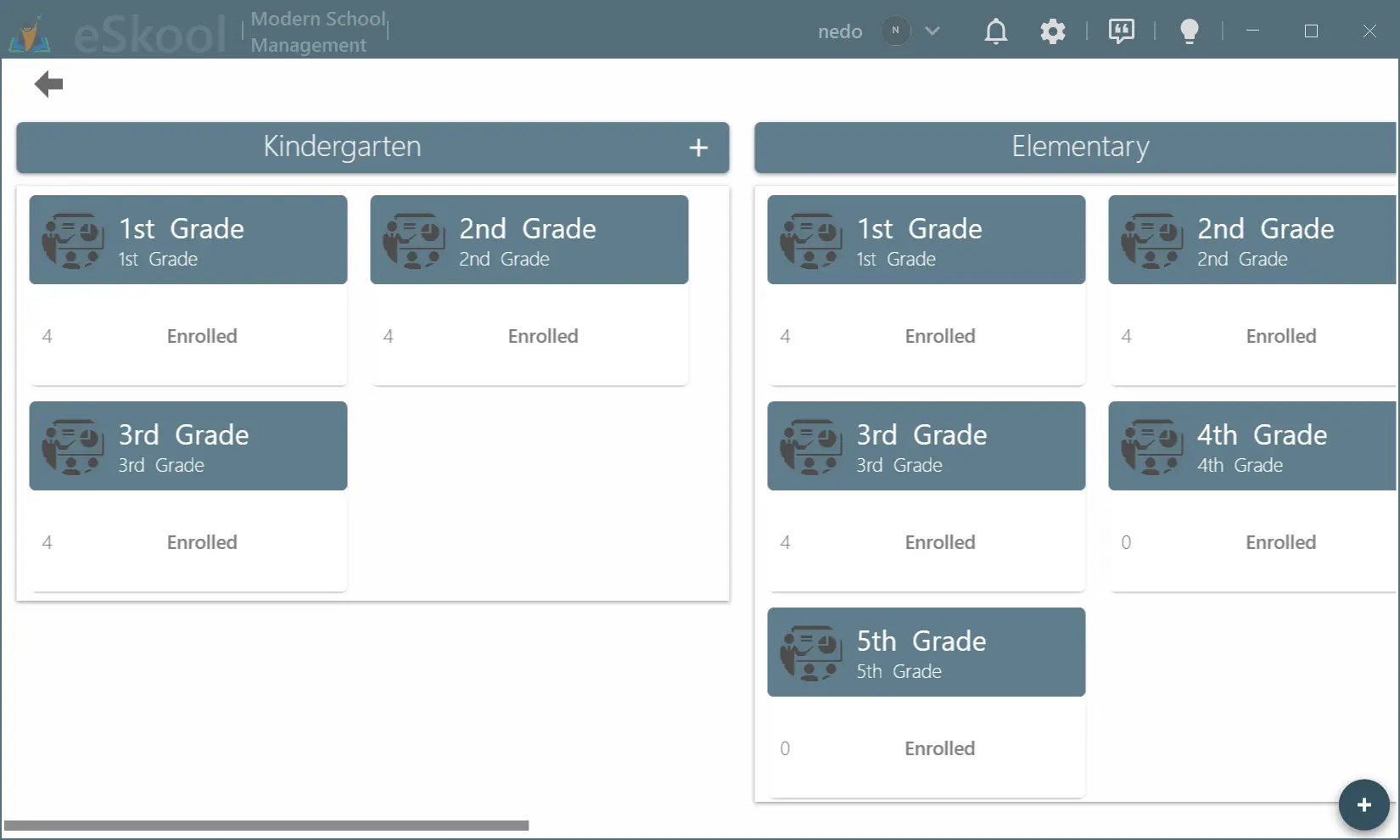
Select the Class Double-click the student’s class.
-
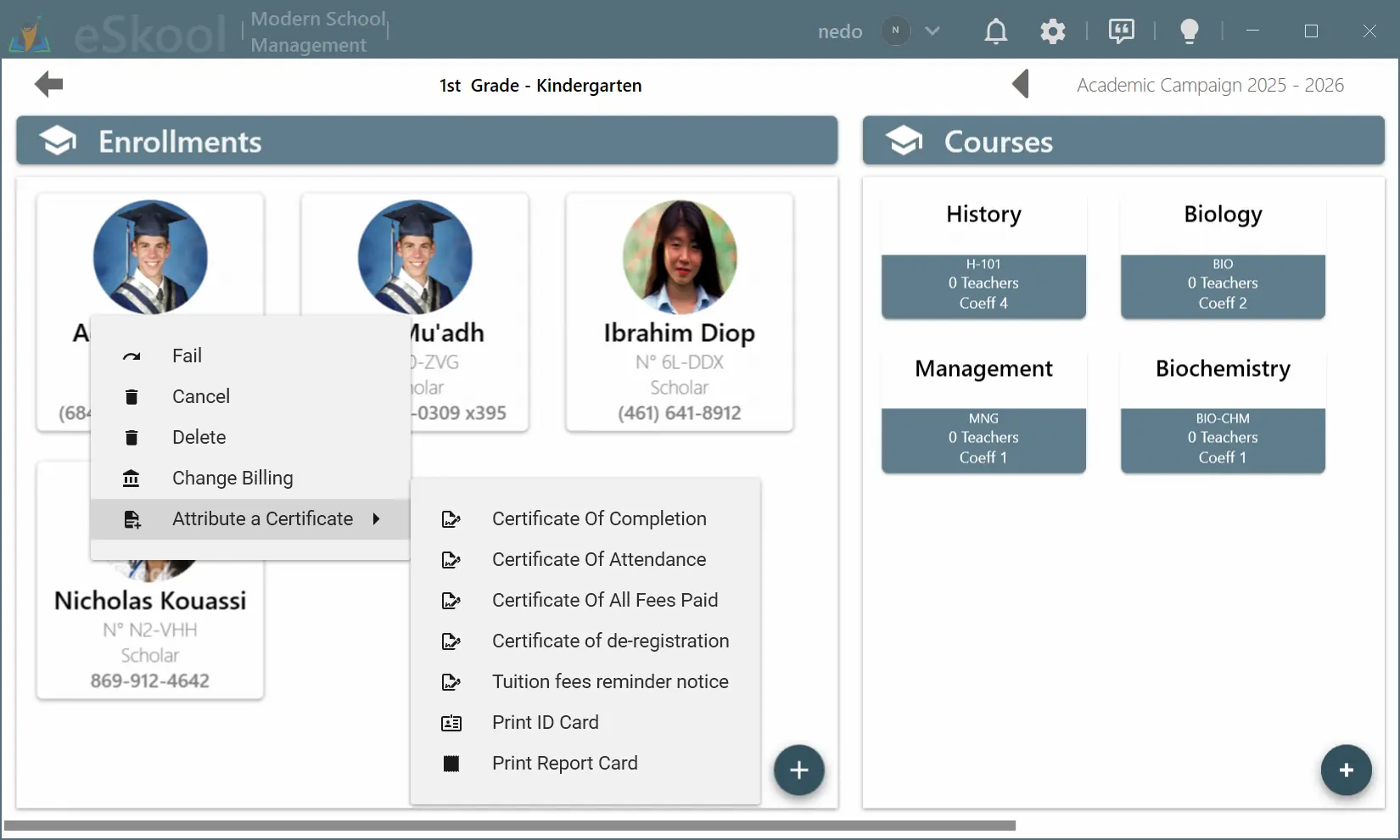
Generate the Report Card In Enrollments, right-click the student and select Attribute a Certificate > Print Report Card.
-
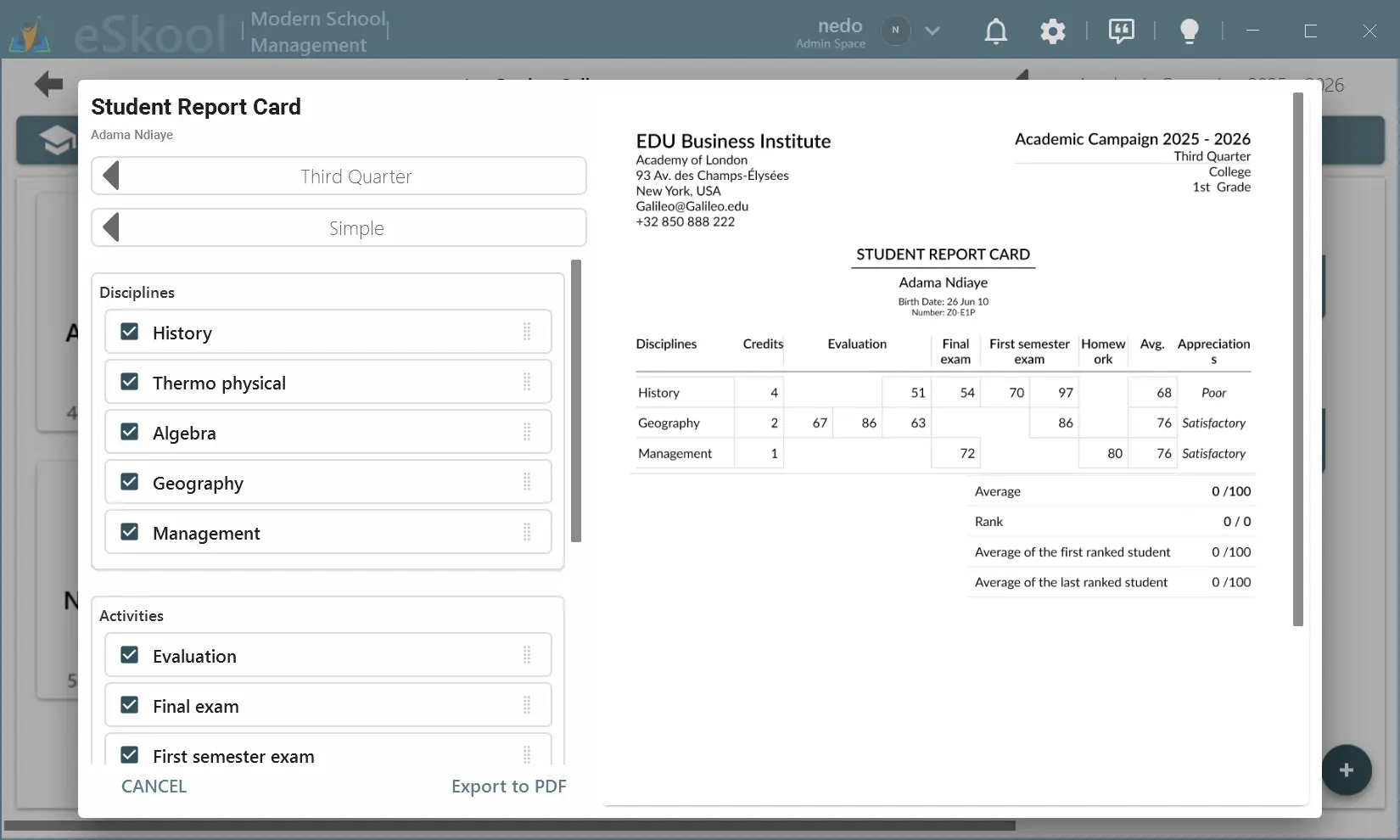
Customize and Export In Student Report Card, choose the term and the layout, tick the Disciplines, Activities and Options to include, then click Export to PDF.
Print Report Cards for a Whole Class
Section titled “Print Report Cards for a Whole Class”-
Go to Programs and double-click the class.
-
In Enrollments, click the plus icon (+) and select Generate Report Cards.
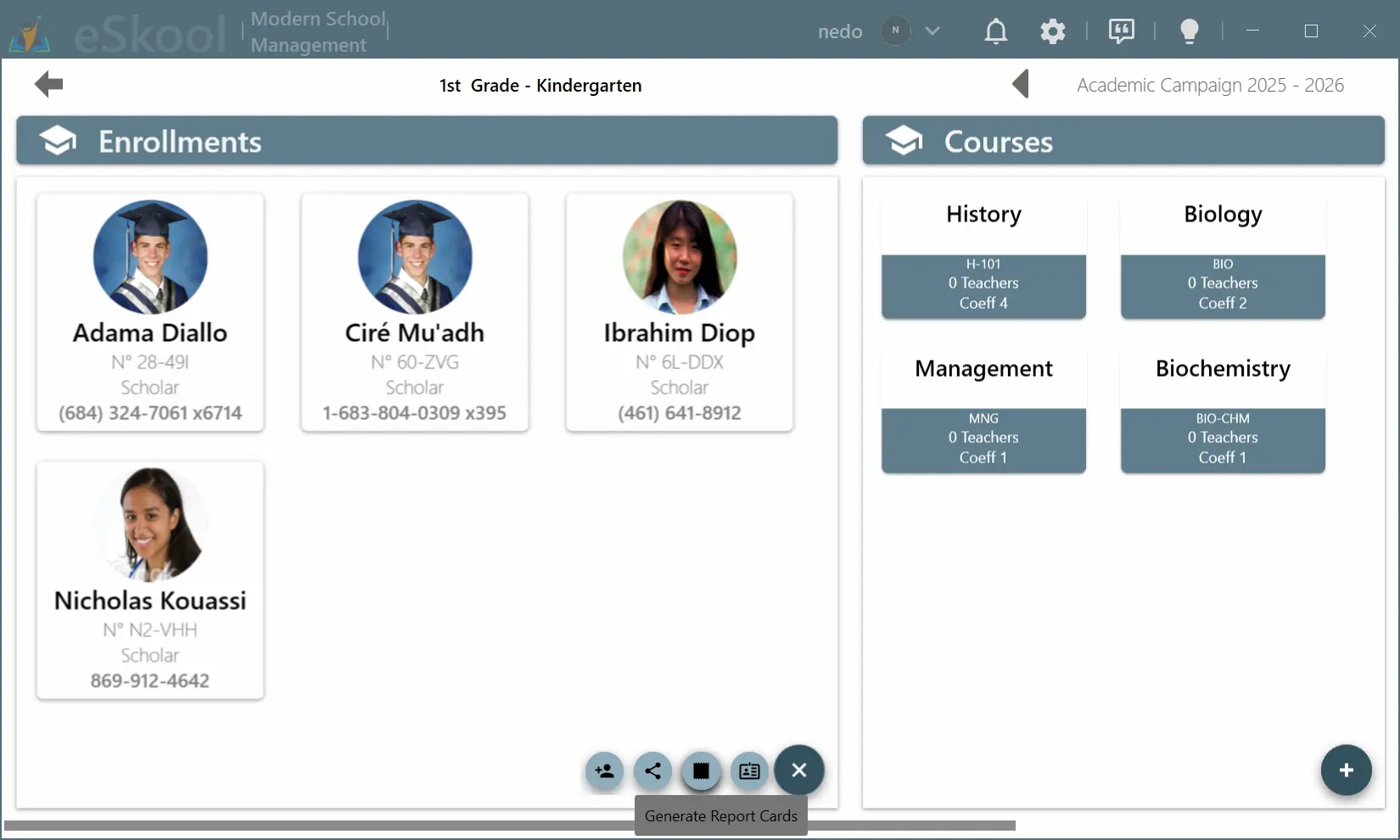
Luwal generates a report card for every student enrolled in the class.