

Import Students
Add many students at once from an Excel file.
- Don’t type 200 students one by one—upload them all at once
- Perfect for the start of the year or switching from another system
- Less typing means fewer mistakes
1. Open the Import Window
Section titled “1. Open the Import Window”From the main dashboard, click Students. Click the plus icon (+) at the bottom right, then click Import your existing students from excel sheet.
You can also open it from Settings (gear icon at the top) > Data > Import my data.
2. Select the Excel File
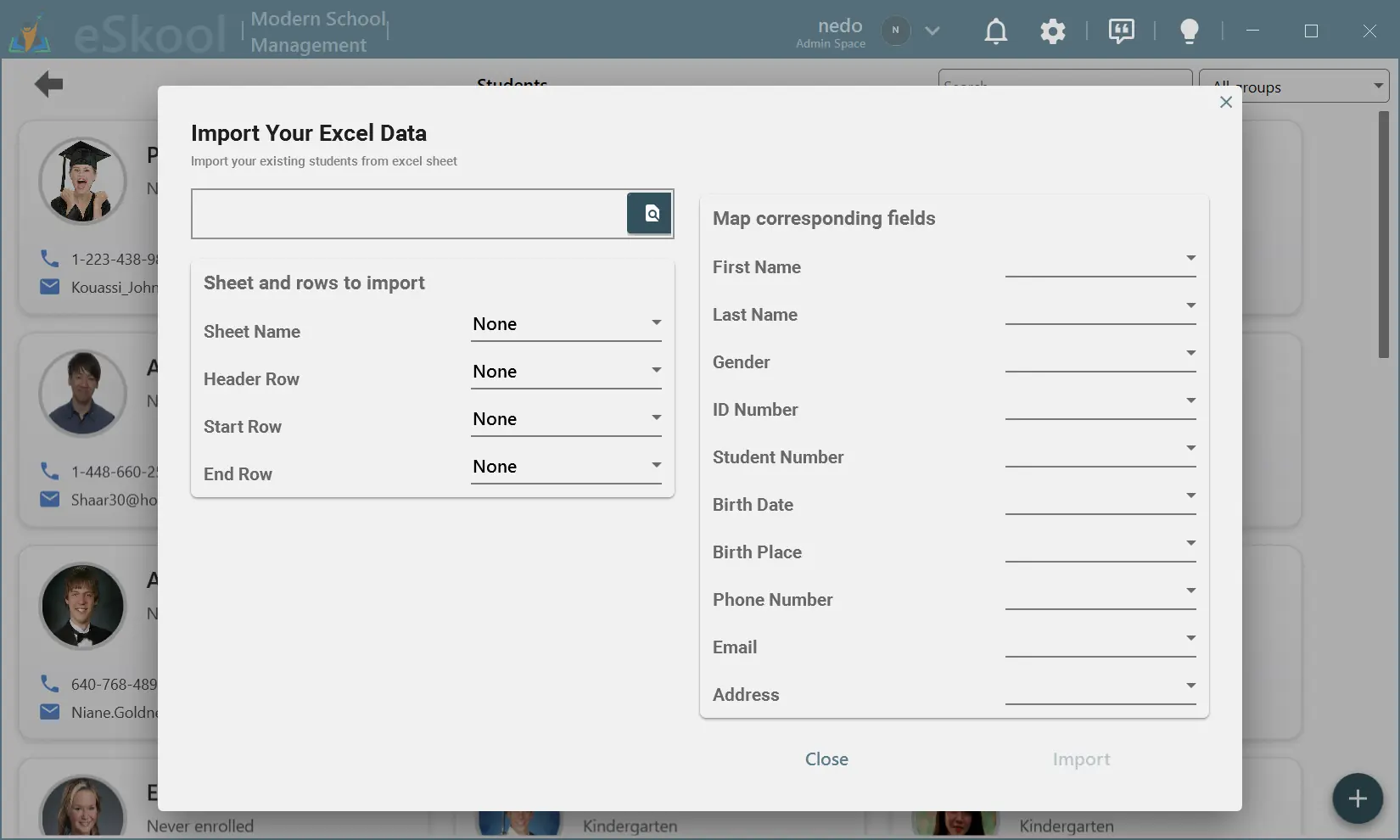
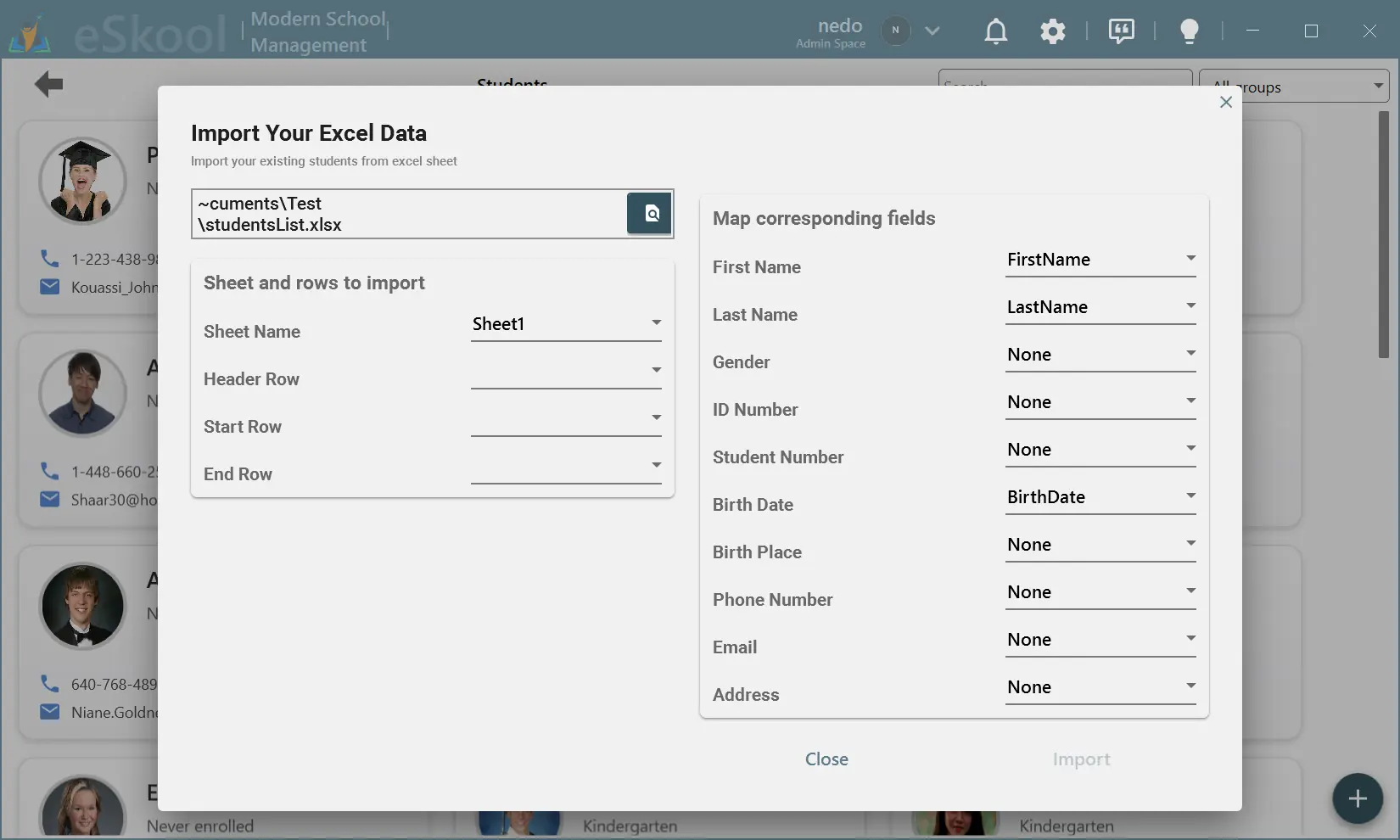
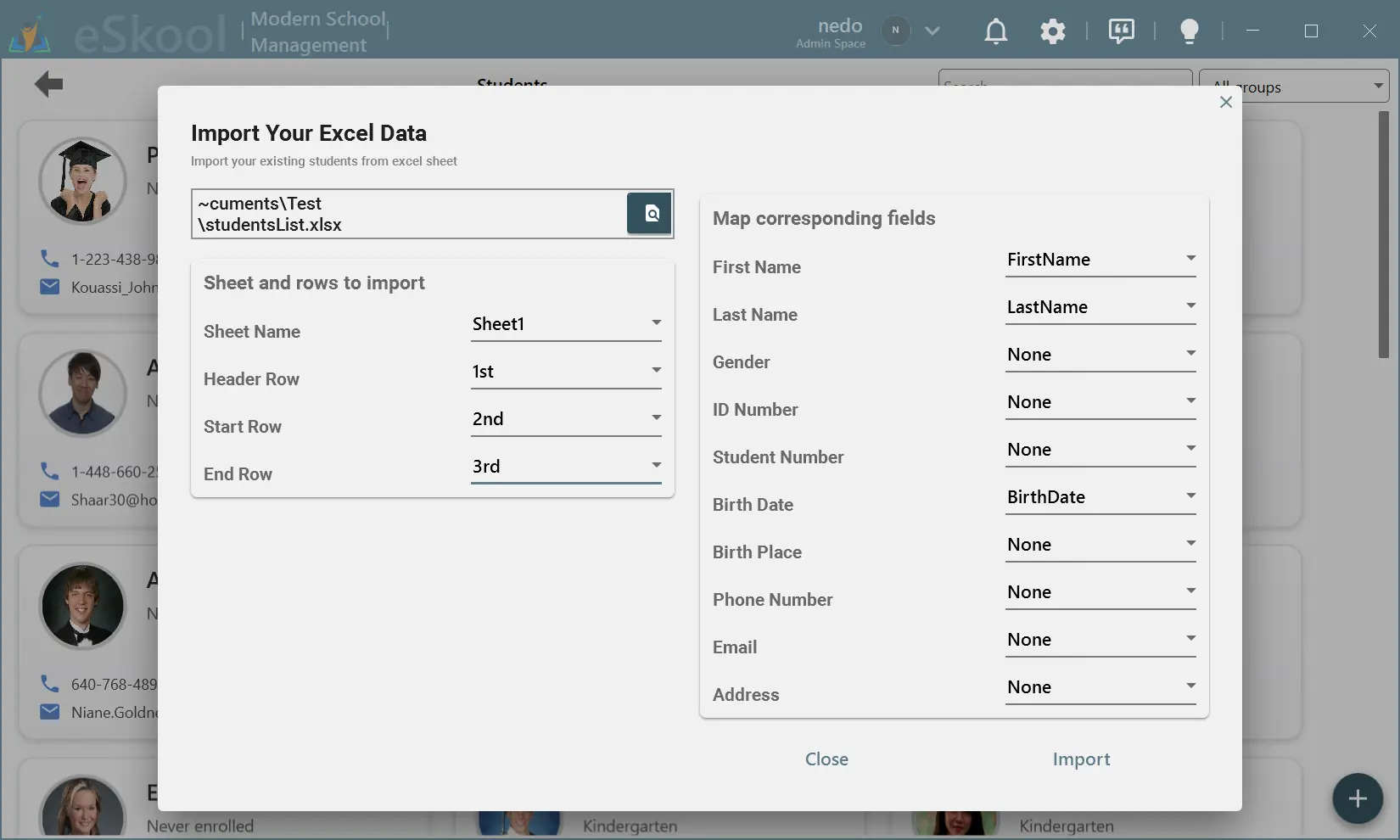
Section titled “2. Select the Excel File”Click the search button next to the file box and pick the Excel file on your computer. Under Sheet and rows to import, check the Sheet Name, Header Row, Start Row and End Row.
3. Map the Columns
Section titled “3. Map the Columns”Under Map corresponding fields, match each Luwal field (First Name, Last Name, Gender, ID Number, Student Number, Birth Date, Birth Place, Phone Number, Email, Address) to a column of your file. Luwal pre-selects columns whose header matches the field name. Check each one.
4. Import
Section titled “4. Import”Click Import. Luwal creates a record for each row. The Import Result window then lists the Imported items and the Failed items.
Imported students are not yet in a class. Enroll them next.