

Print Receipts
Print official receipts and account statements.
- Give parents proof when they pay
- Print a full statement showing all payments
- Print a list of students with overdue balances
Print a Payment Receipt
Section titled “Print a Payment Receipt”- Go to Accounting > Receivables and select the student.
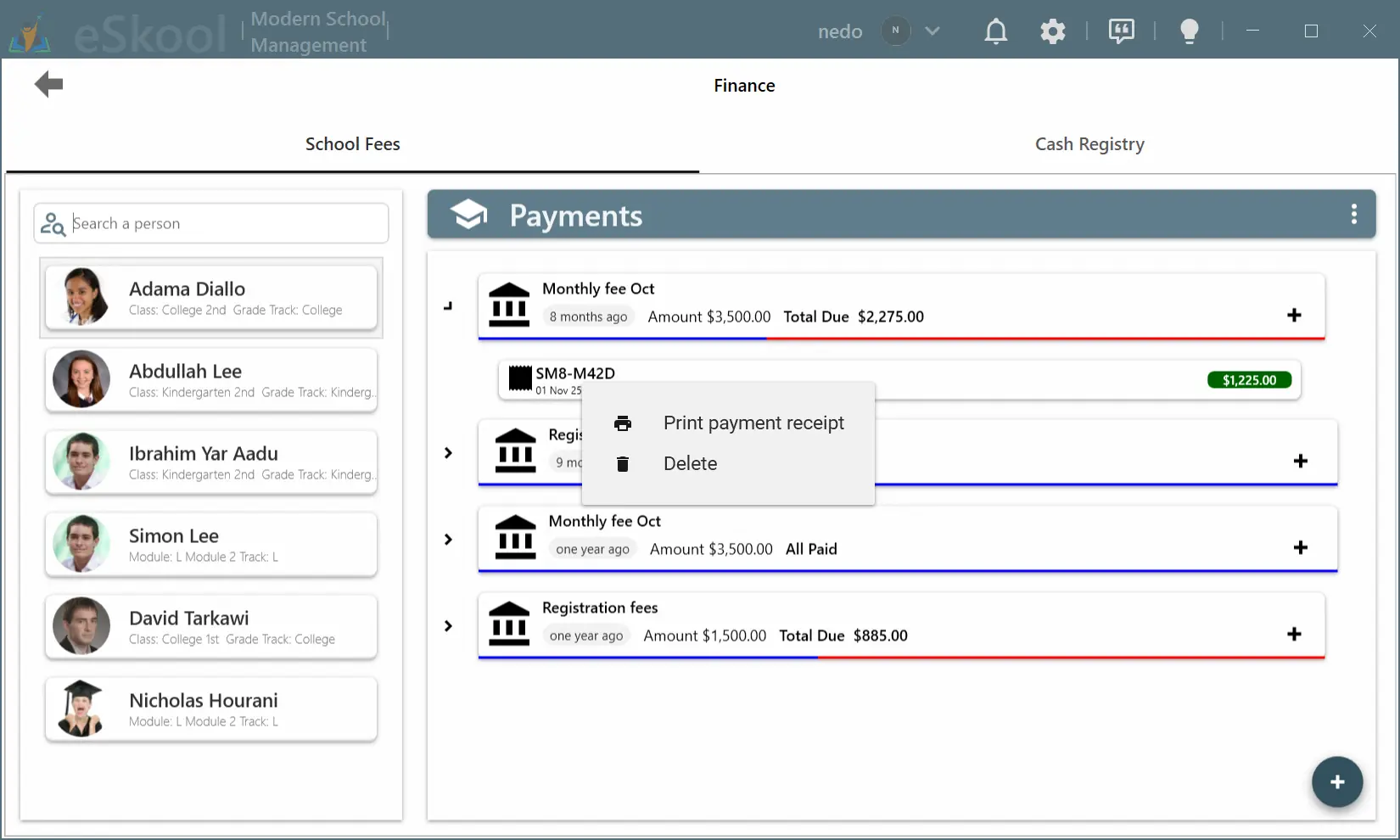
- In Payments, find the payment you want a receipt for (expand its fee if needed).
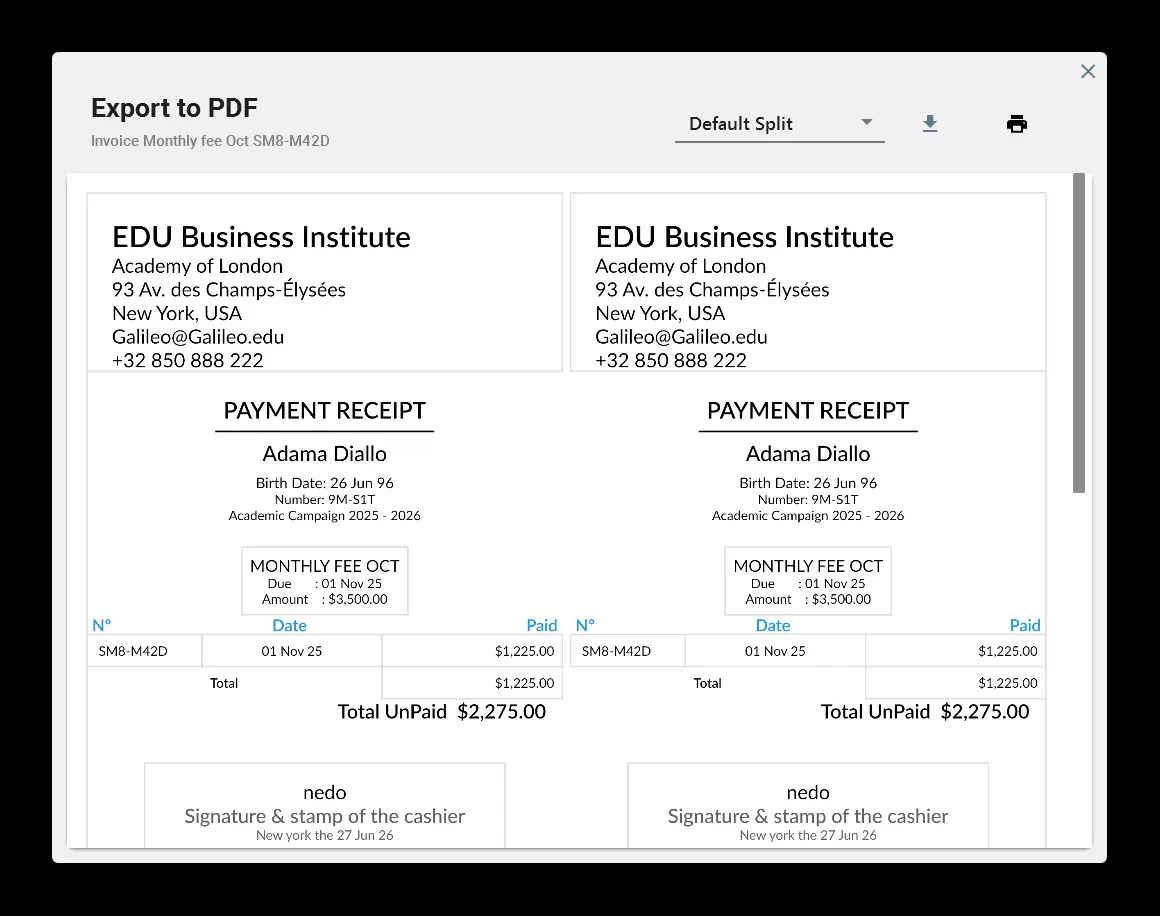
- Right-click the payment and select Print payment receipt.
Print a Student’s Account Statement
Section titled “Print a Student’s Account Statement”- Go to Accounting > Receivables and select the student.
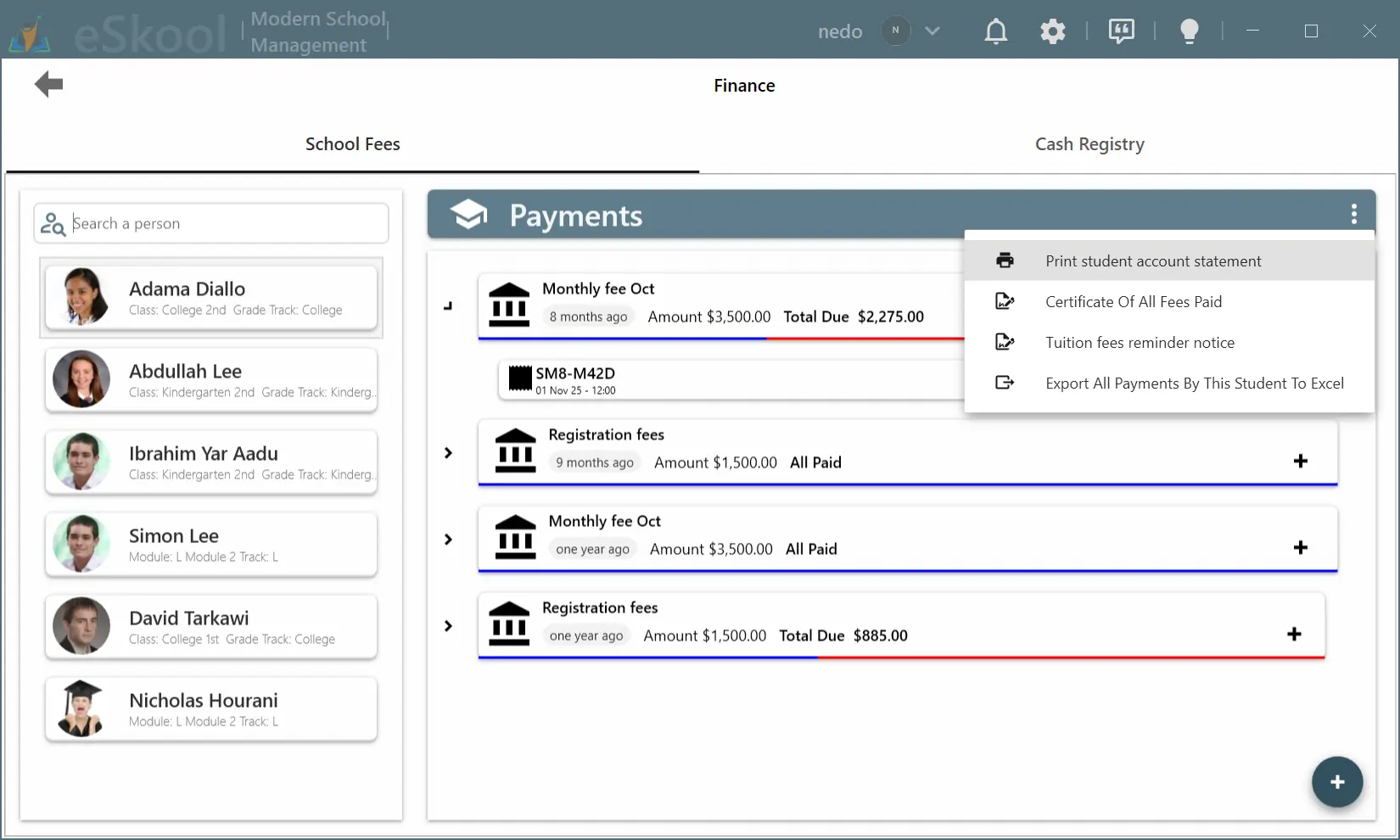
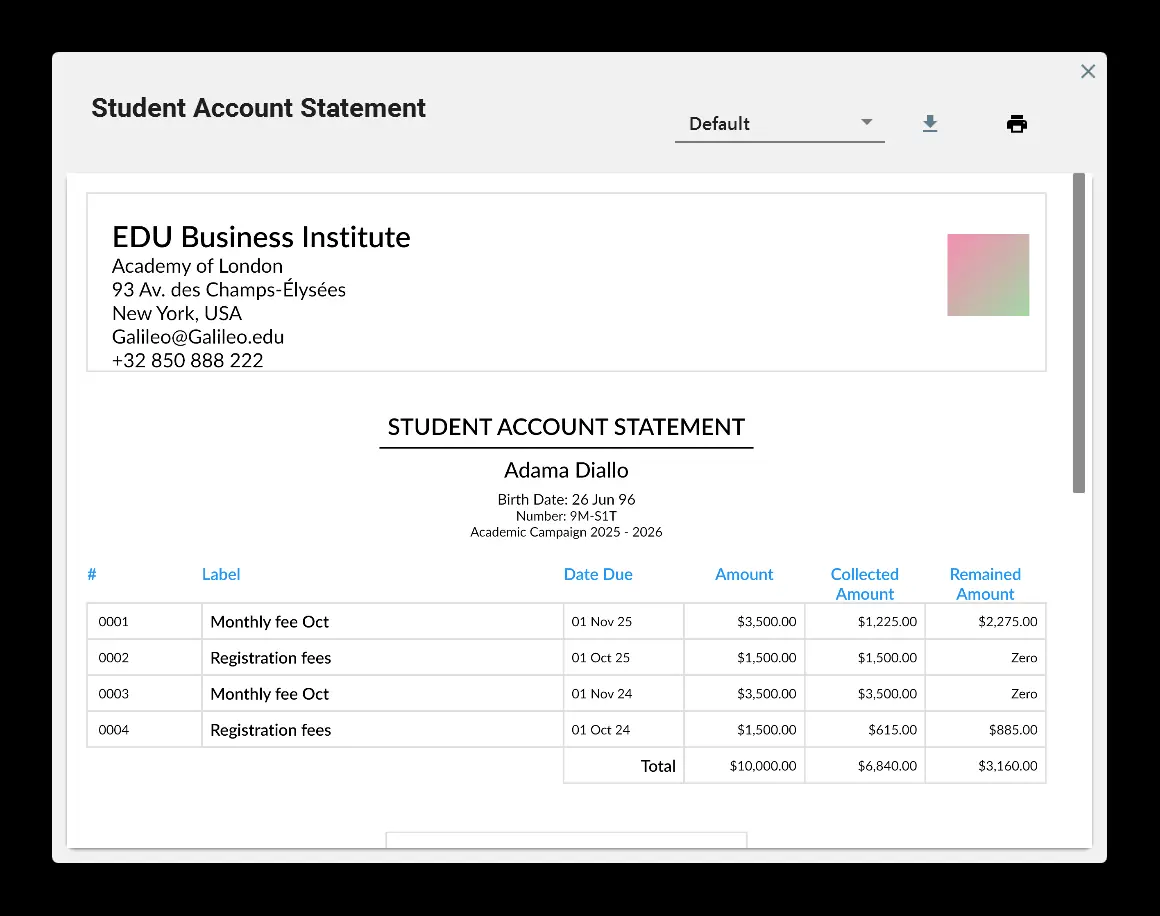
- Click the menu icon (⋮) at the top right of Payments and select Print student account statement.
The same menu also prints a Certificate of all fees paid and a Tuition fees reminder notice.
Print a Late Payments List
Section titled “Print a Late Payments List”- Go to Accounting > Cash Desk.
- Click the plus icon (+) at the bottom right and select Print financial reports.
- Set the Time Period (or From and To), optionally pick a class, then click Debtors.
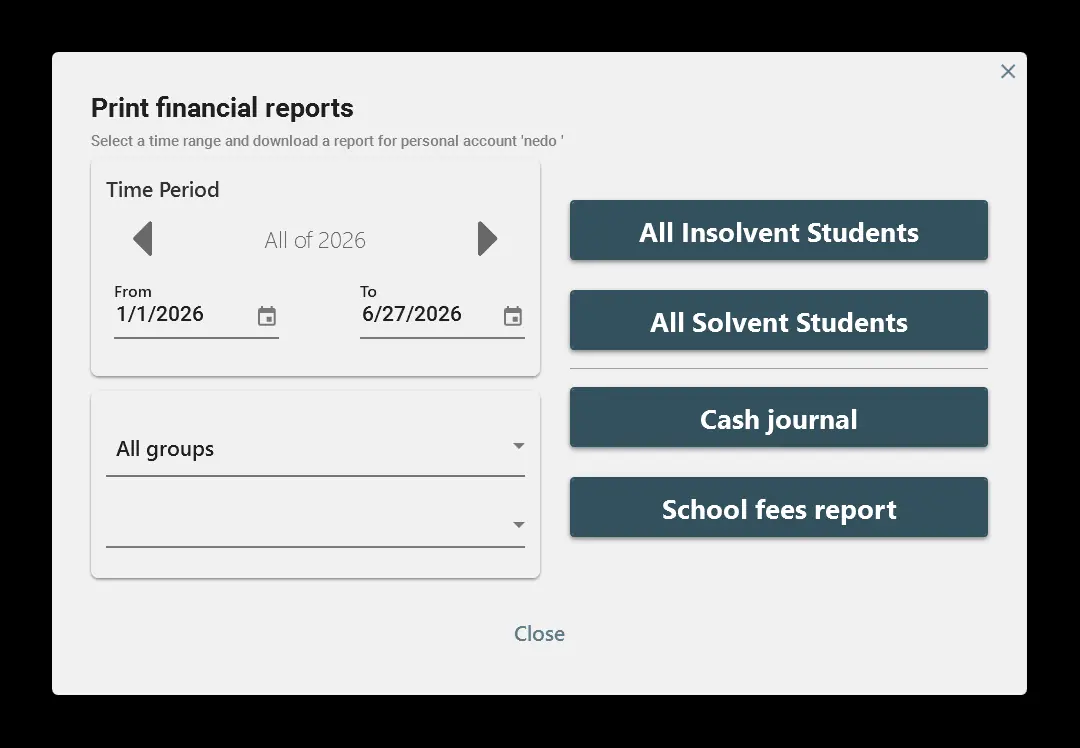
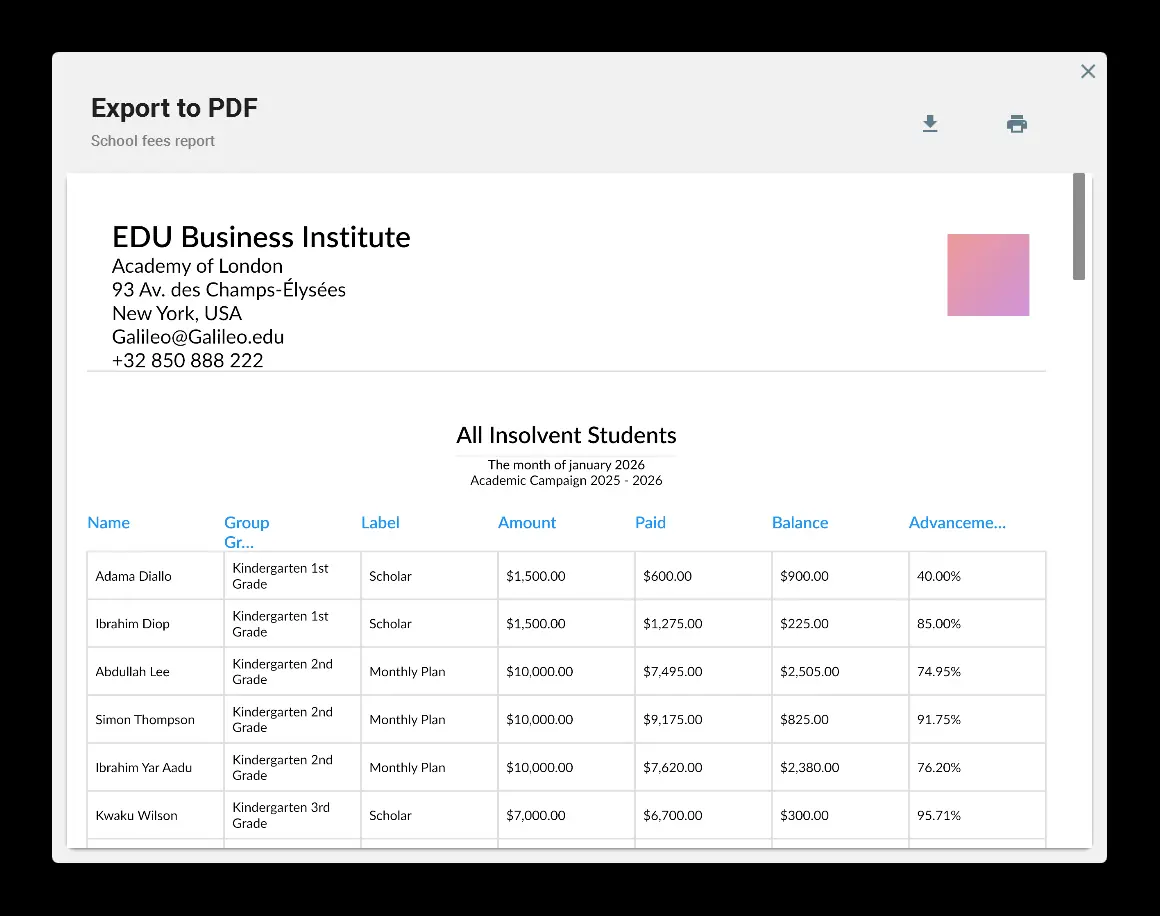
For a single class, you can also open it from Programs and use Print students in arrears in the menu icon (⋮) of Payment plans.