

Grade and Return Work
Read what a student handed in, give it a mark and a comment, and send it back. Publishing puts the grade in the gradebook.
- Everything is on one screen — the work, the mark, the feedback
- You decide when the class sees their grades
- Marks reach the gradebook without being typed twice
What You’ll Need
Section titled “What You’ll Need”- An assignment of a class you teach, with at least one submission
How to Grade One Student
Section titled “How to Grade One Student”- Click Learning in the menu, then click your class.
- Open the Assignments tab and click the assignment.
- In the Submissions card, click the student’s row. Work still to mark is listed first, tagged To grade.
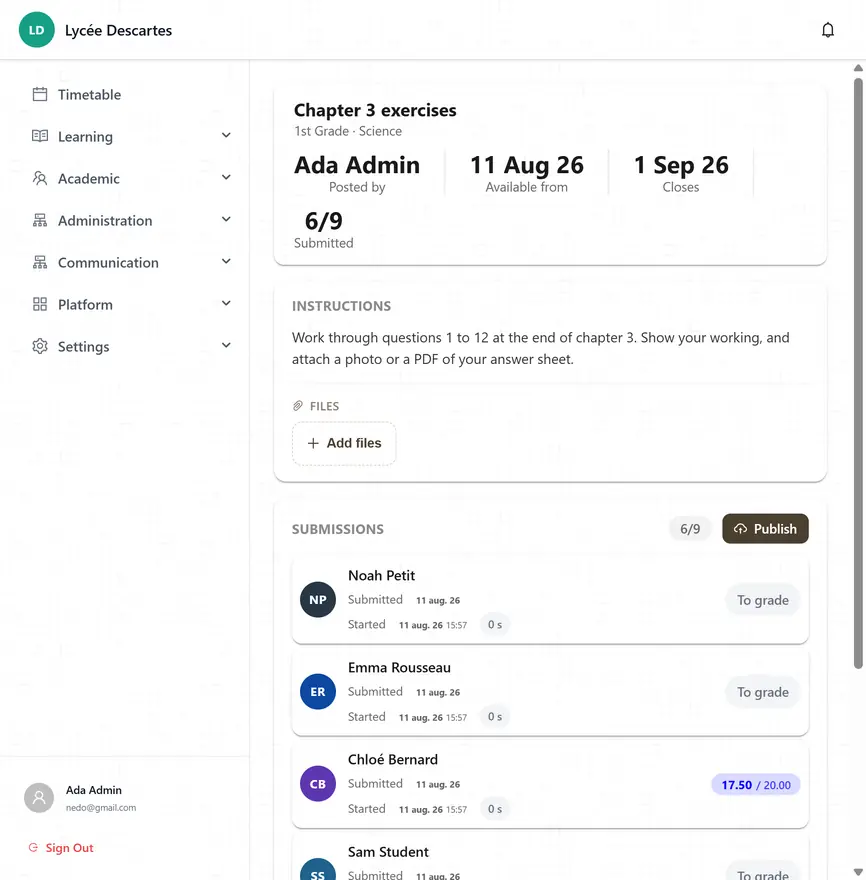
- A panel opens with what they wrote, any files they attached, and how long they took.
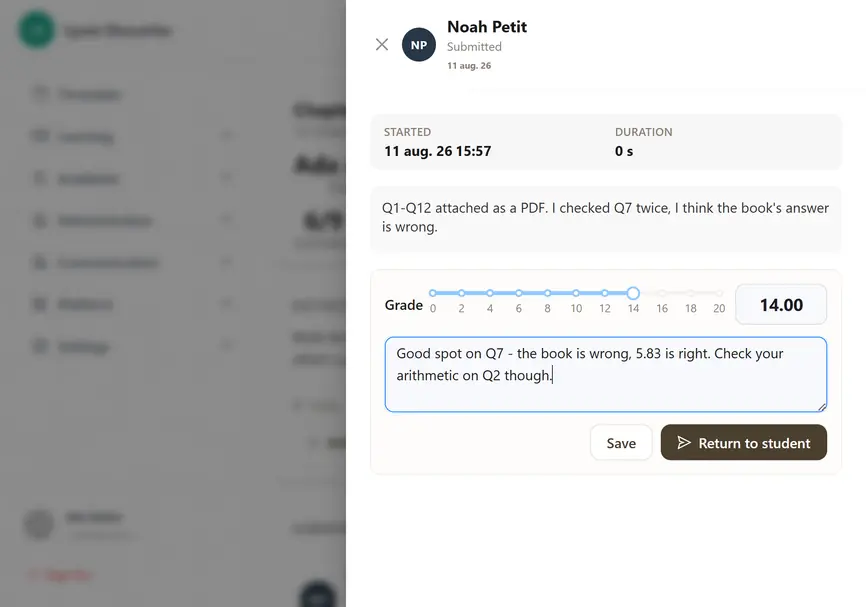
- Set the Grade with the slider, or type it in the box beside it. The scale is your school’s — out of 20, out of 100, or letters. On a letter scale, click the letter instead.
- Write your feedback in the Feedback for the student box.
- Click Save to keep the mark to yourself, or Return to student to send it to the student now.
Save, Return and Publish
Section titled “Save, Return and Publish”The three actions do different things:
| Action | What the student sees |
|---|---|
| Save | Nothing. The grade and feedback stay yours until you send them. |
| Return to student | With a grade: the score and your feedback appear, and the mark goes into the gradebook. This is final. Without a grade: the work comes back for another attempt. |
| Publish | Every graded submission not yet sent: the scores and feedback appear, and the marks go into the gradebook. This is final. |
Publish is the button at the top of the Submissions card. It asks you to confirm, then sends every graded submission at once and returns the work to those students in the same pass — so for a whole class you grade each one, then publish once.
How to Ask for Another Attempt
Section titled “How to Ask for Another Attempt”Open the submission and click Return to student without setting a grade. The work goes back to the student, who can change it and resubmit.
Feedback is saved with the grade, so a return without a grade carries no written comment. Tell the student what to change in the class discussion or your school’s usual channel.
What to Do If…
Section titled “What to Do If…”The Save button is greyed out
You have not set a grade yet. A mark needs a score before it can be saved.
The grading form is gone and only the work shows
The work has been returned or its grade published. A published grade is on record and cannot be changed. Work returned without a grade can be graded again once the student resubmits it.
The Publish button is not there
There is nothing left to publish: every graded submission has already been returned or published.
The grade does not show up in report cards
Marks reach the gradebook averages only once the assignment is attached to an evaluation event. Ask your administrator to link one.
💡 Grade everyone first, then click Publish once. The class gets their results together rather than trickling in.
💡 A quiz grades and publishes itself the moment the student hands it in — there is nothing to do here for quiz assignments.