

Getting Started
Download, install, and set up Luwal.
- Here’s how to go from download to your first school
- The Windows app is free, with no time limit—take your time
- Run it on one computer or across your school network
Step 1: Download and Install
Section titled “Step 1: Download and Install”Download Luwal from the Microsoft Store (~100 MB):
You can also use the Setup.exe installer.
Check System Requirements before installing.
Step 2: Create Your Admin Account
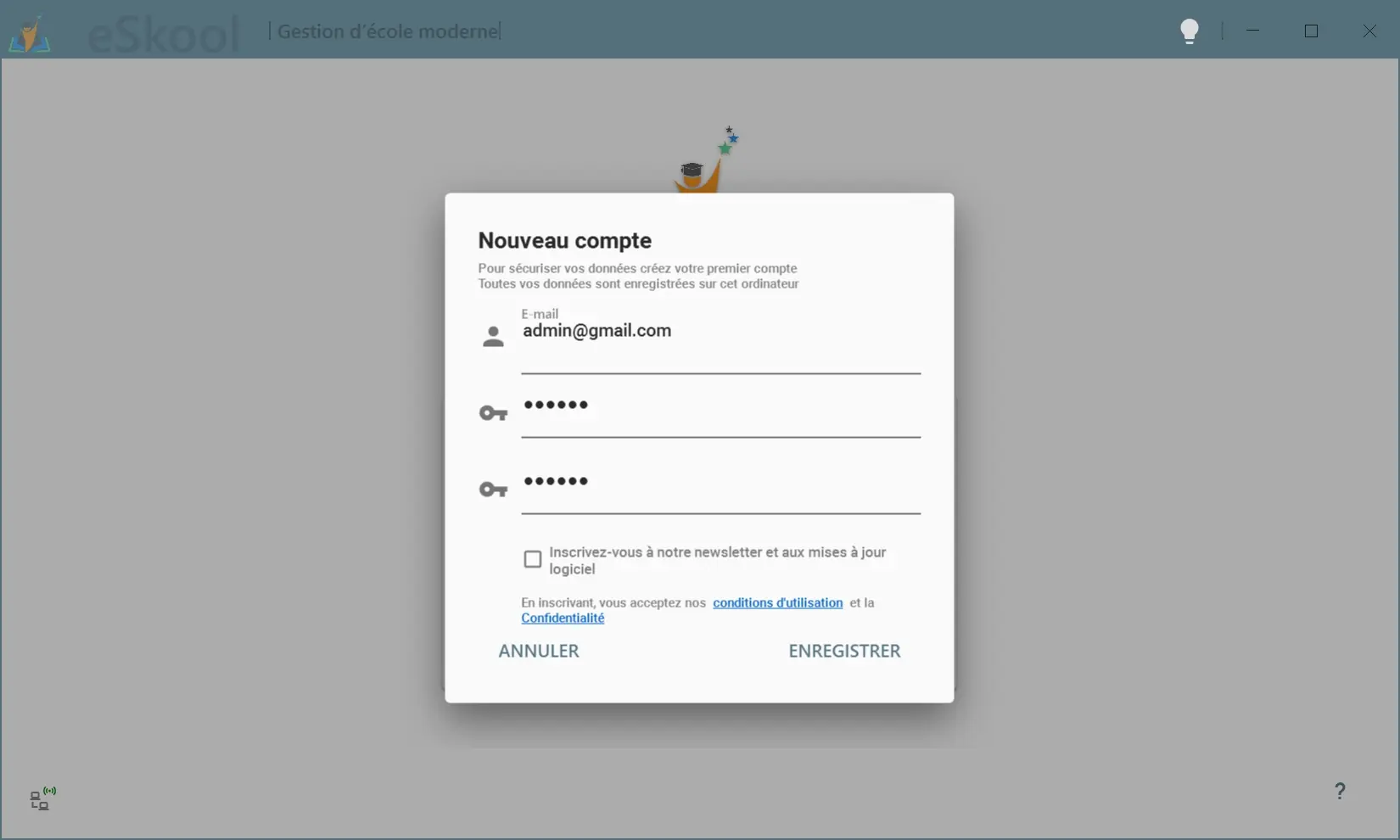
Section titled “Step 2: Create Your Admin Account”On first launch, create your administrator account.
Step 3: Start Using It
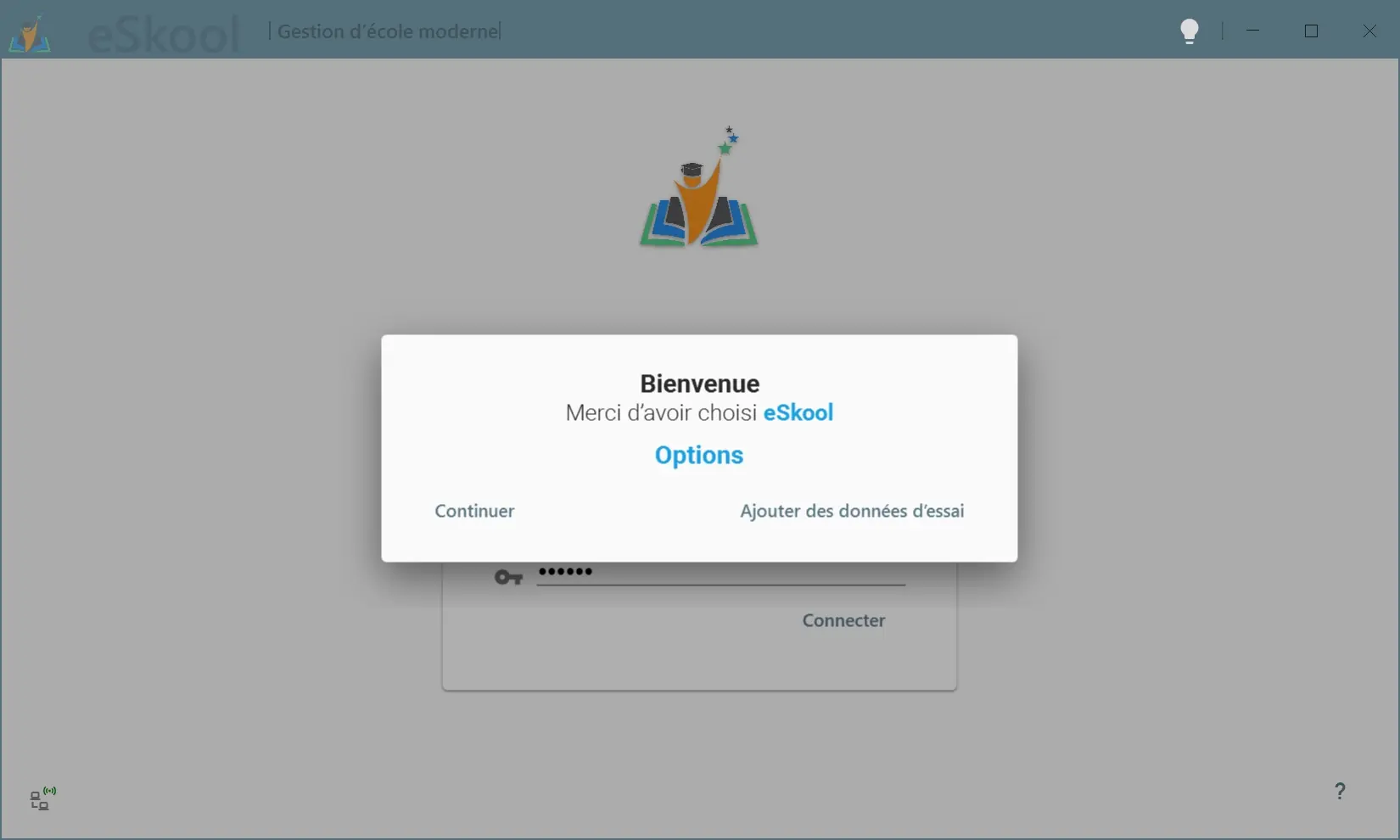
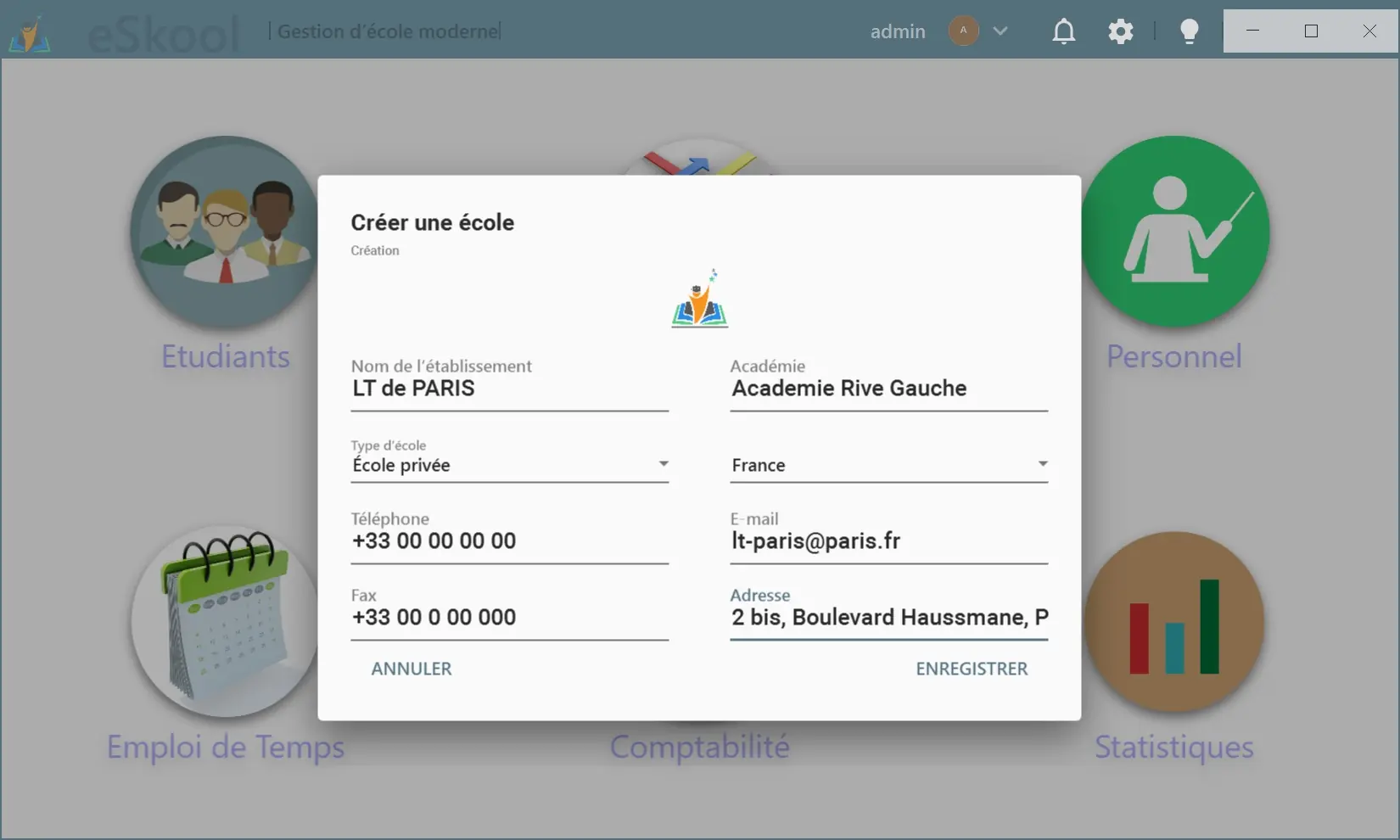
Section titled “Step 3: Start Using It”The Windows app is free, with no limit on time, students or staff. You can:
- Start with a blank database
- Load demo data to explore
Step 4: Set Up Networking (Optional)
Section titled “Step 4: Set Up Networking (Optional)”Run Luwal on a network so your team shares the same data. Install the server on a central computer and connect each workstation to it. See Networking.