

Class Fees
Set up payment plans and fees for each class.
- Define exactly what each class costs and when payments are due
- Offer several plans—pay in full, or in monthly, quarterly or yearly installments
- Pick the plan when you enroll a student
1. Open the Class
Section titled “1. Open the Class”From the home screen, click Programs. Double-click the class you want to set fees for.
2. Go to Payment Plans
Section titled “2. Go to Payment Plans”Scroll right to the Payment plans panel. Plans belong to the school year shown at the top right of the page; switch years there to set up another year.
3. Create a Payment Plan
Section titled “3. Create a Payment Plan”Click the + button at the bottom right of the panel. Under Create new payment plan, enter a Name, or reuse a plan from another class with Select existing payment plan. Click Save.
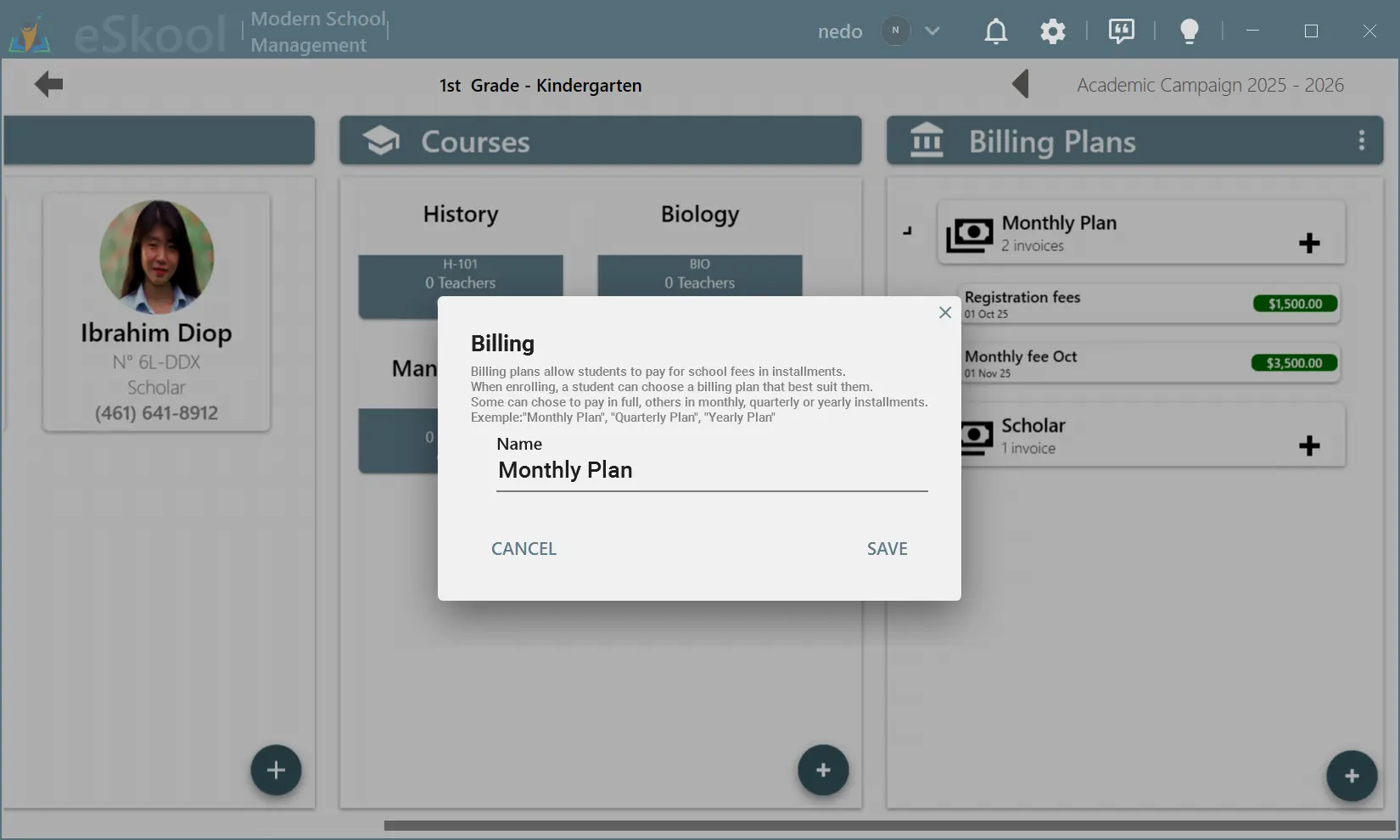
Each plan name can be used only once per class and school year.
4. Add Fees
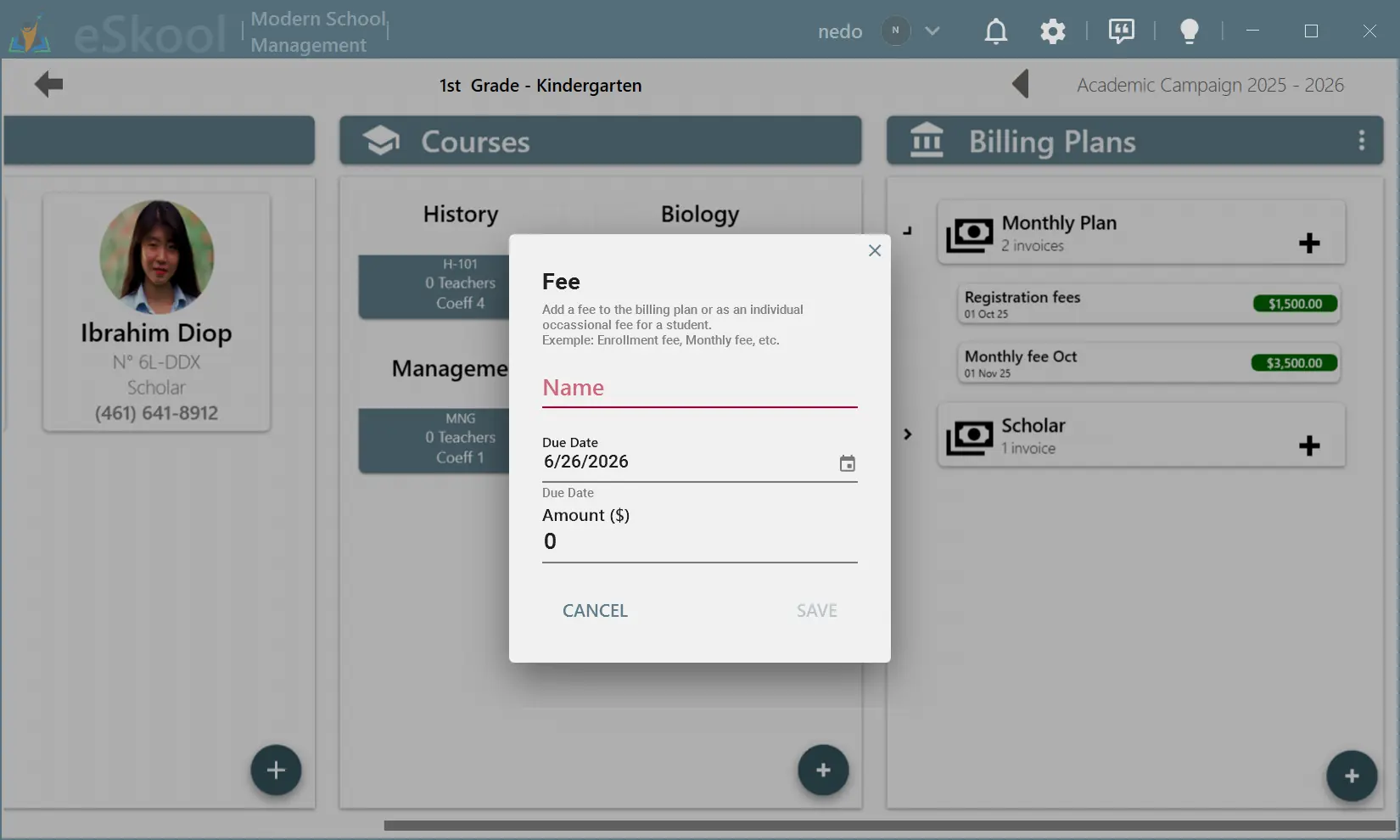
Section titled “4. Add Fees”Click the + button on the plan. Add as many fees as the plan needs.
Fill in the following fields:
- Name – The fee label (e.g. registration, tuition, exam fees)
- Due Date – When the payment is expected; it must fall within the school year
- Amount – The total amount due
Click Save.
5. Assign the Plan to Students
Section titled “5. Assign the Plan to Students”When you enroll a student, choose the plan in the Billing field. It defaults to None, so the student gets no fees until you pick one. To change it later, right-click the student in the Enrollments panel and select Change Billing.