

Enroll Students
Assign students to their classes for the school year.
- This is how students officially join a class
- Fees follow the billing plan you pick
- They appear on class lists and can receive grades
Before you start: the student must already be registered, and the current date must fall within the school year’s start and end dates.
1. Open Branches
Section titled “1. Open Branches”From the home screen, click Programs.
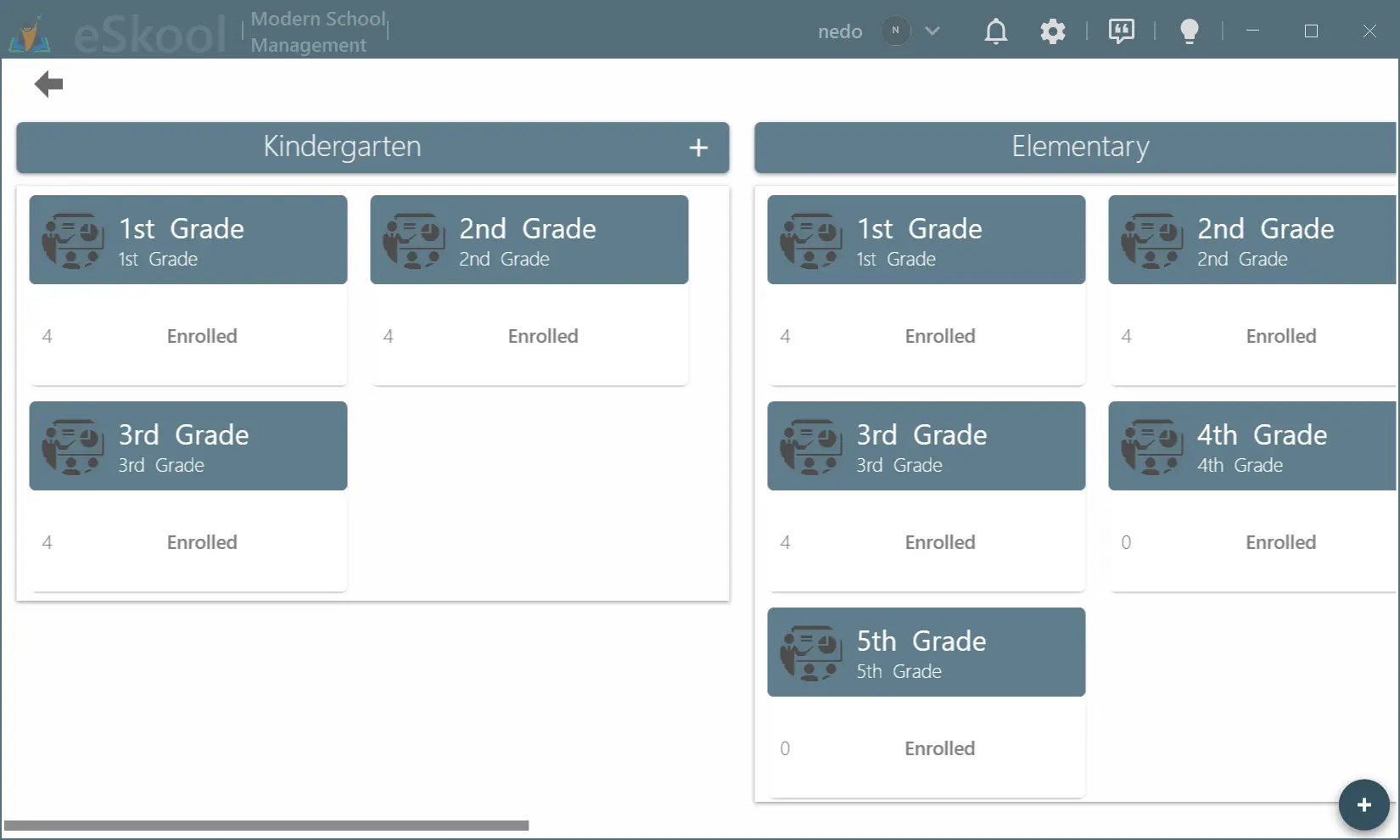
2. Select the Class
Section titled “2. Select the Class”Double-click the class you want to add students to.
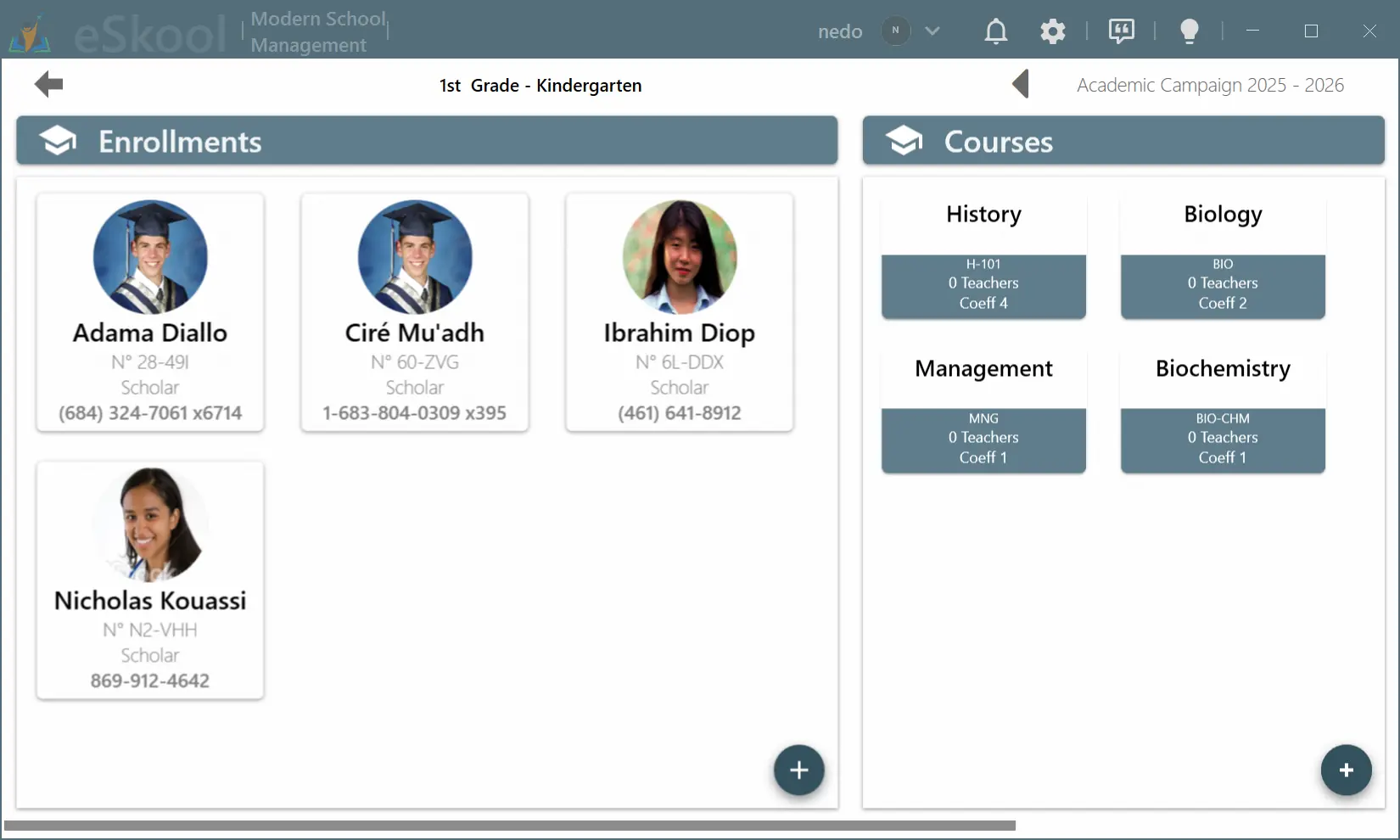
3. Add a Student
Section titled “3. Add a Student”In the Enrollments panel, point to the round button at the bottom right and click Enroll.
4. Complete Enrollment
Section titled “4. Complete Enrollment”- Search for the student by name and select them. You can pick up to 10 students at once.
- Choose their Billing plan (see Class Fees).
- Confirm or change the Enrollment Number (shown when you enroll one student).
- Tick any Optional Courses they will follow.
- Click Save, then Enroll to confirm.
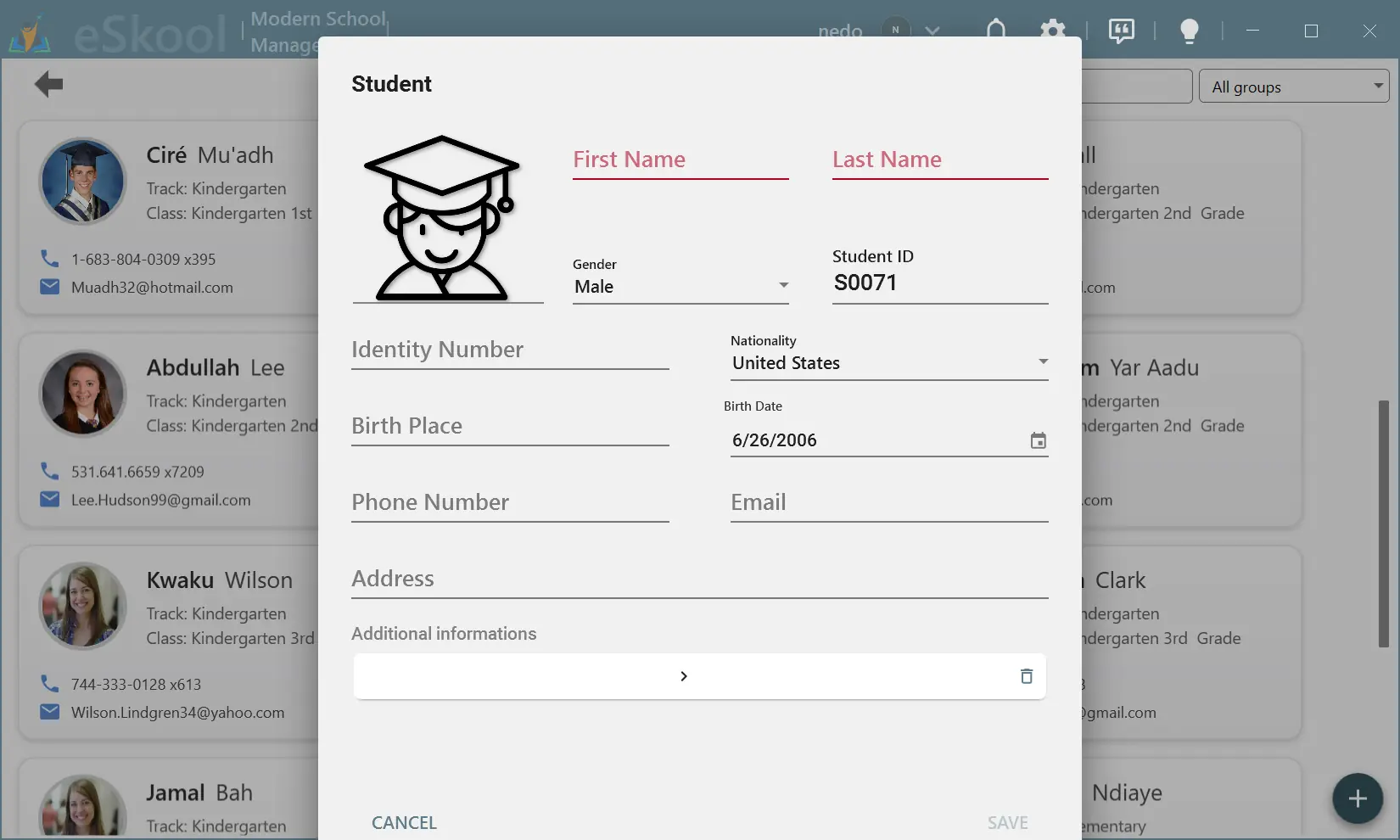
The student is now enrolled and will appear in scheduling, grading, and billing.
No school year yet? The Enrollments panel shows Add A Campaign instead. Create the school year first.