

Managing absences: from attendance to follow-up
With Luwal, the teacher takes attendance from the timetable, and each absence shows at once for the school’s management and for the family.
Attendance at every lesson
Section titled “Attendance at every lesson”The teacher opens the lesson in the timetable, on the web or on a phone. “Take attendance” lists the class there.
Everyone is present by default: the teacher ticks only the absent students, and late arrivals with their minutes. “Save attendance” keeps the whole list in one go.
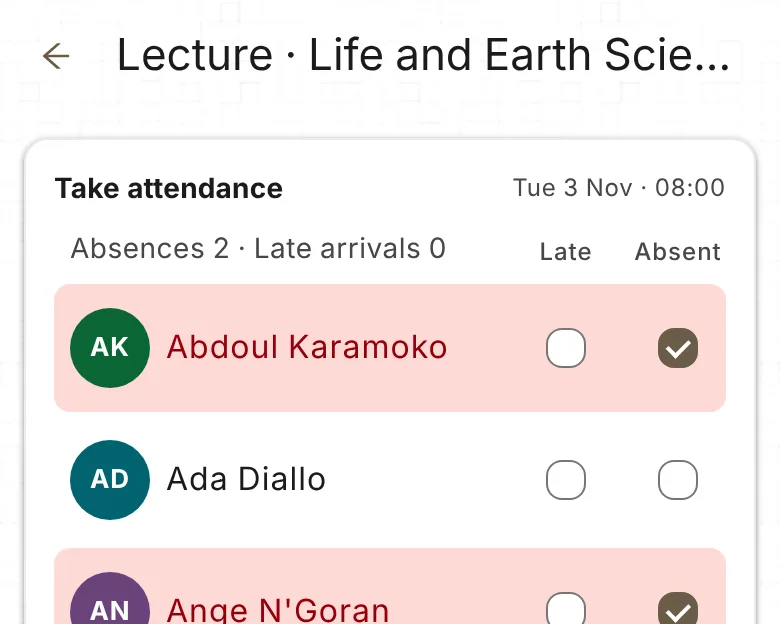 Attendance for a Life and Earth Sciences lecture, on a phone.
The Windows app takes attendance too, as the Take Attendance guide shows. Web, phone or Windows: it is the same attendance, saved in the same place.
The school follows up each absence
Section titled “The school follows up each absence”The principal’s dashboard shows the absences recorded in the day’s lessons.
Each class page has an “Attendance” tab. Week by week, it shows each lesson that has begun:
- the time, the subject and the teacher;
- “Attendance taken” or “Attendance to take”;
- the absent and late students with their minutes, or “Everyone present”.
So a lesson left without attendance shows the same day. Teachers, for their part, see on their dashboard the lessons begun today without attendance.
Each student’s page has its “Attendance” too: each lesson recorded, dated, with its status (present, absent or late) and the totals of absences and late arrivals.
Excusing an absence
Section titled “Excusing an absence”When the family gives a reason, the school’s management marks the absence as excused. It does so from the student’s attendance in the Windows app, as the Attendance & Tardiness guide shows. “Excused” then shows everywhere: the class page, the student’s page, the phone.
The MENA-format report card carries the term’s hours of absence: total, excused and unexcused.
Families see each absence
Section titled “Families see each absence”With the student’s login, the family opens “Attendance” on the phone, as the View Attendance guide shows. It lists the number of absences, late arrivals and excused absences, then each lesson recorded, with its subject, date and status.
An absence shows as soon as attendance is saved: no more calling the school to find out whether the student was in class.
The price is per enrolled student, the phone included: see the prices, or ask for a demo.
Questions
Section titled “Questions”Who takes attendance?
Section titled “Who takes attendance?”The lesson’s teacher, from the timetable: on the web, on a phone or in the Windows app. How to take attendance in the Windows app
Do parents see absences?
Section titled “Do parents see absences?”Yes. With the student’s login, the family sees each absence and each late arrival on the phone as soon as attendance is saved. No SMS is sent automatically. How to view attendance
How is an absence excused?
Section titled “How is an absence excused?”The school’s management marks it as excused in the Windows app. “Excused” then shows on the web and on the phone. How to excuse an absence in the Windows app
Do absences appear on the report card?
Section titled “Do absences appear on the report card?”Yes, on the MENA-format report card: the term’s hours of absence, excused and unexcused. How to print a report card